3 Basic settings Basic system settings
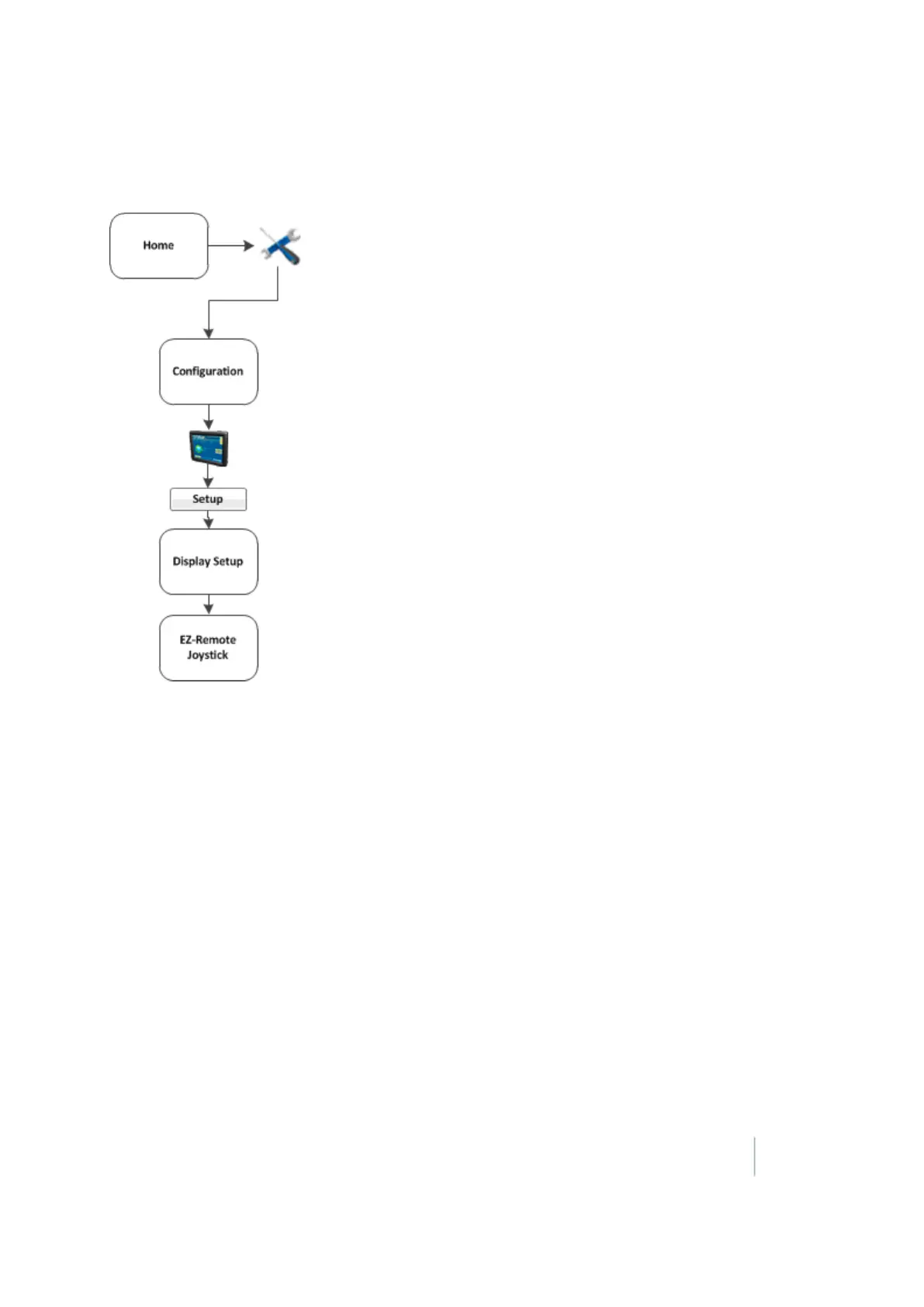
EZ-Remote Joystick
For installation information, see the EZ-Remote Joystick Quick Reference Card.
If you use the EZ-Remote joystick, you do not need to tap buttons on the display. This improves
your accuracy when you select buttons, and gives you faster reaction times. You can program the
EZ-Remote joystick to controls the functions of the FM-1000 integrated display.
Note – The functions available to assign to each button depend on which optional features (plugins) are
activated on the display.
1. Connect the EZ-Remote joystick into into Port B on the back of the display. An EZ-Remote
joystick icon automatically displays on the Configuration screen.
2.
At the Configuration screen, select EZ-Remote and then tap Setup. The EZ-Remote Assignment
screen displays.
Configure each key for the function you want to control remotely. You can also adjust the
brightness of the LED joystick buttons.
3. On the EZ-Remote joystick, press the first button you wish to program. The Function
Assignment screen displays.
4. Tap the feature that you want to program into that button on the control joystick.
5. Tap Set and then tap OK. The Keypad Assignment screen displays again.
Version 9.25, Revision B FM-1000 Integrated Display User Guide 53



 To Next Page