18 Operations Operation basics
Right side buttons on Run screen
The following buttons are the standard buttons on the right that are always available.
Item Explanation
Home
If you are at the Run screen and have a field open, tap to close the
field and return to the Field Selection screen. See
Close a field (page
355)
.
Settings
Tap to go to the Configuration screen. See
Configuration screen
(page 34)
.
Mapping guidance
Tap to open the Mapping Guidance panel. See:
l Feature panels (page 348)
l Guidance pattern use (page 357)
l Guidance settings (page 56)
Also see:
l Coverage logging (page 381)
l Engage button (page 351)
Operational view
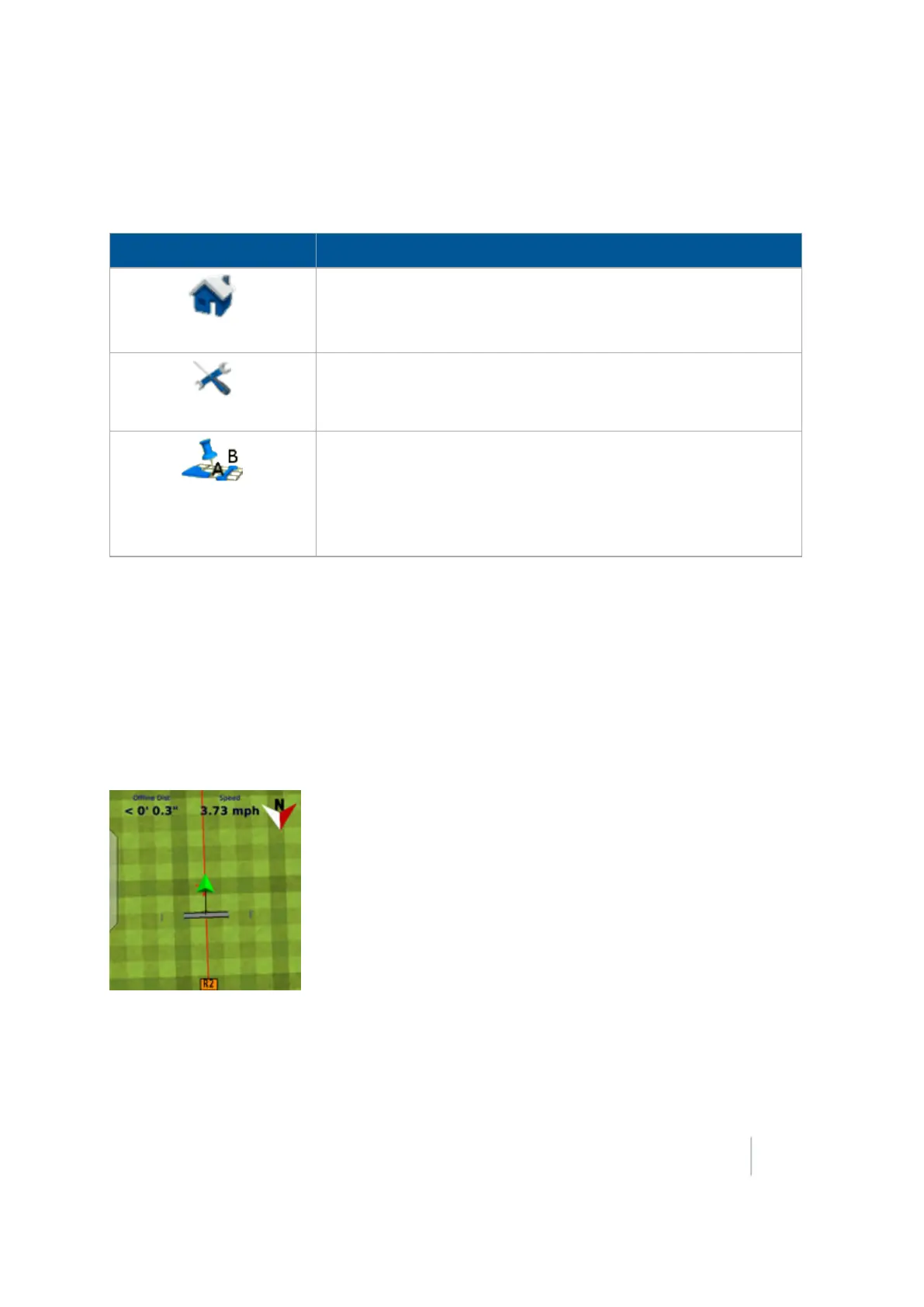
The operational section of the Run screen shows your guidance lines and an on-screen
representation of your vehicle in the field. Hashed grids provide a measure of distance. Each small
square represents 10 feet, and each dark green outline represents 50 feet.
You can change your view from an overhead view to a trailing view. See Main buttons (page 344).
Version 9.25, Revision B FM-1000 Integrated Display User Guide 347



 To Next Page