3 Basic settings Unlocks and upgrades
Unlock features / plugins
To unlock / activate some plugins, you must enter the activation password (or unlock). If you do not
have an activation password, contact your local reseller. You can activate a plugin using:
l A text file
l The display
Note – If you are using the XCN-2050 display for the first time, you must first obtain a GPSposition for
unlocks to become active. If the display was installed indoors, you must move the equipment with the display
outside to gain satellite access.
Unlock a plugin using a text file
Note – This method of unlocking a plugin is faster than the manual method.
1. Insert the USB drive from the FM-1000 integrated display into a computer.
2. Rename the text file.
3.
Delete the label of the name following the password number. For example:
Password 4850576341 FMX 2DGPSto2GLONASS.TXT
becomes
Password 4850576341.TXT
4. Copy the password text file from the computer into the \AgGPS\Firmware\ folder on the USBdrive.
5. Insert the USB drive in the display and turn on the display. The feature/plugin is automatically
unlocked.
Unlock feature/plugin manually
1. Turn on the display.
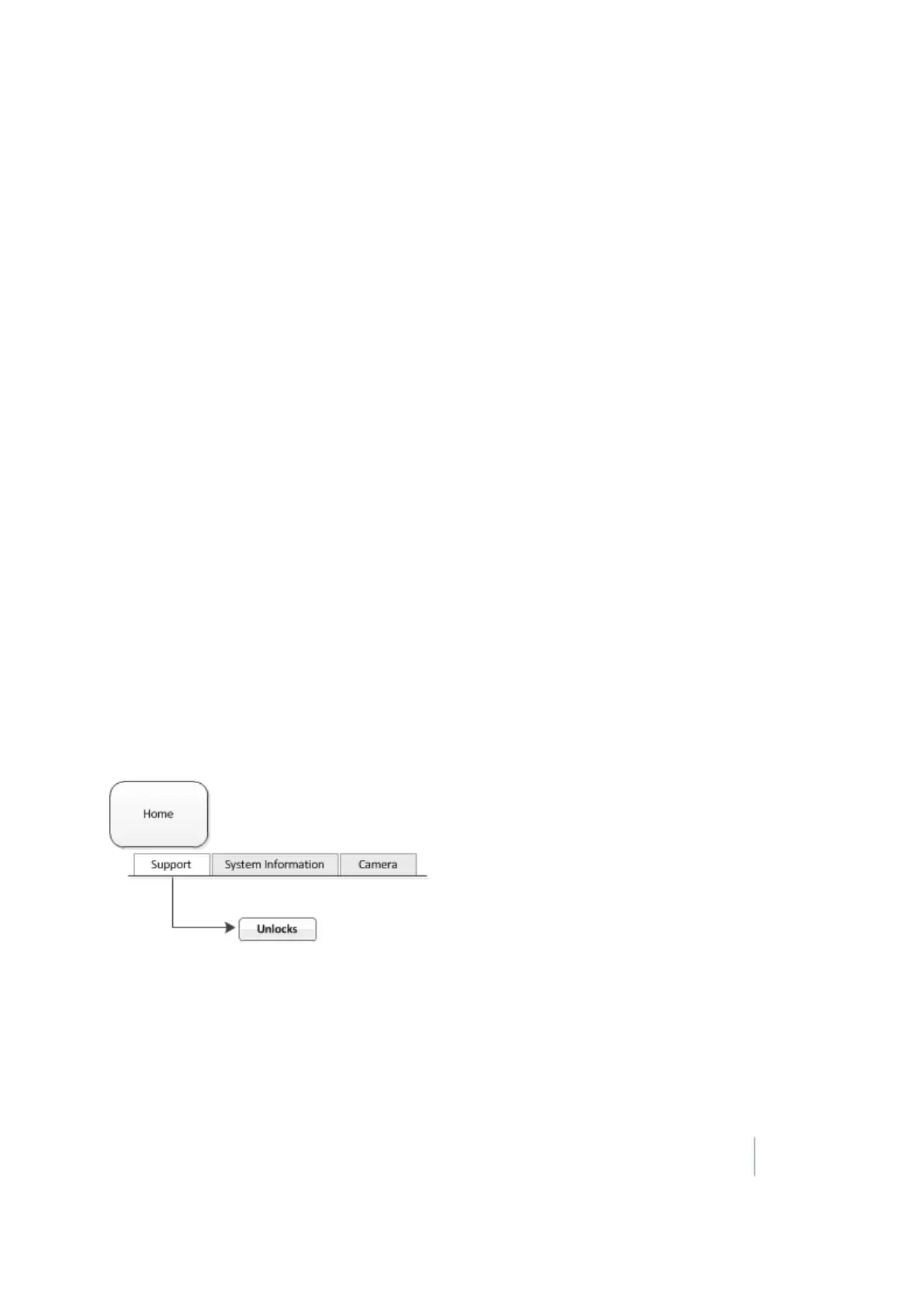
2. At the Home screen on the Support tab, tap Unlocks. The Advanced Functionality Access screen
displays.
3. Select the feature/plugin and then tap Unlock. The on-screen keyboard displays.
Version 9.25, Revision B FM-1000 Integrated Display User Guide 45



 To Next Page