18 Operations Field-IQ operation
2. Select the material you want from the list and tap OK.
Material assignment
Use the Material Assignment option to quickly and easily change materials. The location name you set
up displays (for example, Hoppers) and the button shows the current material name.
Tap the button to see a list of the same type of materials. To change the material type, select the
required material from the list, and then tap OK.
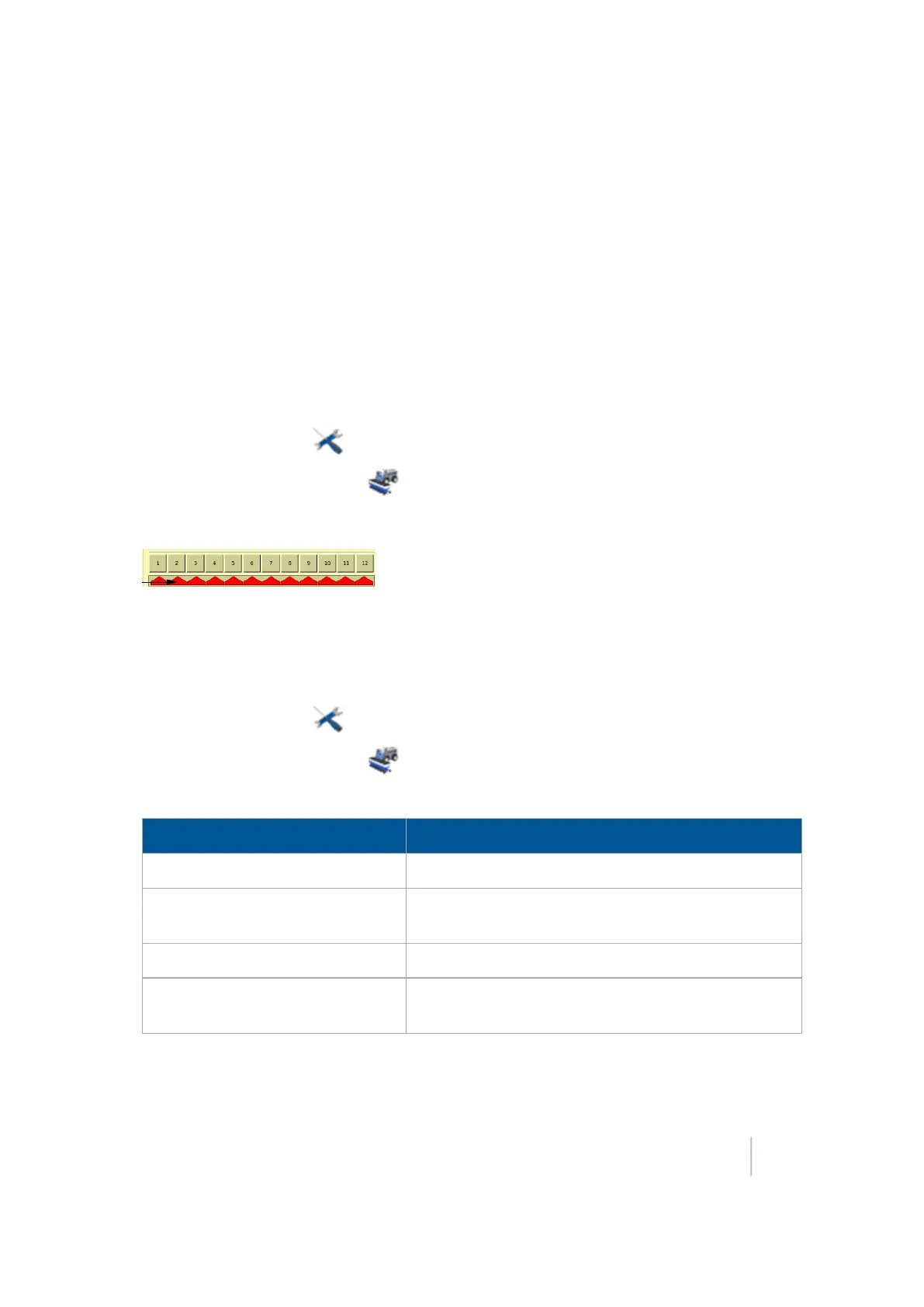
Enable sections
To enable sections:
1.
At the Home screen, tap .
2.
At the Configuration screen, tap Field-IQ and then tap Diagnostics.
3.
At the Field-IQ Diagnostics screen on the Operations tab, tap the section you want to enable.
Enter values manually
To enter values manually:
1.
At the Home screen, tap .
2.
At the Configuration screen, tap Field-IQ and then tap Diagnostics.
3.
At the Field-IQ Diagnostics screen on the Operations tab, you can enter values manually for:
Setting Explanation
Tank Level Enter a value or tap
Refill Tank
.
Target Rate Use the buttons to decrease or increase the required
rate for the rate switch.
Speed Use the buttons to decrease or increase speed.
Aggressiveness Check the value for
Applied Rate
. Increase or decrease
aggressiveness to achieve the rate you want.
Version 9.25, Revision B FM-1000 Integrated Display User Guide 393



 To Next Page