18 Operations Vehicle Sync operation
Join a WorkGroup
To sync with a specific vehicle, make sure:
l Your vehicle has a clear line of sight with that vehicle.
l You are within a distance of 325 yards (300 meters) from that vehicle.
l At least one vehicle is working in an open field.
Guidance lines with Vehicle Sync
You create guidance lines as normal (with the exception of adaptive curves and Free Form lines that
are not supported by Vehicle Sync).
Naming guidance lines
To avoid any confusion, it is recommended that you take care in naming guidance lines. All guidance
lines are automatically combined together, including lines that vehicles possessed prior to linking. If
guidance lines have the same name prior to linking (for example, if both vehicles have a line called
AB line 1), Vehicle Sync reviews the lines to determine whether they are the same or different:
l If they are exactly the same, they are not duplicated.
l If there is a difference, the lines are pooled and labeled with the tractor from which they have
come (for example, for both Tractor A and Tractor B, AB line 1 will be relabelled in all guidance
line pools as AB Line 1 Tractor A and AB Line 1 Tractor B).
Note – Vehicle Sync will not shift lines to account for different implement widths. The actual line is
transferred.
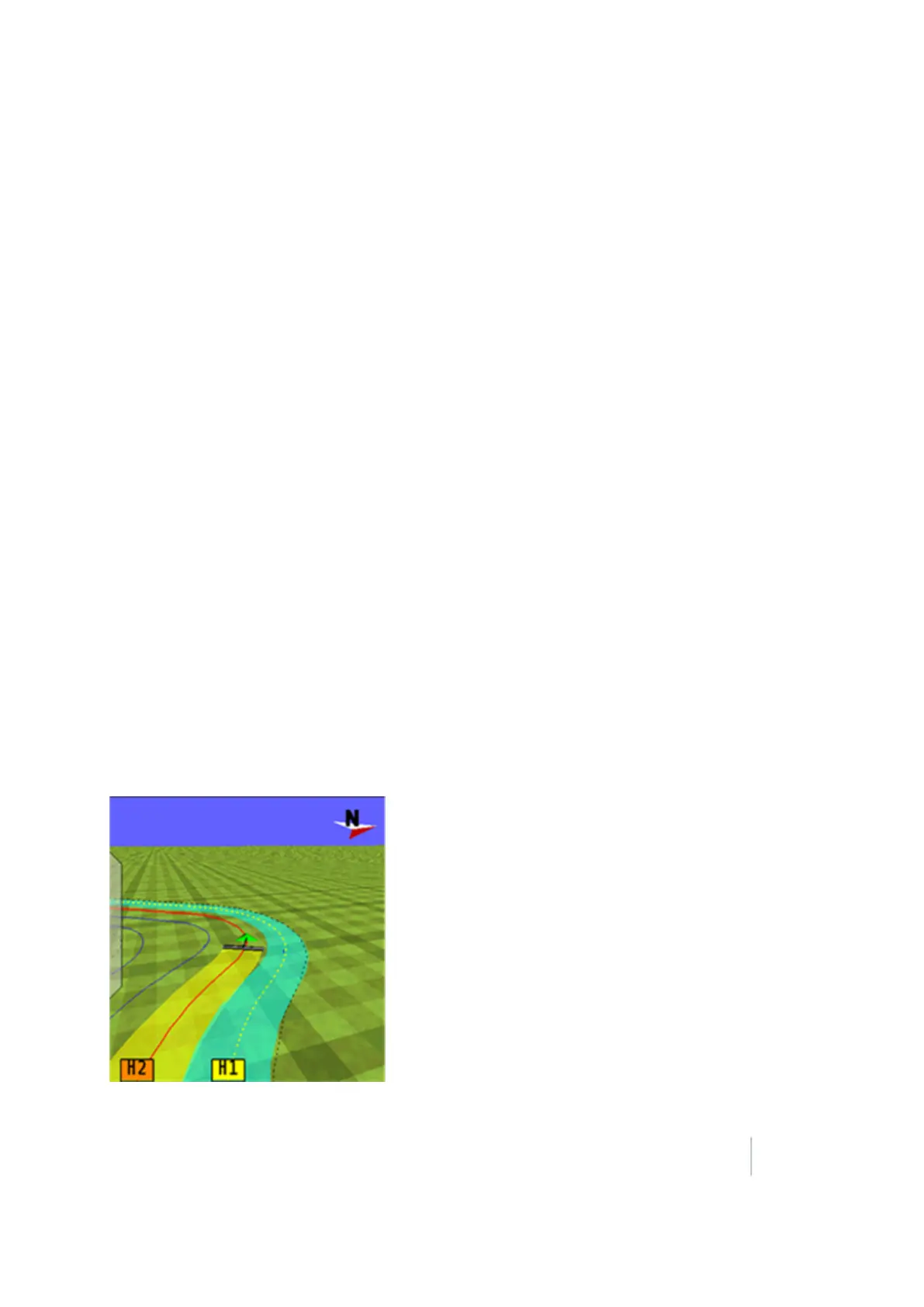
If you are performing an operation in which all vehicles have the same swath width and use the
same guidance line, the line on which the other vehicle is engaged becomes dotted, as shown for
H1:
Although you can engage on this line, an alert will
display to inform you that you are engaged on the
same line as another vehicle.
Coverage
Your vehicle coverage is colored yellow on the
screen. When the vehicle sync layer is selected (for
events that have the same
Client/Farm/Field/Event), the coverage associated
with other vehicles will be color coordinated to that
vehicle.
Version 9.25, Revision B FM-1000 Integrated Display User Guide 429



 To Next Page