Operation basics 18 Operations
Coverage button for logging
When you are applying material, the coverage button displays on the Run screen. The coverage
button controls whether or not you are logging the coverage you are applying.
Indicator / Button Explanation
Logging Off
Indicates coverage logging is off. Tap to start logging.
Logging On
Indicates coverage logging is on. Tap to stop logging.
See Coverage logging (page 381).
GNSS status
CAUTION – The GNSS antenna may experience interference if you operate the vehicle within 100 m (300 ft) of
any power line, radar dish, or cell phone tower.
Tap to see status information on GNSS.
If the feature/plugin you are using has a second GNSS receiver, there will be a satellite icon for both
receivers. Tap the other to see status on the second GNSSreceiver.
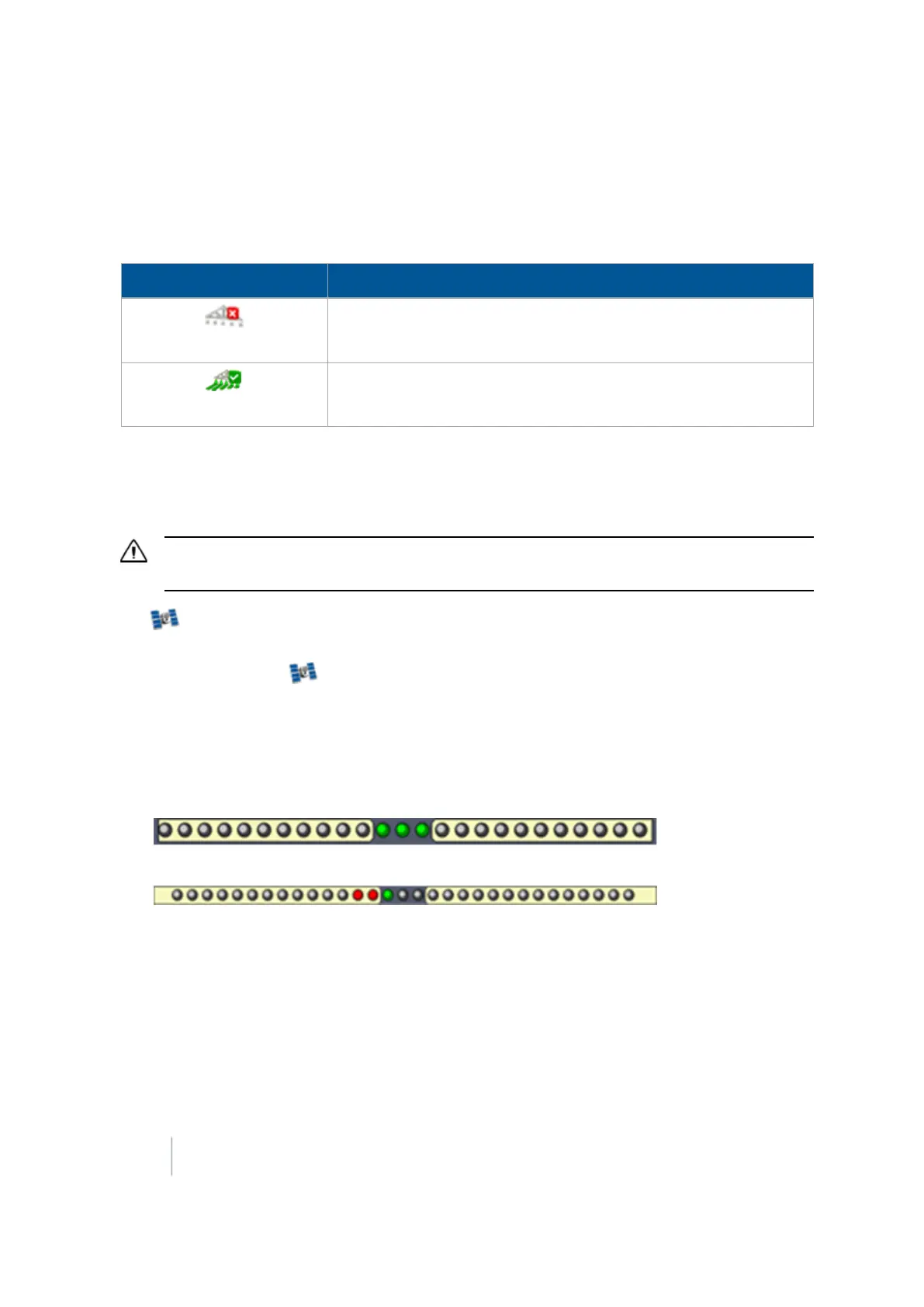
On-screen lightbar for vehicle
The on-screen lightbar indicates where the vehicle is in relation to the guidance line.
l
Green indicator lights in center:
l
RedLEDs to the left or right:The vehicle has moved off the guidance line
On-screen lightbar for implement
There can be more than one row of lights, depending on the feature/plugin that is being used. The
second row shows where the implement is in relation to the guidance line.
See Implement on-screen lightbar (page 425).
352 FM-1000 Integrated Display User Guide Version 9.25, Revision B



 To Next Page