18 Operations Coverage logging
Coverage logging
When you are applying material, the coverage button displays on the Run screen. The coverage
button controls whether or not you are logging the coverage you are applying.
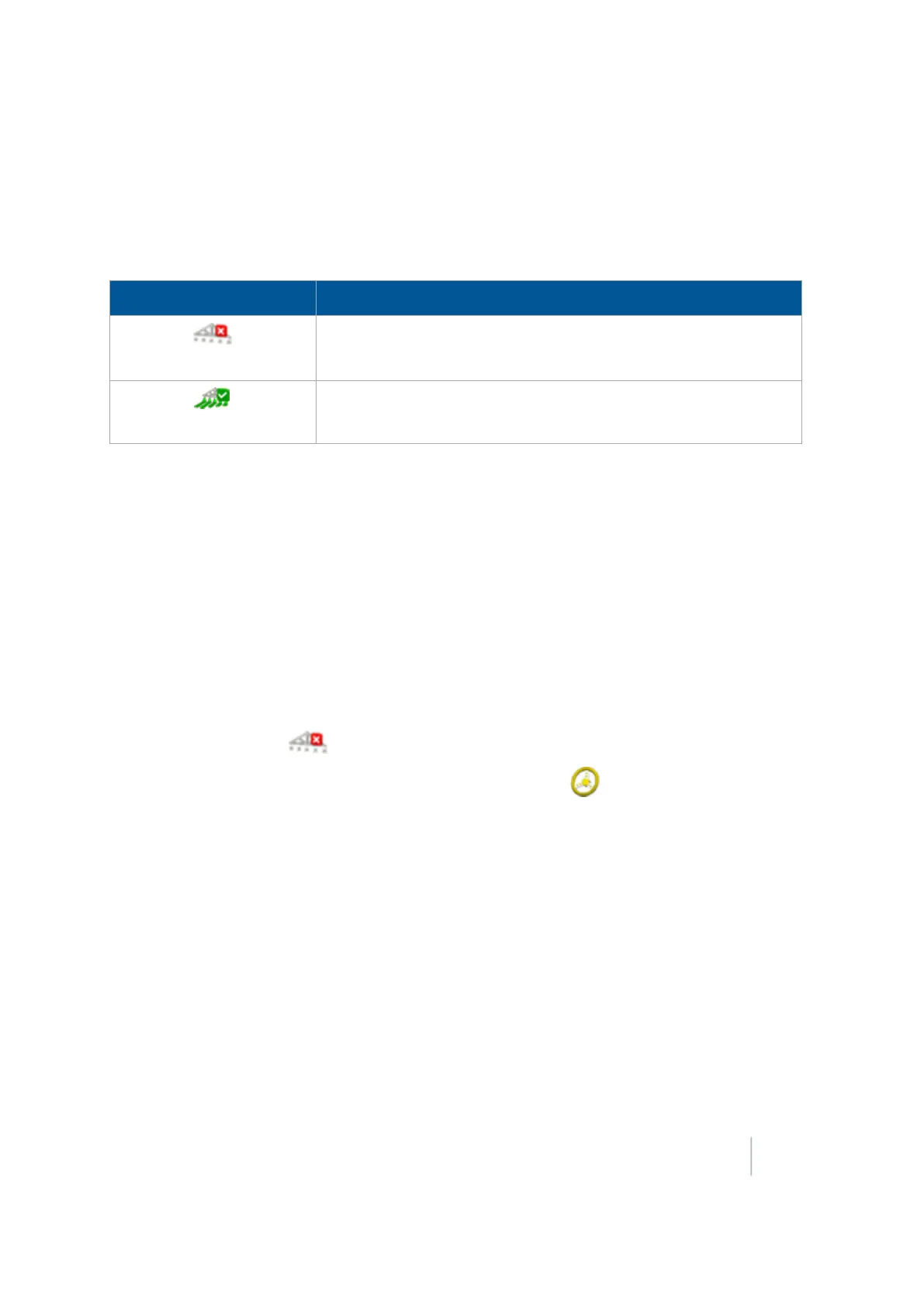
Indicator / Button Explanation
Logging Off
Indicates coverage logging is off. Tap to start logging.
Logging On
Indicates coverage logging is on. Tap to stop logging.
When the system logs coverage, it records the area that you have covered when you carry out an
operation (such as applying fertilizer to a field).
If you have chosen to log coverage, the covered area displays on the Run screen as a pale yellow
area that shows:
l Coverage the first time
l Any skips in coverage
l Areas you covered twice or three times
Coverage logs record more than the applied material. See View coverage layers (page 382) and Log
coverage for varieties (page 382).
You can begin logging coverage:
l
Manually by tapping
l
Automatically if you are using automatic steering and tapping .See Engage settings for
Autopilot system (page 169), Engage settings for EZ-Pilot system (page 193), or Engage settings
for EZ-Steer (page 201).
If you are applying a variety of materials, you can set up coverage to show the varieties. See Log
coverage for varieties (page 382).
Version 9.25, Revision B FM-1000 Integrated Display User Guide 381



 To Next Page