EZ-Steer system operation 18 Operations
EZ-Steer system operation
WARNING – Many large and sudden changes in satellite geometry caused by blocked satellites can cause
significant position shifts. If operating under these conditions, auto-guidance systems can react abruptly. To avoid
possible personal injury or damage to property under these conditions, disable the auto-guidance system and take
manual control of the vehicle until conditions have cleared.
To engage the EZ-Steer system, you must have:
l Have a field open in the Run screen
l Have an existing pattern you are using
l The vehicle within the engage distance set in the Engage Options tab. See Engage settings for EZ-
Steer (page 201).
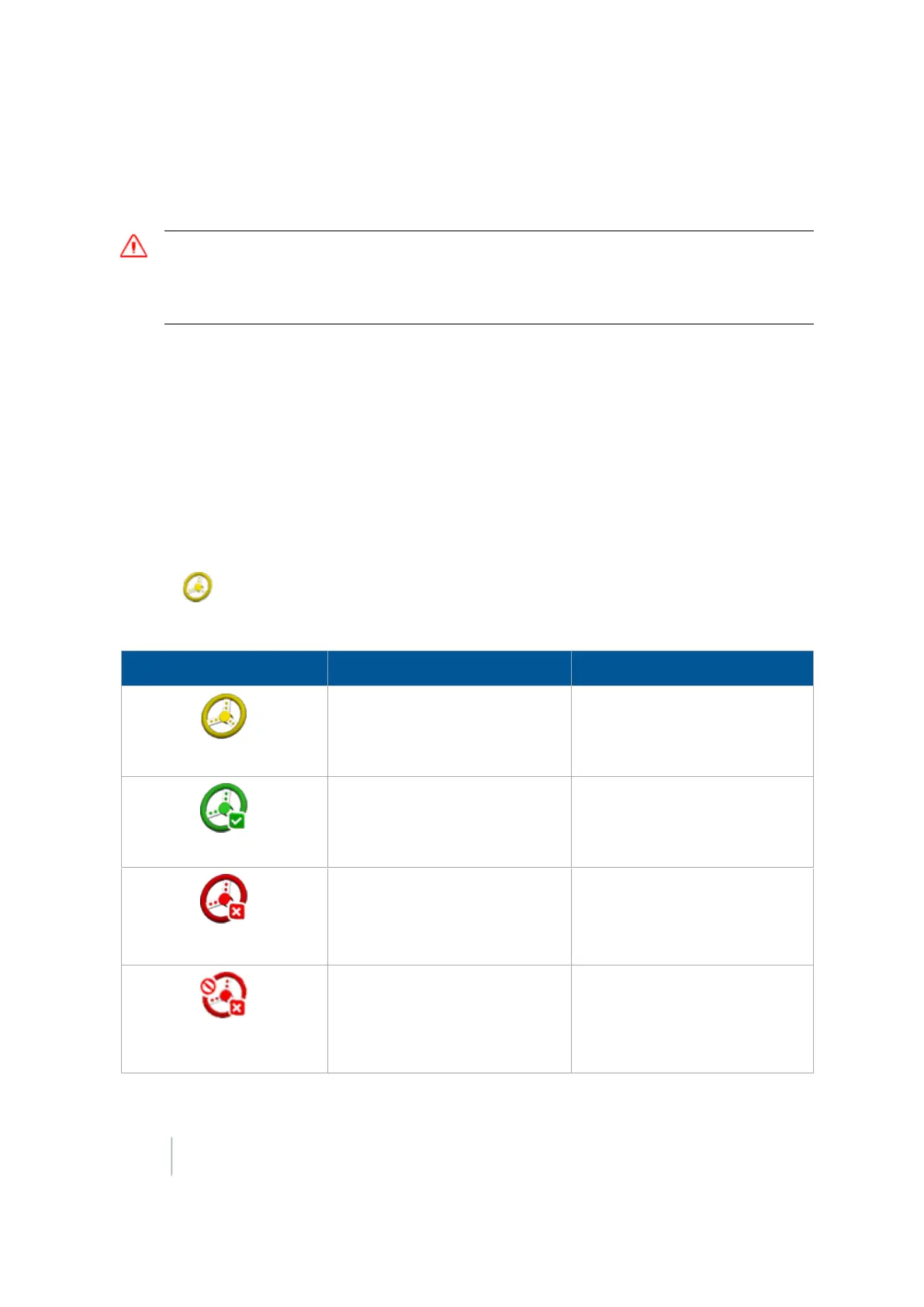
The Engage button on the screen can indicate status and, in some cases, also control the EZ-Steer
system.
When you are using EZ-Steer, to automatically steer on the guidance line you can:
l
Tap (yellow) on the screen.
l Press the optional remote engage foot pedal.
Indicator / Button Explanation Tap to...
Ready to Engage (yellow)
The vehicle is close enough to
the guidance line to engage on
it.
Engage on the guidance line.
Engaged (green)
The vehicle is engaged on the
guidance line.
Stop engaging on the guidance
line.
Not Ready to Engage (red)
The vehicle is not ready to
engage on the line because the
guidance line is too far from the
vehicle.
N/A. You cannot tap this button.
It is an indicator only.
Auto steering not allowed
(red)
Automatic steering is not
allowed due to how it has been
set up.
N/A. You cannot tap this button.
It is an indicator only.
You can also Adjust EZ-Steer guidance (page 406) settings during operations in the field.
404 FM-1000 Integrated Display User Guide Version 9.25, Revision B



 To Next Page