Basic system settings 3 Basic settings
Main tab
Note – For a new toolbar orientation to take effect, restart the display.
Setting Explanation
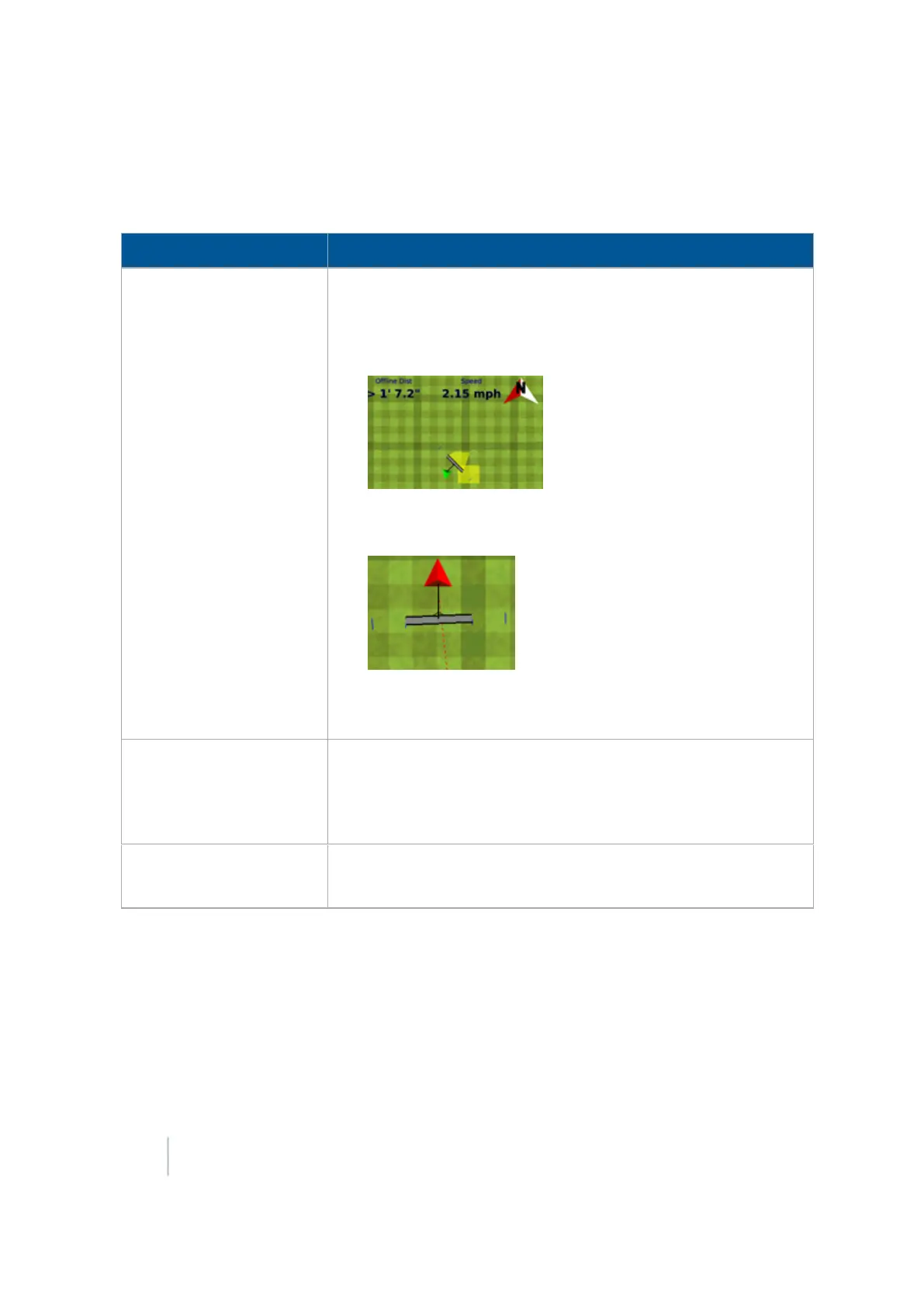
Map orientation
Controls the direction that the screen follows the position of the
vehicle.
l
North Up: When you perform a turn, the field remains stationary
and the vehicle turns.
l
Vehicle Up: When you perform a turn, the field rotates but the
vehicle remains pointing up.
Note –
To change the map orientation from the Run screen, tap the north
arrow.
Color scheme
l Default mode:For use during the day
l
Night-mode:For use at night
The night-mode color theme uses darker color themes to cause
less eye strain in low light conditions.
Save summaries
l On: The display creates a saved file for your work.
l Off: The display does not create a saved file for your work.
Track Logging tab
On the Track Logging tab, you can configure the display to record the vehicle track at either a set time
or a set distance. Points along the track are logged at the greater of the two values (either logging
time or logging distance).
To always log a point based on either of the two values, set the other value to zero. To disable track
logging, set both values to zero.
60 FM-1000 Integrated Display User Guide Version 9.25, Revision B



 To Next Page