3 Basic settings Basic system settings
1. Set the upper left status text item:
a. From the Info Items list, tap the item you want to use.
b. Tap the left ^ Set Item button. The information displays in the upper left field.
2. Set the upper right status text item:
a. From the Info Items list, tap the item you want to use.
b. Tap the right ^ Set Item button. The information displays in the upper right field.
3. From the Timeout list, select a time. This is how long the tab remains on-screen before retracting.
To have the tab extended until you close it manually, select Never.
4. To add status items to the slide-out tab:
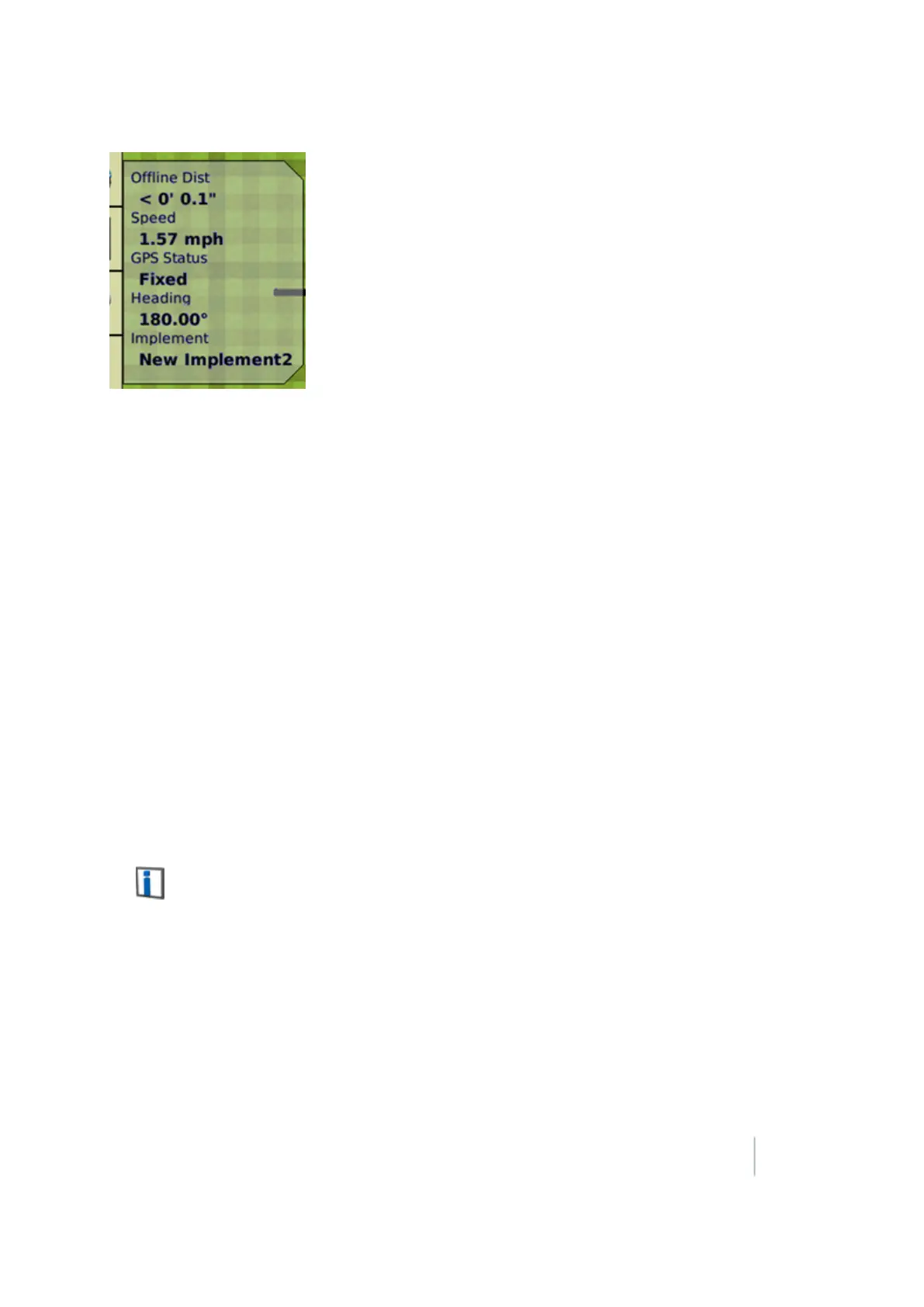
a.
Tap the position on the tab that you want to fill. For example, to add an item to the first
position on the list, tap at the location shown.
b. From the Info Items list, tap the item you want to use.
c. Tap <- Set Item.
5. To save the configuration, tap OK.
Info screen
On the Info Screen tab, you can determine which items will be displayed on the Info panel when you
tap .
The status text items appropriate for the features/plugins you are currently using display in the Info
Screen list.
1. Set the left Info text items:
a. From the Info Items list, tap the item you want to use.
b. Tap the left ^ Set Item button.
Version 9.25, Revision B FM-1000 Integrated Display User Guide 71



 To Next Page