WindO/I-NV4 User’s Manual 31-35
3 USB Popup Screen Function
31
External Memory Devices
The USB Popup Screen function displays a specific screen by simply inserting a USB flash drive in the MICRO/I.
This provides an easy way to display a message when the operator inserts a USB flash drive.
3.1 Automatically Displaying a Popup Screen when a USB Flash Drive is Inserted
● Configuration Procedure
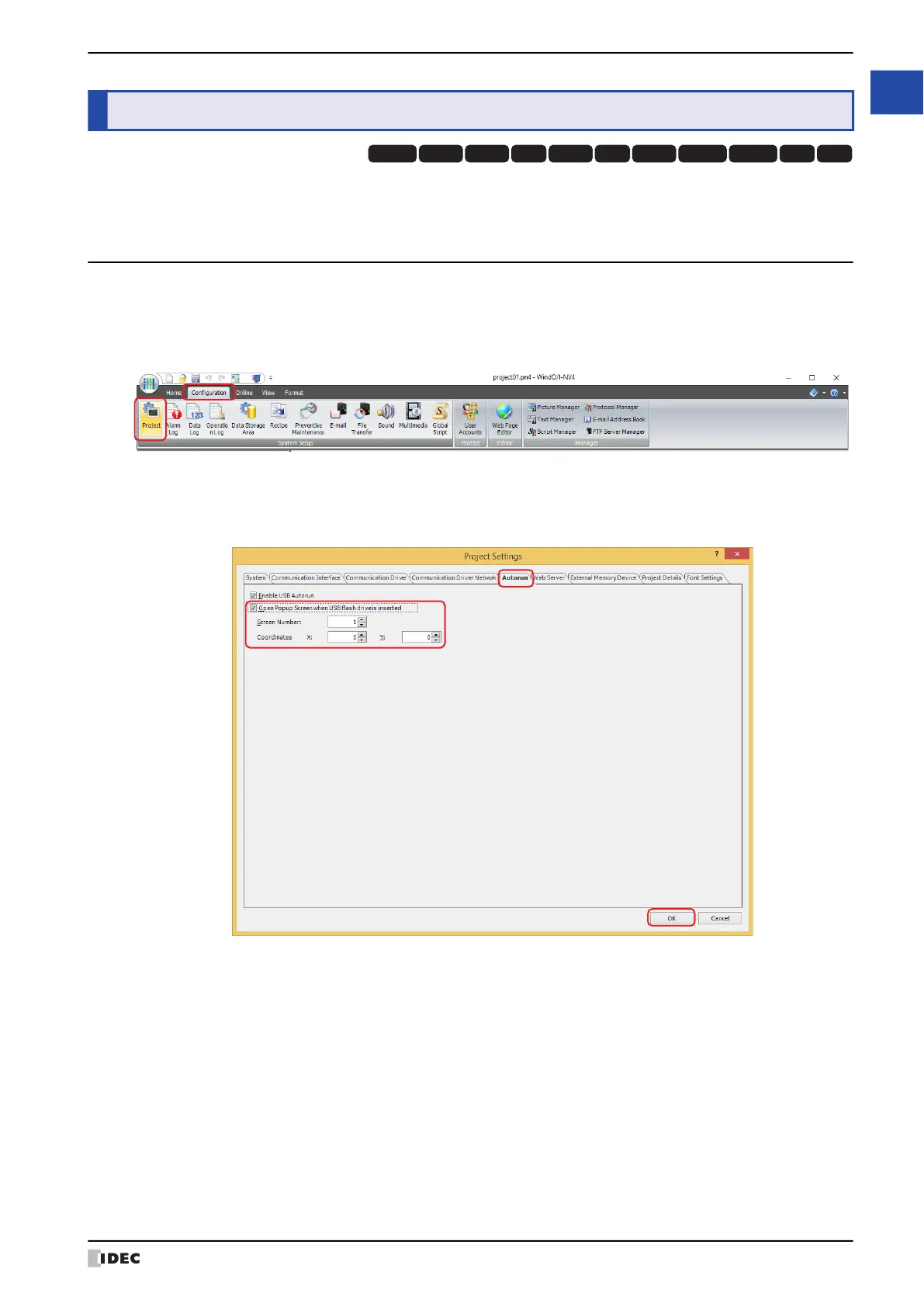
1 On the Configuration tab, in the System Setup group, click the Project.
The Project Settings dialog box appears.
2 On the Autorun tab, select the Open Popup Screen when USB flash drive is inserted check box.
3 Specify the Screen Number of the Popup Screen to display, and the Coordinates, then click OK.
For details, refer to Chapter 4 “3.10 Autorun Tab” on page 4-64.
3 USB Popup Screen Function
HG3G
HG2G-5FHG5G-V HG4G-V HG3G-V HG2G-V HG2G-5T
HG4G HG1G HG1P
HG2J-7U


 To Next Page
 Loading...