56 Operation
imc CANSAS Users Manual - Doc. Version 1.9 - 05.12.2014© 2014 imc Meßsysteme GmbH
3.2.2 Toolbar
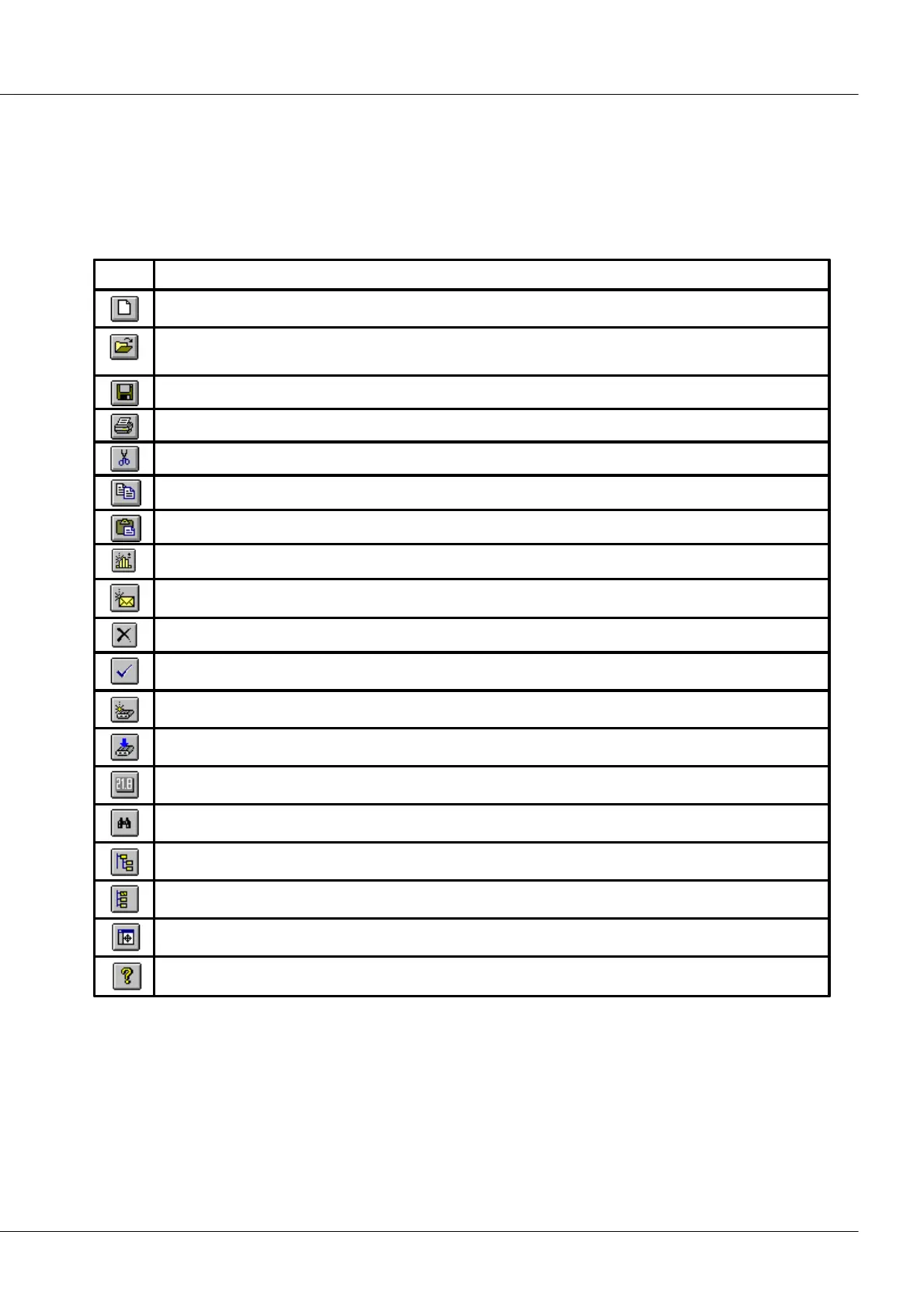
The toolbar extends horizontally near the top of the window, below the title bar. It offers quick access to
many imc CANSAS tools via a mouse-click. If the mouse cursor is held for a short while over a screen
button, a brief help text will appear as a 'tool tip'.
To toggle the toolbar on and off, you can use the item 'Toolbar' in the 'view'-menu, or (ALT, A, S).
Opens an existing database. The 'Open database' dialog appears, which allows you to select the desired
file for opening.
Saves all changes to the database.
Prints out the module settings.
Removes the highlighted data to the Clipboard.
Copies the highlighted data to the Clipboard.
Inserts the contents of the Clipboard to the designated position
Adds a new virtual channel to the module
Adds a new CAN-message to the module
Deletes a module, a CAN-message or a virtual channel
Checks the current configuration for errors
Integrates an additional imc CANSAS module into system
Configures the imc CANSAS module
Takes a measurement using the imc CANSAS modules
Finds all imc CANSAS modules connected to the CAN-Bus
Groups the entries in the tree by message
Groups the entries in the tree by channel
Adjusts the window size to make all entries on the right side visible
Shows the application version number


 To Next Page