8.30
SEL-751 Relay Instruction Manual Date Code 20170927
Front-Panel Operations
Touchscreen Display Front Panel
Table 8.13 identifies all the applications available in the Device Info folder.
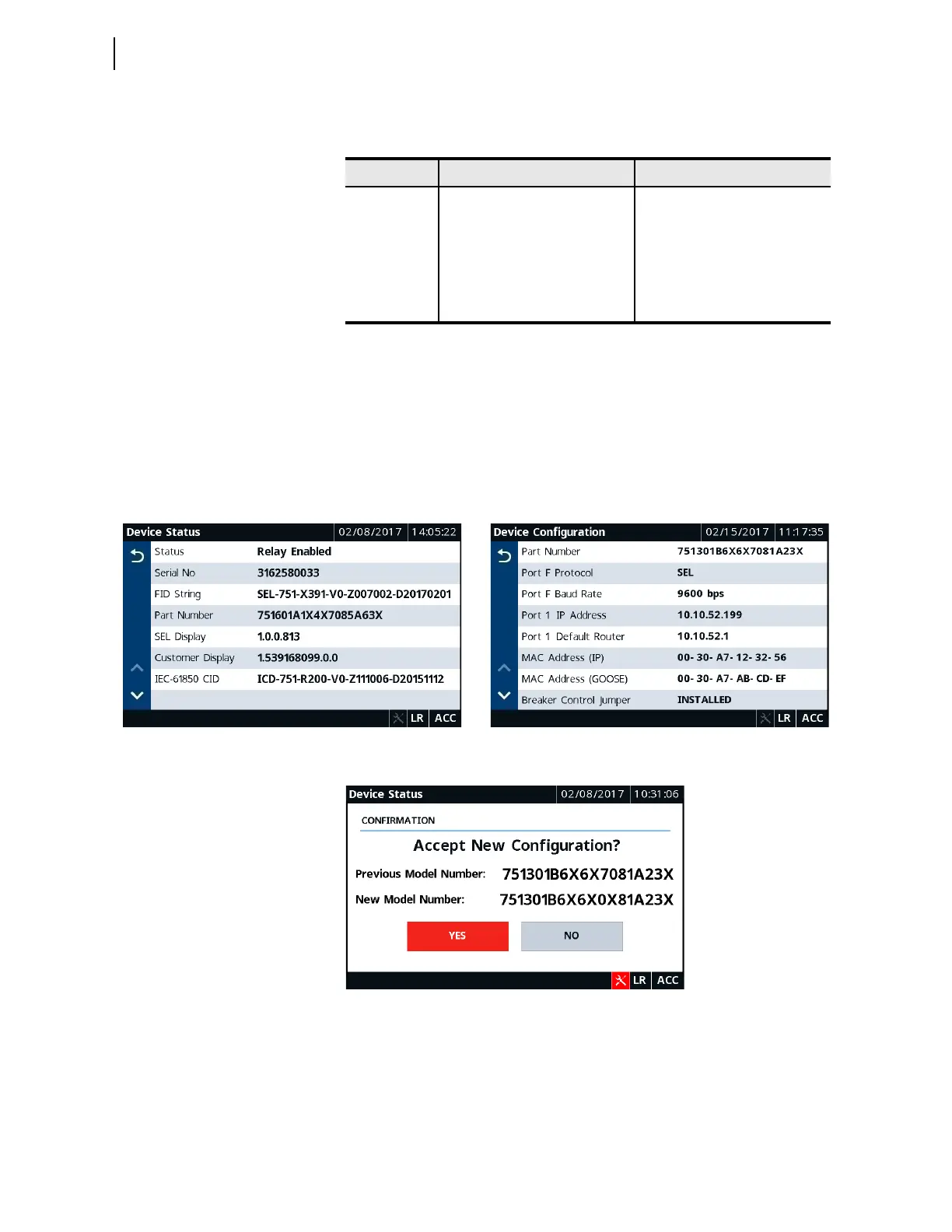
Tap the Status application to view the relay status, firmware version, part
number, etc., as shown in Figure 8.53. Use the Configuration application to
view port information, the jumper positions for the breaker, etc., as shown in
Figure 8.54. If the relay detects any new card in one of the slots, it disables
and directs you to accept the change in configuration, as shown in Figure 8.55.
Figure 8.53 through Figure 8.55 show typical screens for device
configuration, device status, and trip and diagnostic messages.
Figure 8.55 Model Number Confirmation
When a diagnostic failure, trip, or warning occurs, the relay displays the
diagnostic message on the screen until it is either overridden by the restart of
the rotating display or the inactivity timer expires. To view the trip and
diagnostic messages, tap the Trip & Diag. Messages application in the
Device Info folder.
Table 8.13 Device Info Application Availability
Folder Name Application Name Comments
a
a
Refer to the relay part number.
Device Info
Status Always available
Configuration Always available
Reboot Always available
Arc-Flash Diagnostics Shown when Slot E = (70 or L0)
or 77
Trip & Diag. Messages Always available
Figure 8.53 Device Status Figure 8.54 Device Configuration



 To Next Page