9.12
SEL-751 Relay Instruction Manual Date Code 20170927
Bay Control
Overview
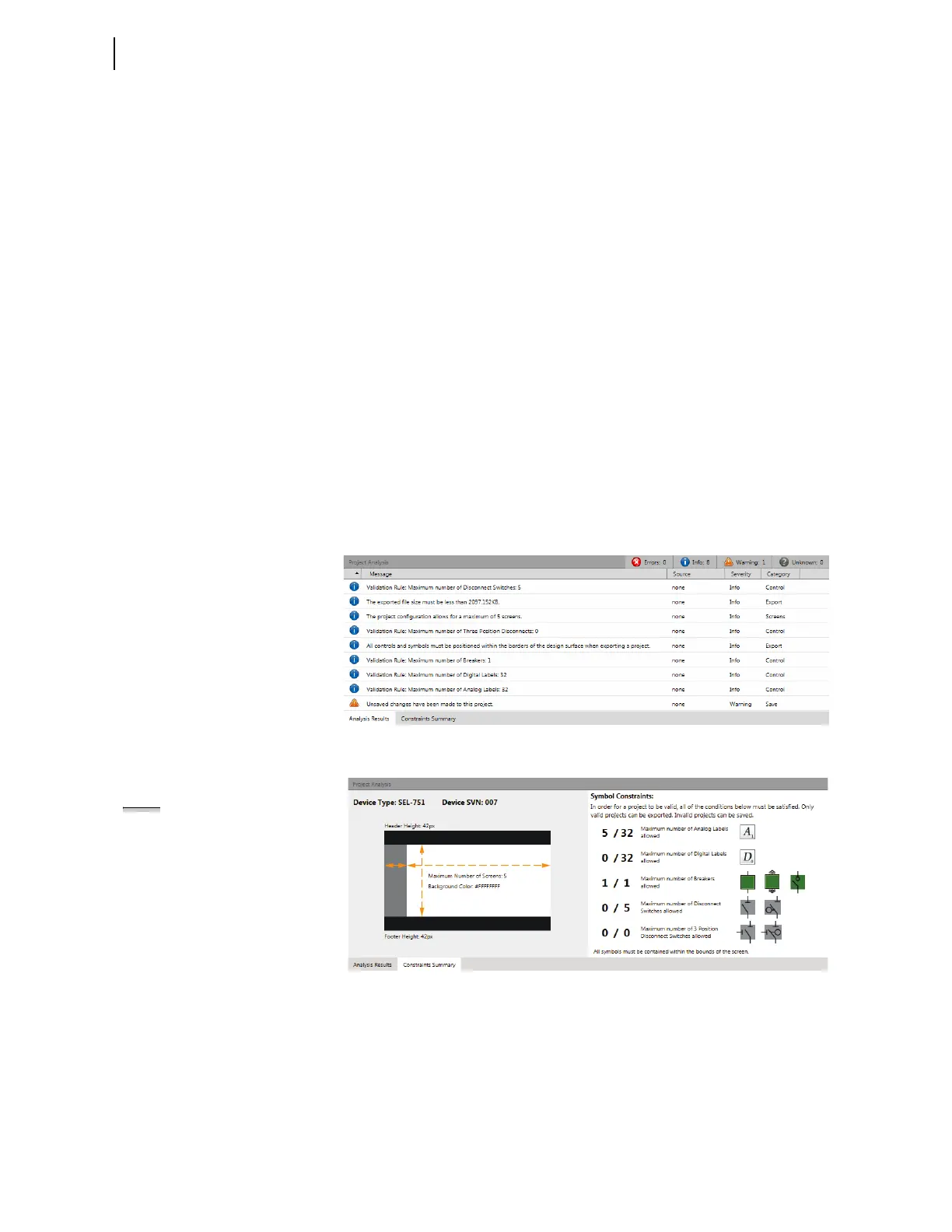
Figure 9.8 Project Analysis Pane: Analysis Results Tab
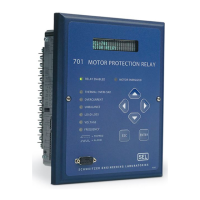
Figure 9.9 Project Analysis Pane: Constraints Summary Tab
You can adjust the size of the panes in the application. If you reconfigure the
size of any of these panes, the new size is saved when you exit the application
and applies the next time you launch Bay Screen Builder.
i
Bay Screen Outline: Displays the drop-down list of symbols on the
presently open screen. Click a symbol from the list to make it active.
The bay screen outline provides an alternate way to select the symbols
and is most useful in cases where symbols are crowded or stacked.
o
Project Analysis Pane: Displays troubleshooting information/
messages about the project (Errors, Info, Warning, Unknown). The
project analysis pane supports two tabs: Analysis Results and
Constraints Summary, as shown in Figure 9.6 and Figure 9.7,
respectively.
The Analysis Results tab displays details about the error,
information, warning, and unknown messages for the project. You
can use these messages for troubleshooting. Select a message type
button to view the messages for that category. For example, click
the Errors button to view the error messages for the project. Click
a column header to sort by the information in that column (see
Figure 9.8).
The Constraints Summary tab provides information about the
rules that apply to the present project. All conditions listed under
Symbol Constraints must be satisfied for a project to be valid.
You can only publish a valid project, but you can save a project
with errors (see Figure 9.9).
NOTE: The Constraints Summary tab
shows the usage and limits of
dynamic symbols for an entire
project (all screens). Although not
constrained, it is recommended that
you limit the dynamic symbols to 32
symbols per screen for faster screen
updates.



 To Next Page