B.5
Date Code 20170927 Instruction Manual SEL-751 Relay
Firmware Upgrade Instructions
Upgrade Firmware Using QuickSet
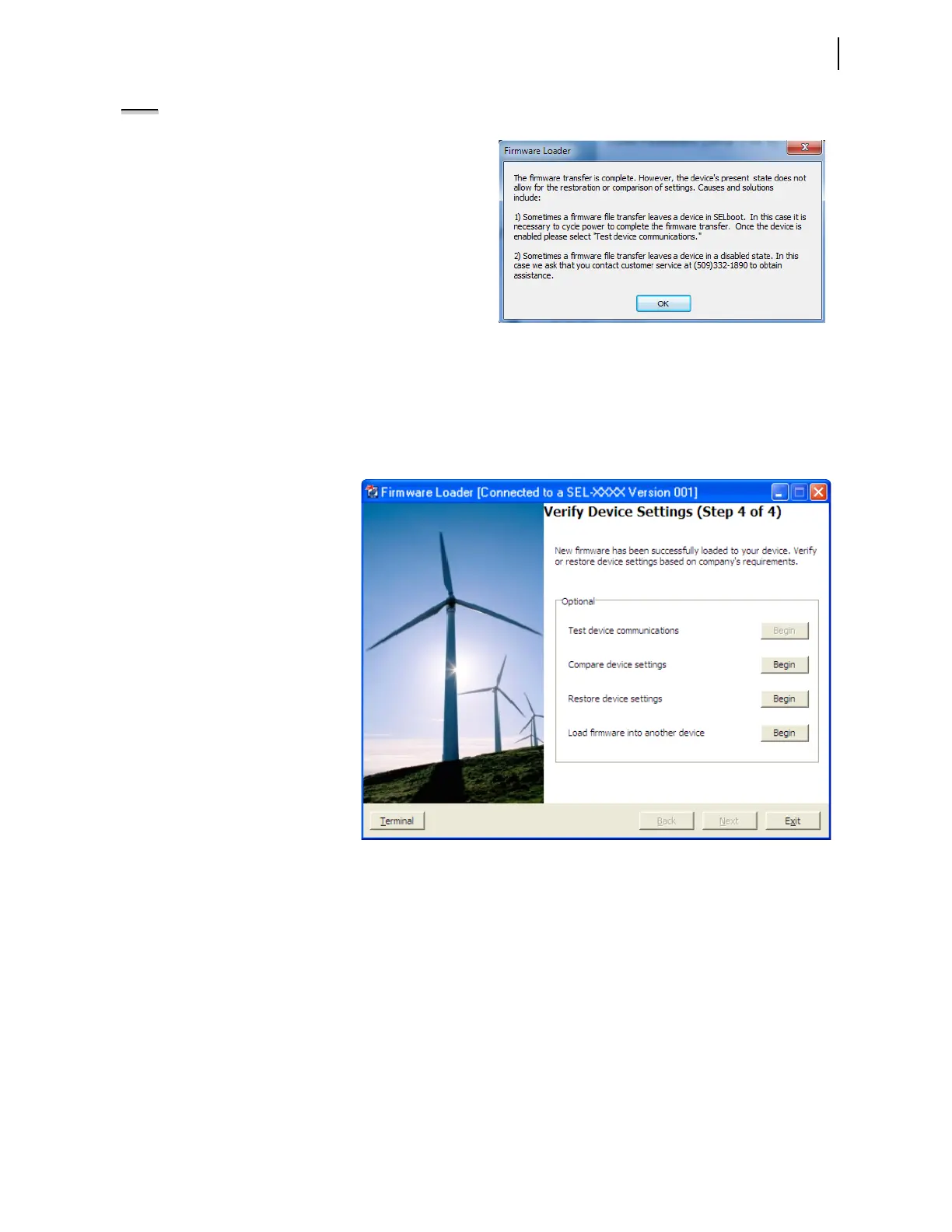
NOTE: The following screen can appear if you have one of the two conditions mentioned.
If the relay is disabled, as mentioned in condition number 2, check
for the ENABLED LED on the front panel of the relay. If the ENABLED LED
is not illuminated or the front panel displays
STATUS FAIL or
Non_Vol Failure, use the following procedure to restore the
factory-default settings:
a. Click on the Terminal button on the Firmware Load screen of
QuickSet.
b. Set the communications software settings to 9600 bps, 8 data
bits, and 1 stop bit.
c. Enter Access Level 2 by issuing the 2AC command.
d. Issue the R_S command to restore the factory-default settings.
e. Enter Access Level 2.
f. Issue the STATUS command.
If the STATUS report shows option card
FAIL and Relay Disabled and the message:
Confirm Hardware Config
Accept & Reboot (Y/N)?
Enter Y. This saves the relay calibration settings. The relay responds:
Config Accepted
The relay reboots and comes up ENABLED.
Step 4. Verify Device.
Select from four
verification options, which
perform as follows.
Test Device Communications.
If the device cannot be
restarted, then turn power
off and back on to restart it.
Once the device is enabled,
this option reconnects and
reinitializes the device.
Compare Device Settings.
This option verifies settings
by reading them from the
device and comparing them
with settings saved to the
database.
Restore Device Settings.
This option restores settings
by writing settings that are
saved in the database to the
device. Settings are
converted automatically, if
necessary.
Load Firmware into Another
Device. Returns the wizard
to Step 1: Prepare Device to
repeat the firmware-loading
process with another
device.
T



 To Next Page