EDIUS — User Reference Guide 255
Clip Storage
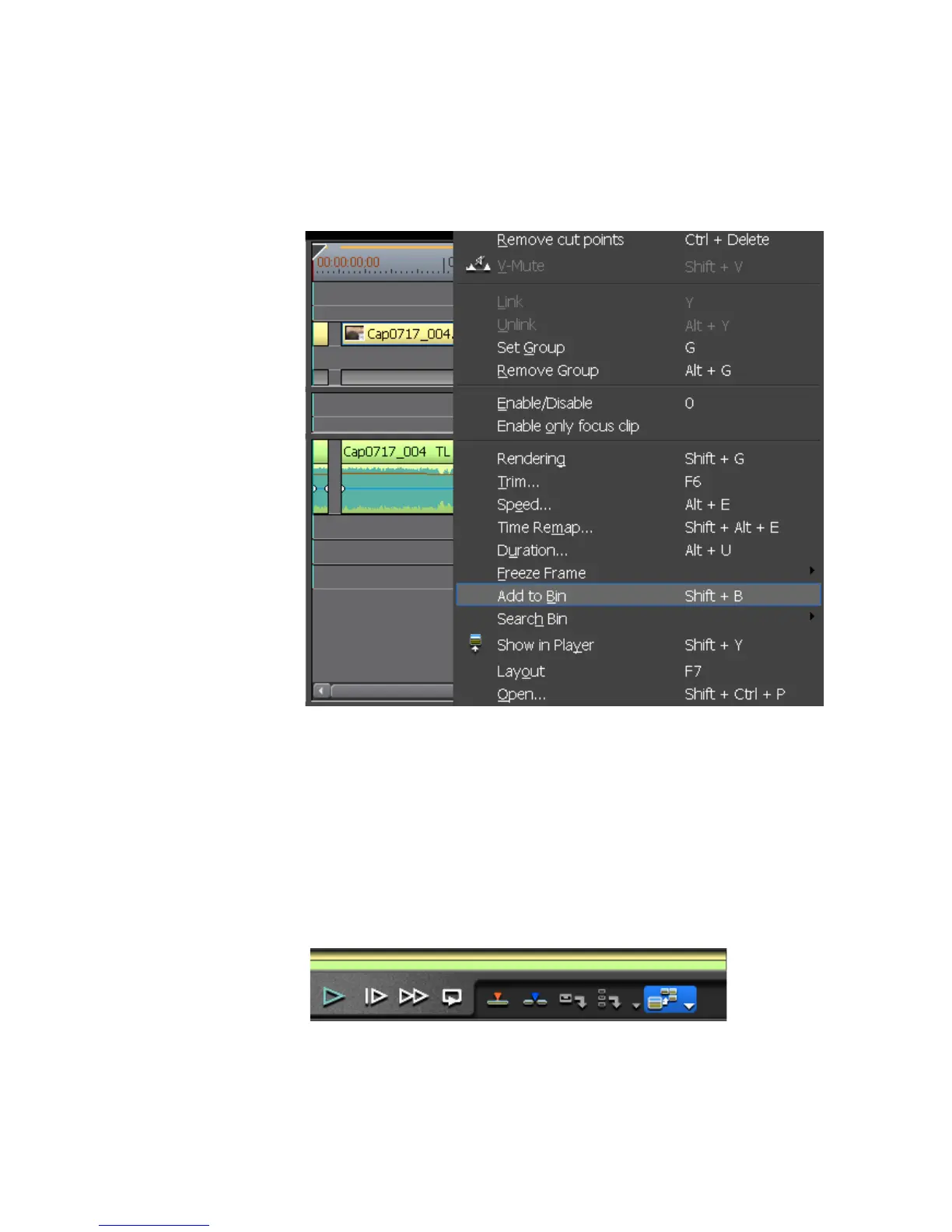
To store a Timeline clip to the Asset Bin, do one of the following:
• Right-click on the clip on the Timeline and select “Add to Bin” from the
menu as shown in Figure 245.
Figure 245. Add Timeline Clip to Asset Bin
• Select the clip and press [SHIFT]+[B] on the keyboard.
• Drag and drop the clip from the Timeline to the Asset Bin.
• Select Clip>Add to Bin from the Preview window.
• Double-click a clip to display it in the Player and click the list button
[V]on the
Update Bin button (highlighted in blue in Figure 246) in the
Player. Select “Add Clip to Bin” from the menu.
Figure 246. Player Update Bin Button
• Double-click a clip to display it in the Player and drag and drop it from
the Player to the Asset Bin.



 To Next Page