456 EDIUS — User Reference Guide
Section 5 — Timeline Operations
• Play a Timeline sequence clip in the Player and click the Insert to Timeline
or
Overwrite to Timeline buttons.
• Add the clip displayed in the Player by pressing the [
E] key on the key-
board.
Open a Nested Sequence
To open a nested sequence for editing, do any of the following:
• Double-click a Timeline Sequence clip in the Asset Bin
• Double-click a nested sequence clip on the Timeline.
• Right-click a Timeline Sequence clip in the Asset Bin and select “Open
Sequence” from the menu.
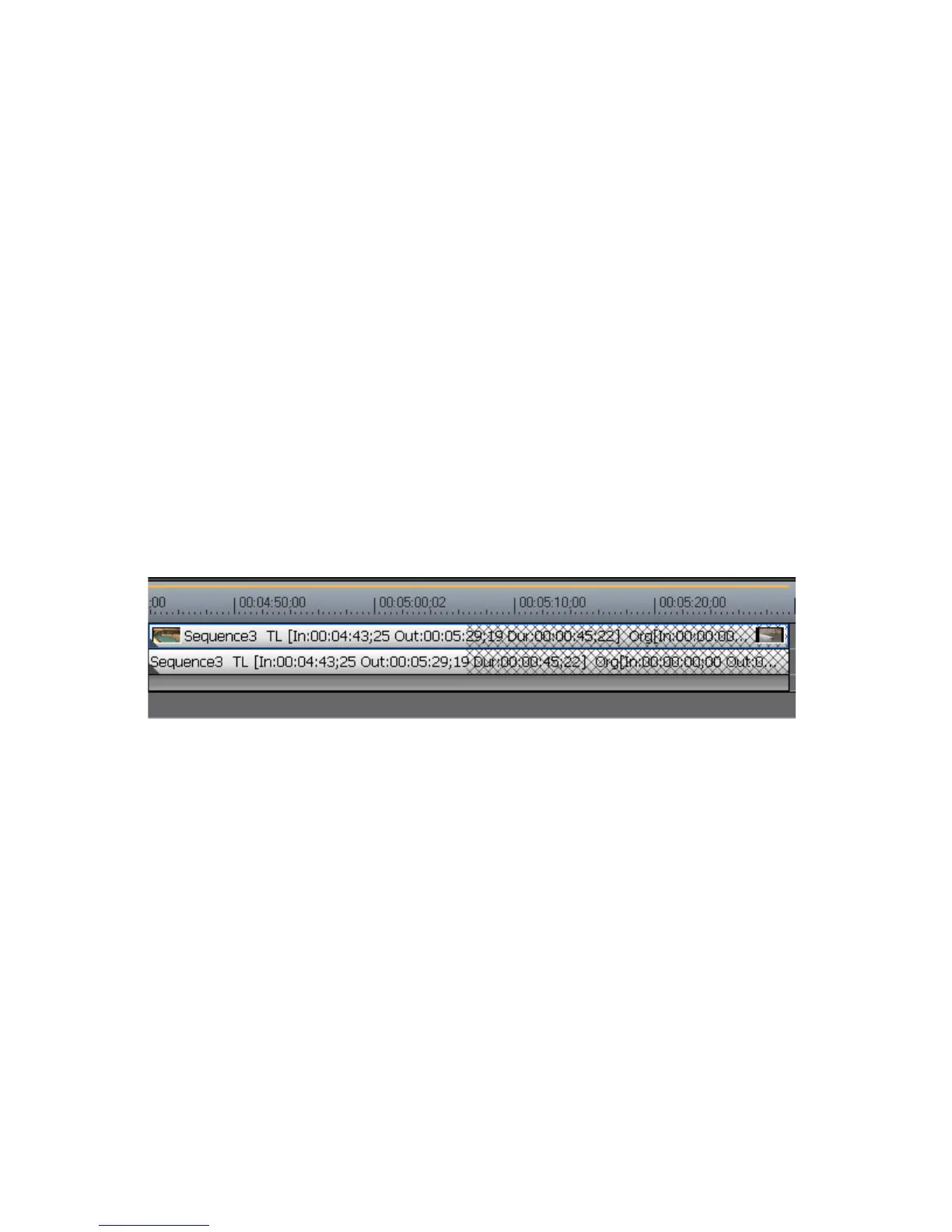
Note When a nested sequence is opened, the nested sequence clip in the host
sequence is also updated. If the clips in a nested sequence are trimmed, the
nested sequence clip length in the host sequence does not change; however,
its display is updated as illustrated in Figure 515 to indicate the total area of
the clip that has been trimmed.
Figure 515. Nested Clip Trimmed
Closing a Sequence
To close a sequence, right-click on the sequence tab of the sequence to be
closed and select “Close This Sequence” from the menu. See
Figure 516.



 To Next Page