EDIUS — User Reference Guide 369
Timeline Clip Operations
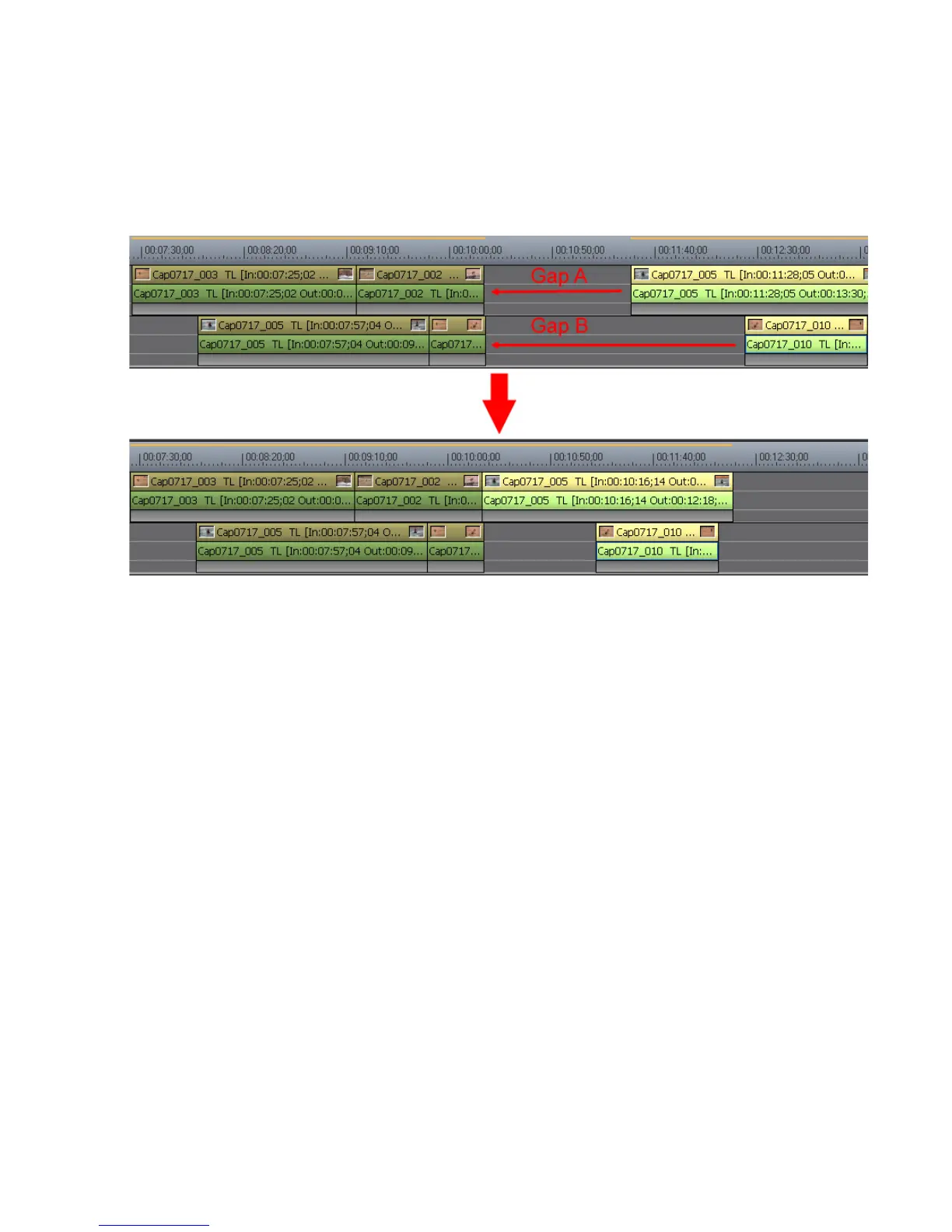
Note When sync mode is on, all gaps will close by the length of the shortest gap
in order to maintain the relative position of moved clips with respect to each
other. This is shown in Figure 405 in which gap A is closed completely and
gap B is closed only by an amount equal to the length of gap A.
Figure 405. Delete Multiple Gaps Simultaneously
Changing Clip Playback Speed
The playback speed of a clip may be changed to accommodate a particular
time requirement or to slow down or speed up a clip.
To change the playback speed of a clip, do the following:
1. Right-click a clip and select “Speed” from the menu.
Note An alternative method is to select Clip>Speed from the Preview window menu
bar.
The Clip Speed dialog box illustrated in Figure 406 appears.



 To Next Page