EDIUS — User Reference Guide 357
Timeline Clip Operations
Dividing Clips at In/Out Points
To divide a clip at the In/Out points on the Timeline, do the following:
1. Select the track where the clip to be divided is placed.
2. If In/Out points on the Timeline are not already defined, define them
now. See Setting In and Out Points on Timeline on page 326.
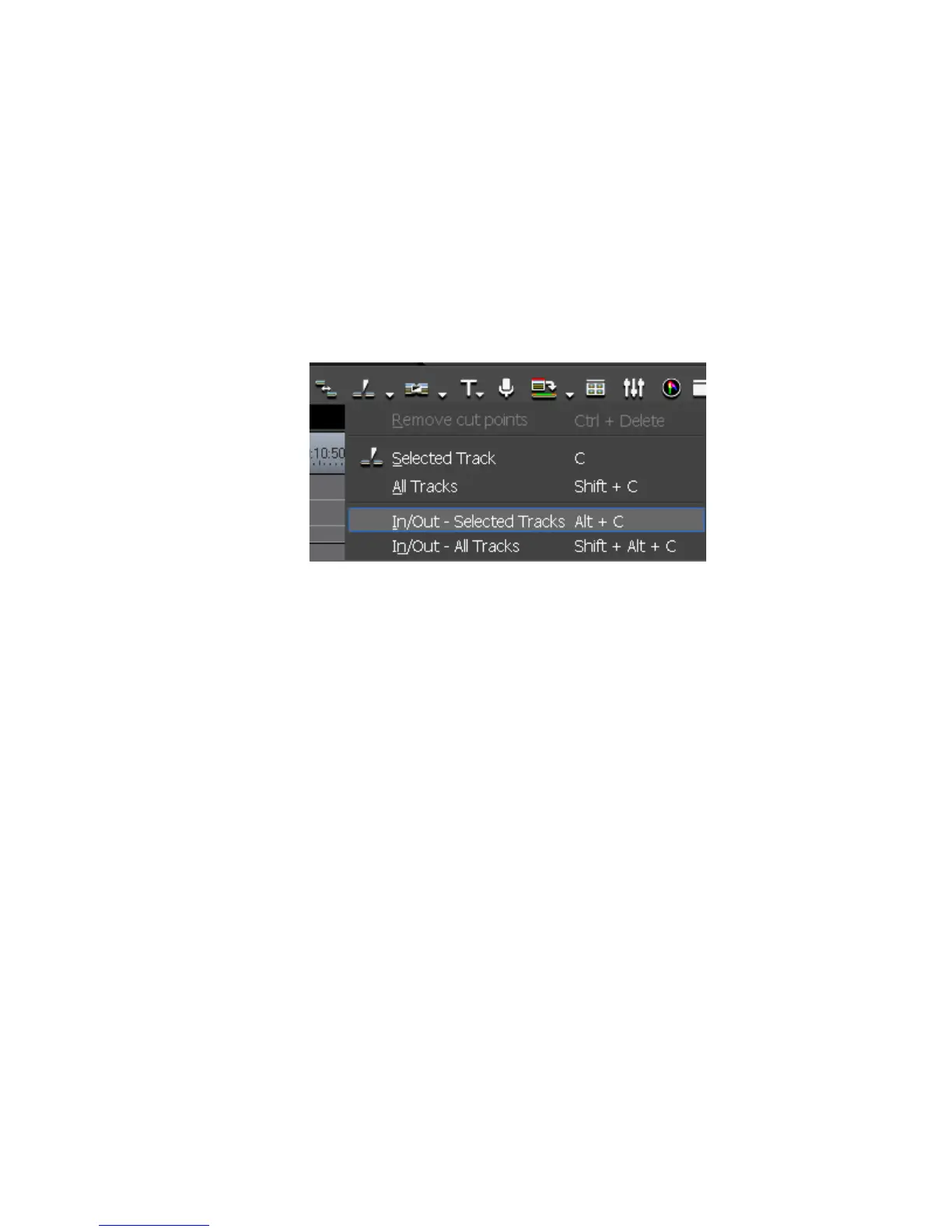
3. Click the list button [V] on the Add Cut Point button and select “In/Out -
Selected Tracks” from the menu as shown in Figure 387.
Figure 387. Add Cut Point Menu - In/Out -Selected Tracks
Alternative Methods:
• Right-click on a clip and select Add Cut Point>In/Out - Selected Tracks
from the menu.
• Press the [
ALT]+[C] keys on the keyboard.
To divide all clips on all tracks at the Timeline In/Out points, do any of the
following:
• Click the list button [V] on the
Add Cut Point button and select “In/Out -
All Tracks” from the menu.
• Right-click on any clip and select Add Cut Point>In/Out - All Tracks
from the menu.
• Select Edit>Add Cut Point>In/Out - All Tracks from the Preview
window menu bar.
• Press the [
SHIFT]+ [ALT]+[C] key on the keyboard.
Combining a Divided Clip
To combine divided parts of a clip that refer to the same source, follow
these steps:
1. Select the clips to be combined (see Figure 388).



 To Next Page