574 EDIUS — User Reference Guide
Section 6 — Effects and Titles
Alternative Paste Methods:
• Paste Cursor - [CTRL]+[ALT]+[K]
• Paste Clip In - [
SHIFT]+[ALT]+[K]
• Paste Clip Out - [
ALT]+[K]
Replacing Effects
To replace a filter or mixer effect with the filter or mixer effect from another
clip, do the following:
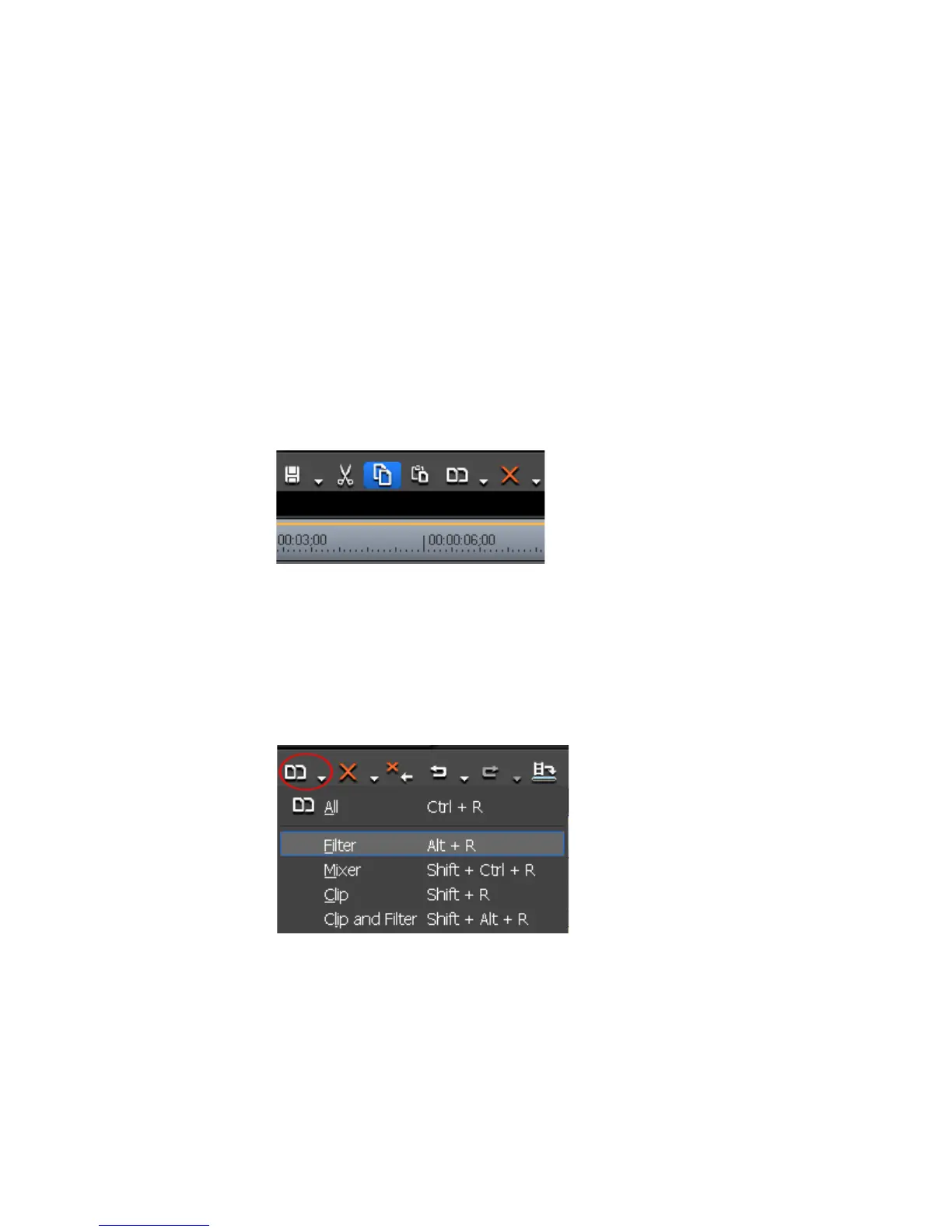
1. Select the clip with the applied filter or mixer effect you wish to copy
and click the Copy to clipboard (Timeline) button. See Figure 681.
Figure 681. Timeline Copy to Clipboard (Timeline) Button
2. Select the clip on which you wish to paste the copied effect.
3. Click the list button (V) of the Replace clip (Timeline) button and select
“Filter” or “Mixer” from the menu depending upon the type of effect
that was copied. See Figure 682.
Figure 682. Timeline Replace Clip (Timeline) Button Menu
Alternative Method:
Right-click the target clip and select “Replace Parts>Filter” or “Replace
Parts>Mixer” from the menu.



 To Next Page