iBox Front Panel Controls
7-10 Manual # 42-02-7223
IP Address Verification/Setting
You should not need to change the factory-set IP information. If you are having problems con-
necting to an iBox Ethernet port, verify that IP information is correct as described here. If you
find an incorrectly set port, these instructions will help you correct it. These instructions are for
Port 1 but the procedure is the same for all iBox ports.
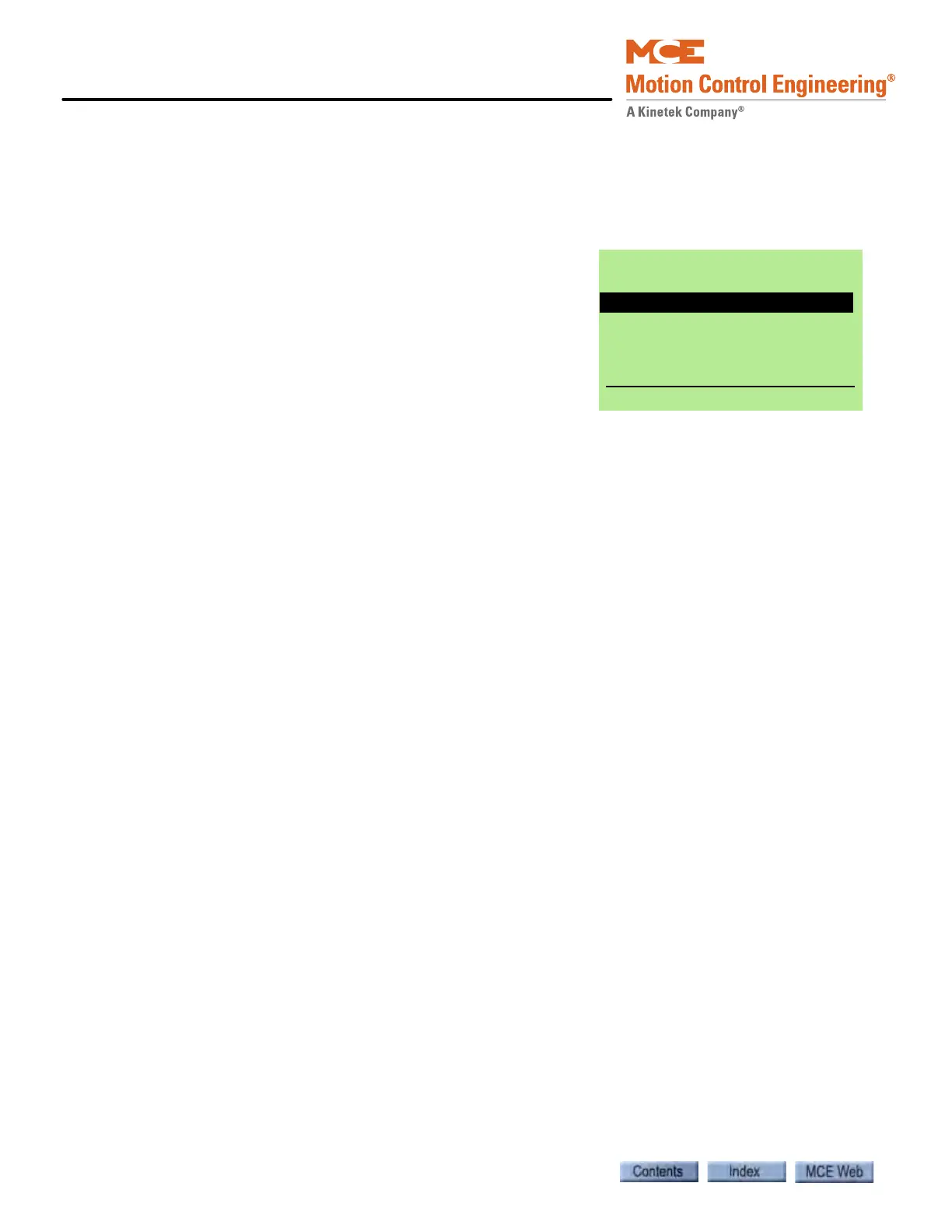
1. Press the soft key (1) beneath the Car label. The
LCD will change as shown to the right.
2. With Network Setup selected, press ENTER.
3. Scroll down to IP Address 1, press ENTER.
4. Verify that the Address displayed is correct (see
preceding table). For example, Car A of Group 1
should be 192.168.191.001.
5. If you are using the default addresses, and the
address displayed is incorrect, set it according to the table using Left and Right arrow
keys to select a number and Up and Down arrow keys to change the value. Continue
until the address is correct, then press ENTER. Press SAVE to save your changes (if
any).
6. Scroll down to IP Gateway 1. The default for the #1 Port is 192.168.191.254. (The default
for the #2 and #3 Ports is 000.000.000.000) If necessary, change it as described above.
7. Scroll down to IP Subnet Mask 1. The default is 255.255.255.000. If necessary, change
as described above.
8. Continue as above to verify the IP information for the #2 and #3 Ports respectively.
Check the preceding table for factory default addresses.
@003 s 015 FG RO L03
Passenger
Network Setup
View Event Log
View/Register Calls
Set Time/Date
View Factory Data
Home Back PgUp PgDn



 To Next Page