EDIUS — User Reference Guide 695
Exporting in Various File Formats
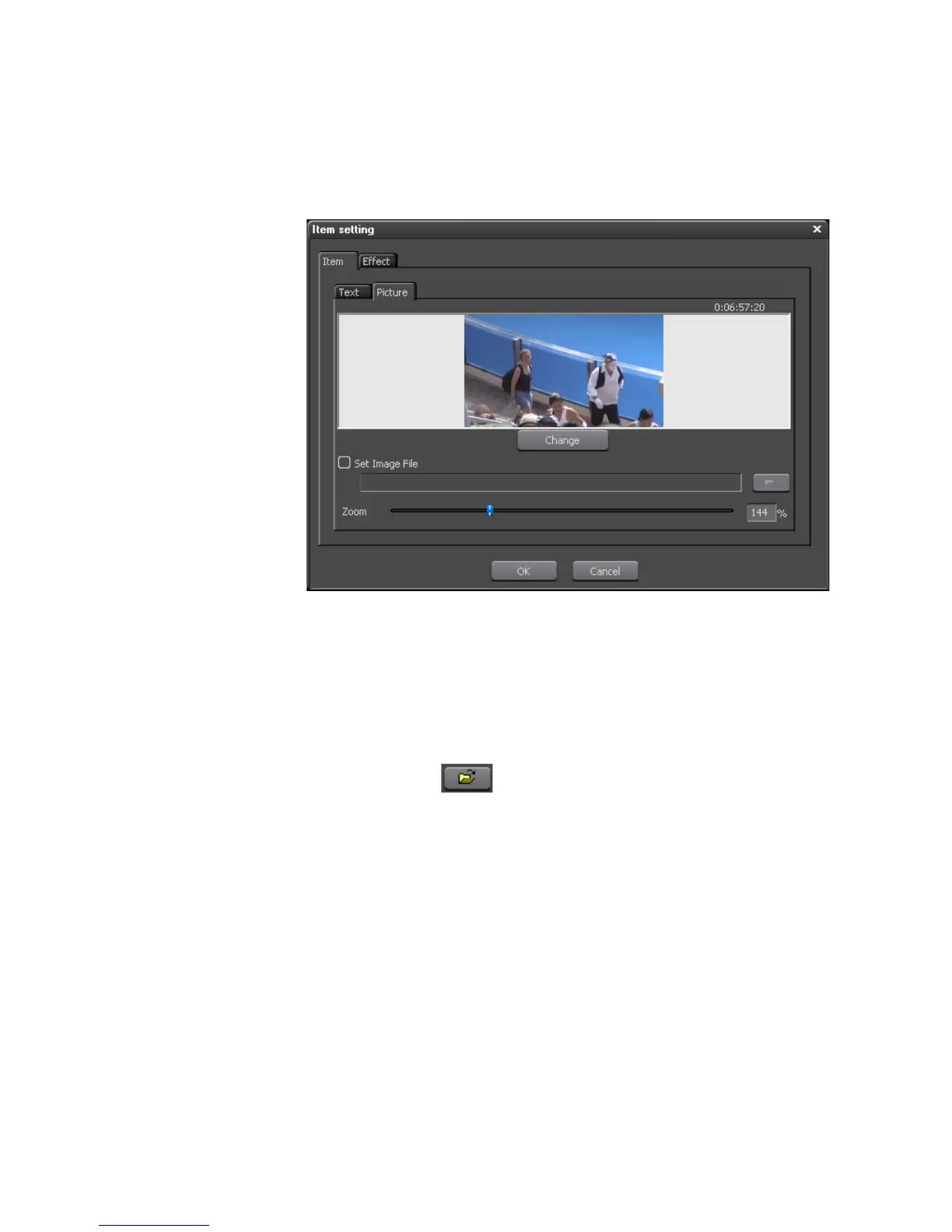
If the item selected is a picture item such as a title or chapter button thumb-
nail, the Item Setting dialog appears with the ‘Picture” tab selected. See
Figure 847.
Figure 847. Burn to Disc Item Setting Picture Dialog
To modify the parameters associated with the picture, do the following:
• Click the
Change button to change the thumbnail image within EDIUS.
Move the Timeline cursor in EDIUS until the image you wish to use as
the thumbnail appears in the EDIUS Preview window. Return to the
Item Setting dialog and click the
Set button to change the image.
• Select the “Set Image File” option to import an image from an external
file. Click the button to browse for an image file.
• Move the Zoom slider to zoom in or zoom out on the picture to select
the portion of image to use as the thumbnail.
Click the “Effect” tab to add a border effects to the picture. See Figure 848
for an illustration of the Picture Effect dialog.
• Select the ‘Enable” option top enable a border effect
• Select “Border Frame” to automatically add a border to the picture
• Select “Picture Frame” and click the
... button to browse for a border
from a file.



 To Next Page