Password security
Thermo Fisher Scientific strongly recommends that you maintain unique passwords for all accounts in
use on this product. All passwords should be reset upon first sign in to the product. Change passwords
according to your organization's password policy.
It is the sole responsibility of your IT personnel to develop and enforce secure use of passwords.
Access the Plate Manager software (cloud)
Note: In this chapter, the Plate Manager software on Thermo Fisher
™
Connect is referred to as Plate
Manager software (cloud).
1.
Sign in to apps.thermofisher.com.
2.
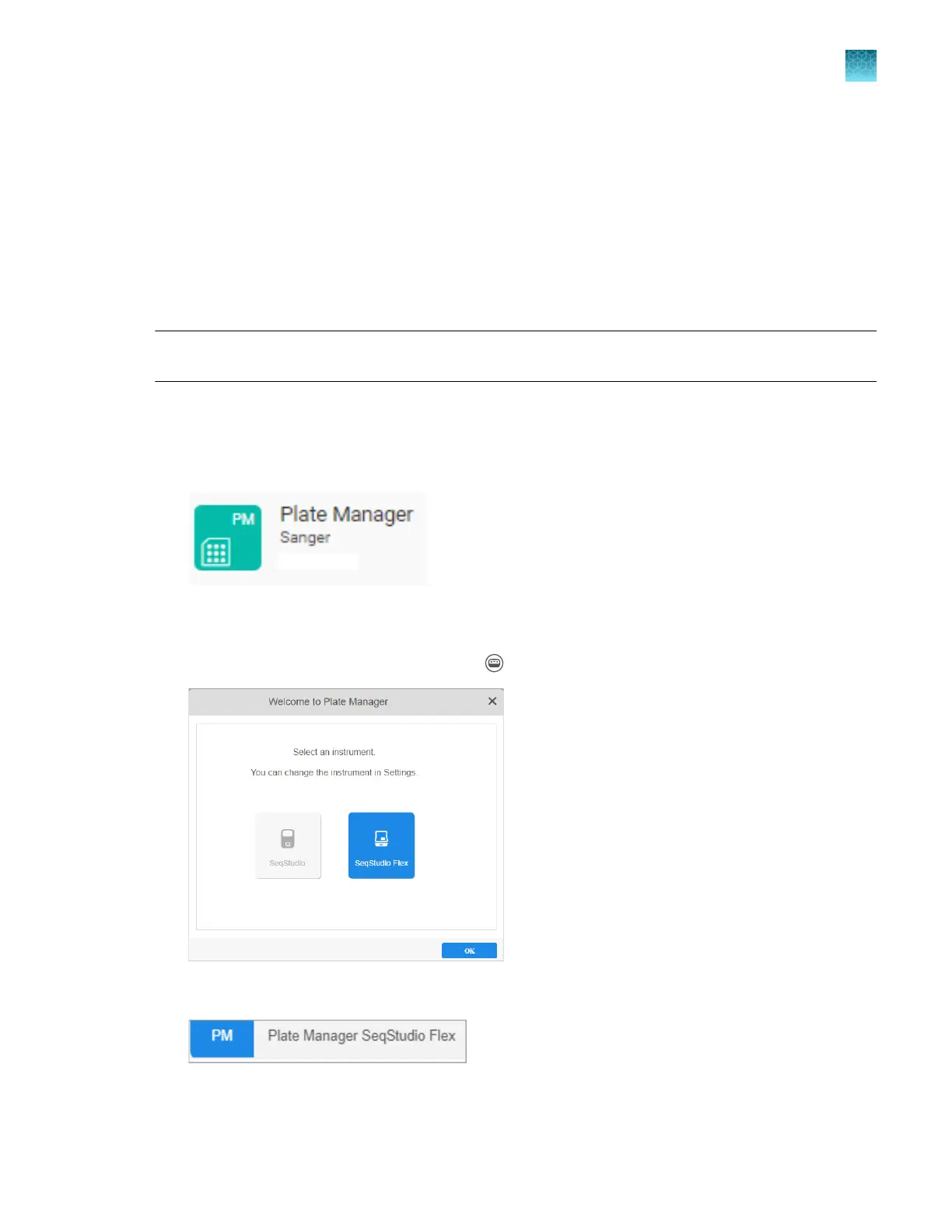
In the My apps list, select Plate Manager.
If Plate Manager is not listed under My apps, scroll down in the All Apps list.
3.
(First use only) In the Select an instrument scr
een, select SeqStudio Flex.
The instrument type determines the plate type that is created. You can change the instrument type
at any time in the home screen by clicking
(Switch instrument) at the t
op right of the screen.
The selected instrument type is displayed at the top left of the Plate Manager home screen.
Chapter 5 Create a plate file in the Plate Manager software
Get started with the Plate Manager software (cloud)
5
SeqStudio
™
Flex Series Genetic Analyzer with Instrument Software v1.0 User Guide
111













 To Next Page