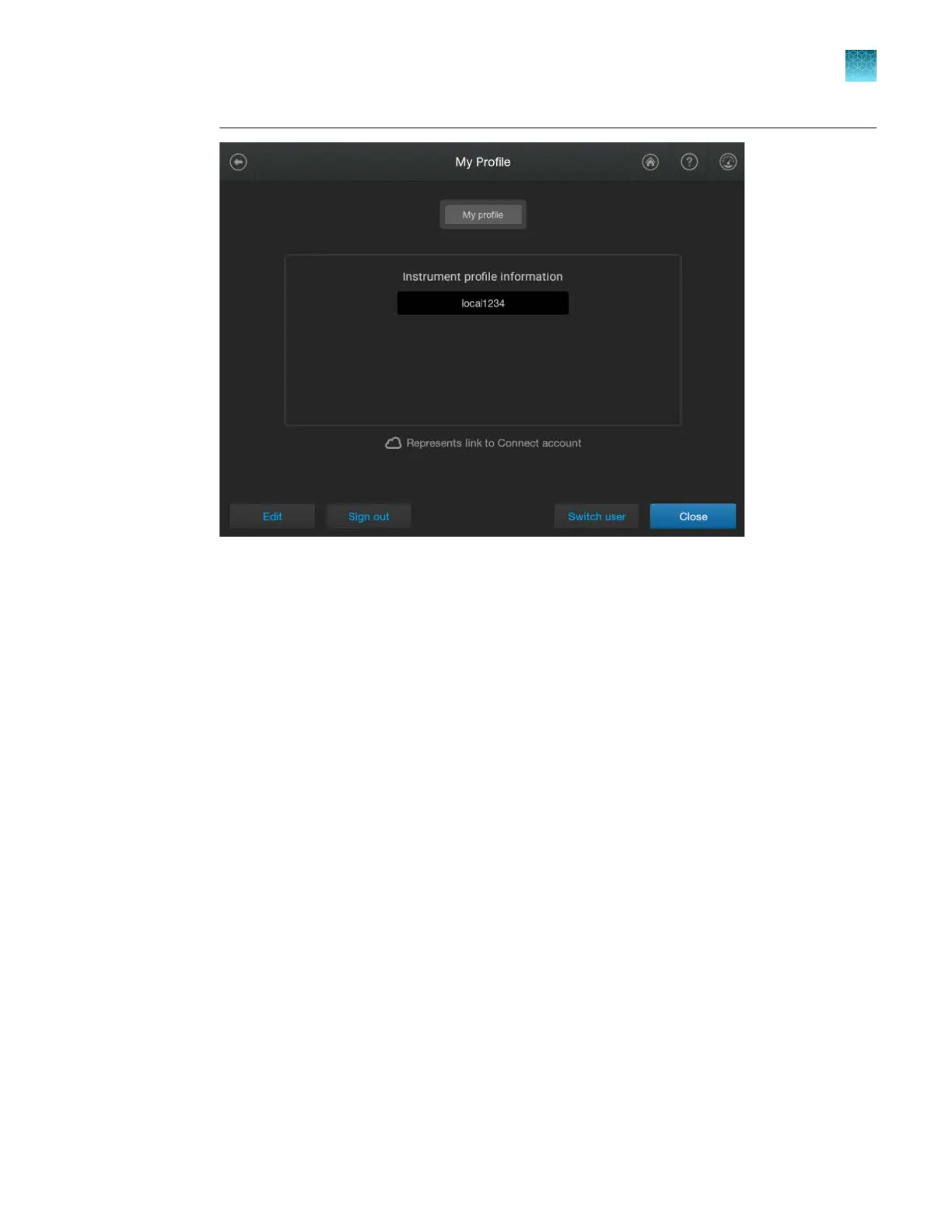
3.
T
ap your profile, then enter your PIN.
The home screen is displayed with your user initials.
For more information, see “Local profile and cloud profile: when to use, user name, and user
initials” on page 213.
Parts of the software
The home screen is the main screen of the software where you select, run, and monitor plate runs. For
mor
e information, see “Parts of the home screen” on page 36.
From the home screen, you access the following screens:
•
Link Plate File screen where you select the plate file that contains the settings that are used to run
and analyze a plate. When you link a plate file, you can modify settings, if needed, and start the
plate run. For more information, see “Parts of the Link Plate File screen” on page 41.
•
Run Queue screen where you view and change the order of the injection list. For more information,
see “Parts of the Run Queue screen” on page 44.
•
Actions screen where you access most functions in the software other than running plates
and using the run queue. The Actions screen includes options for instrument settings, libraries,
maintenance and support, and viewing results for completed plates. For more information, see
“Actions screen” on page 48.
•
Dashboard screens where you view information about instrument status, consumables status,
and upcoming maintenance. For more information, see “Dashboard screens—Instrument Status,
Consumables Status, and Upcoming Maintenance” on page 49.
Chapter 1 P
roduct information
About the SeqStudio
™
Flex Series Instrument Software v1.0
1
SeqStudio
™
Flex Series Genetic Analyzer with Instrument Software v1.0 User Guide
35













 To Next Page