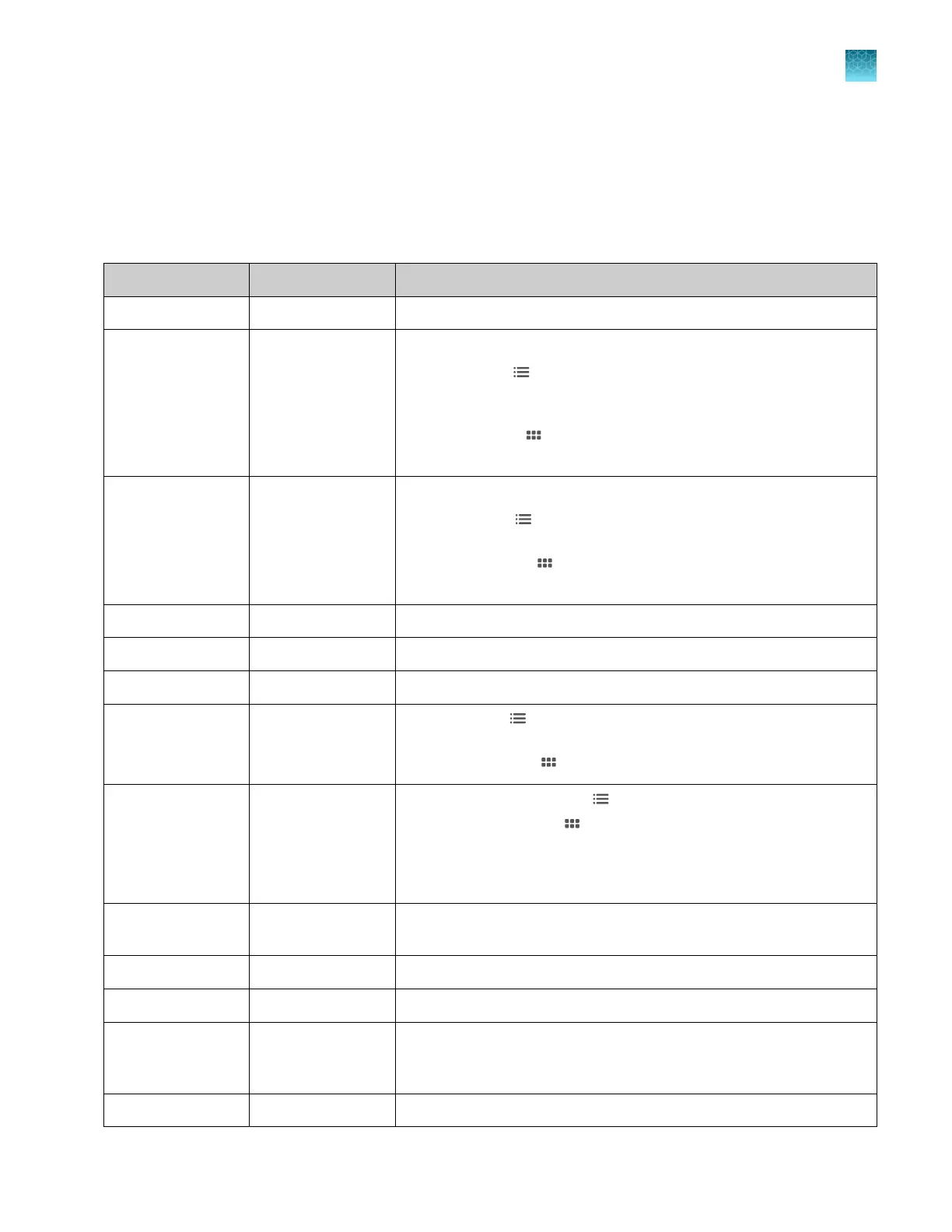
Keyboard shortcuts and examples
You can use the following shortcuts in the Plate Manager software. You can use some of the shortcuts
in the plate view. You can use all of the shortcuts in the list view.
Shortcuts
Windows
™
Mac OS
™
Action
Ctrl+A Cmd+A Select all
Ctrl+C Cmd+C Copy
•
List view ( )—Copy text from cells in the injection list or copy
from a spreadsheet or a text editor into cells. See the example at
the end of this table.
•
Plate view ( )—Copy an injection group on the plate or copy
cells in the injection list.
Ctrl+V Cmd+V Paste
•
List view ( )—Paste copied text from a spreadsheet or a text
editor into the injection list.
•
Plate view ( )—Paste a copied injection group to another
position on the plate.
Ctrl+X Ctrl+X Cut
Ctrl+Z Cmd+V Undo
Ctrl+Y Cmd+Shift+Z Redo
Delete Delete
•
List view ( )—Move to the cell above, below, to the right, or to
the left of the current cell in the injection list.
•
Plate view ( )—Delete an injection group from the plate.
Arrow keys
Top and bottom
arrow keys are
active only in 384-
well plates.
Arrow keys
Top and bottom
arrow keys are
active only in 384-
well plates.
•
List view ( )—Move to dierent cells.
•
Plate view ( )—Move to the next injection group.
Shift+Arrow keys Shift+Arrow keys Select contiguous cells above, below, to the right, or to the left of the
current cell
Tab Tab Move to cell to the right in the injection list
Shift+Tab Shift+Tab Move to cell to the left in the injection list
Double-click a cell
or select a cell, then
pr
ess Enter
Double-click a cell
or select a cell, then
press Enter
Allow text entry in the cell
Enter or Escape Enter or Escape Accept a cell entry and move to next cell
Chapter 5 Create a plate file in the Plate Manager software
Keyboard shortcuts and examples
5
SeqStudio
™
Flex Series Genetic Analyzer with Instrument Software v1.0 User Guide
121













 To Next Page