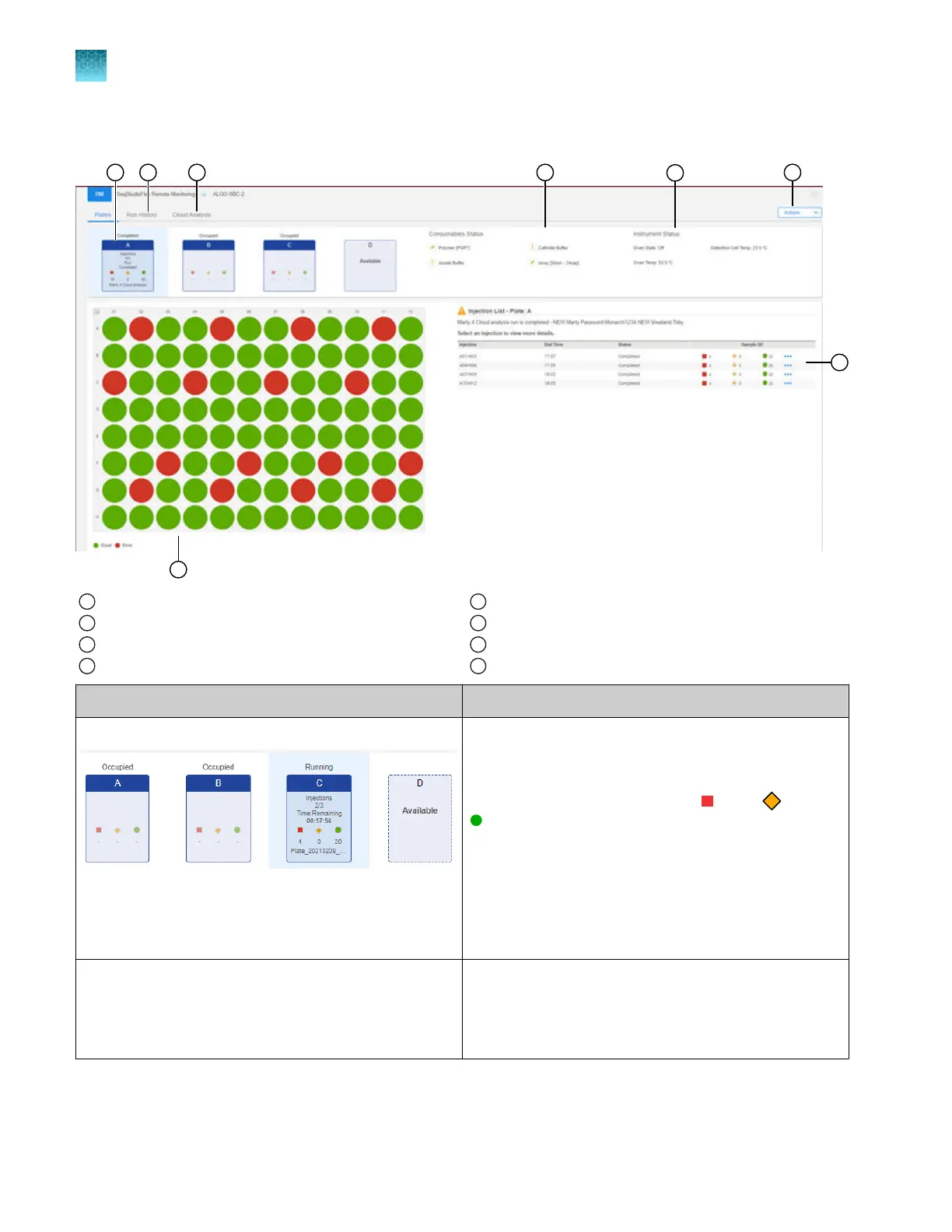
Parts of the Remote Monitoring software home screen
1
Plate positions for the selected instrument
2
Run History tab
3
Cloud Analysis tab
4
Consumables Status pane
5
Instrument status pane
6
Actions menu
7
Injection list pane
8
Plate layout with colors to indicate Sample QC
Screen element Description
Plate positions for the selected instrument Shows the plate positions and plate run status for the
select
ed instrument.
Each plate image displays the number of samples per
plate for each Sample QC status—
Err
or,
C
aution,
Good.
F
or more information, see:
•
“Sample QC and quality alerts” on page 172
•
“Plate position status and plate run status in
the Remote Monitoring software home screen” on
page 186
Run History tab Lists the results that have been saved to Thermo Fisher
™
Connect.
See “View results for a completed run in the Remote
Monitoring software (Run History tab)” on page 198.
Chapter 8 Use the Remote Monitoring software to monitor runs, view results, and use cloud analysis
Monitor a run from the Remote Monitoring software
8
184
SeqStudio
™
Flex Series Genetic Analyzer with Instrument Software v1.0 User Guide













 To Next Page