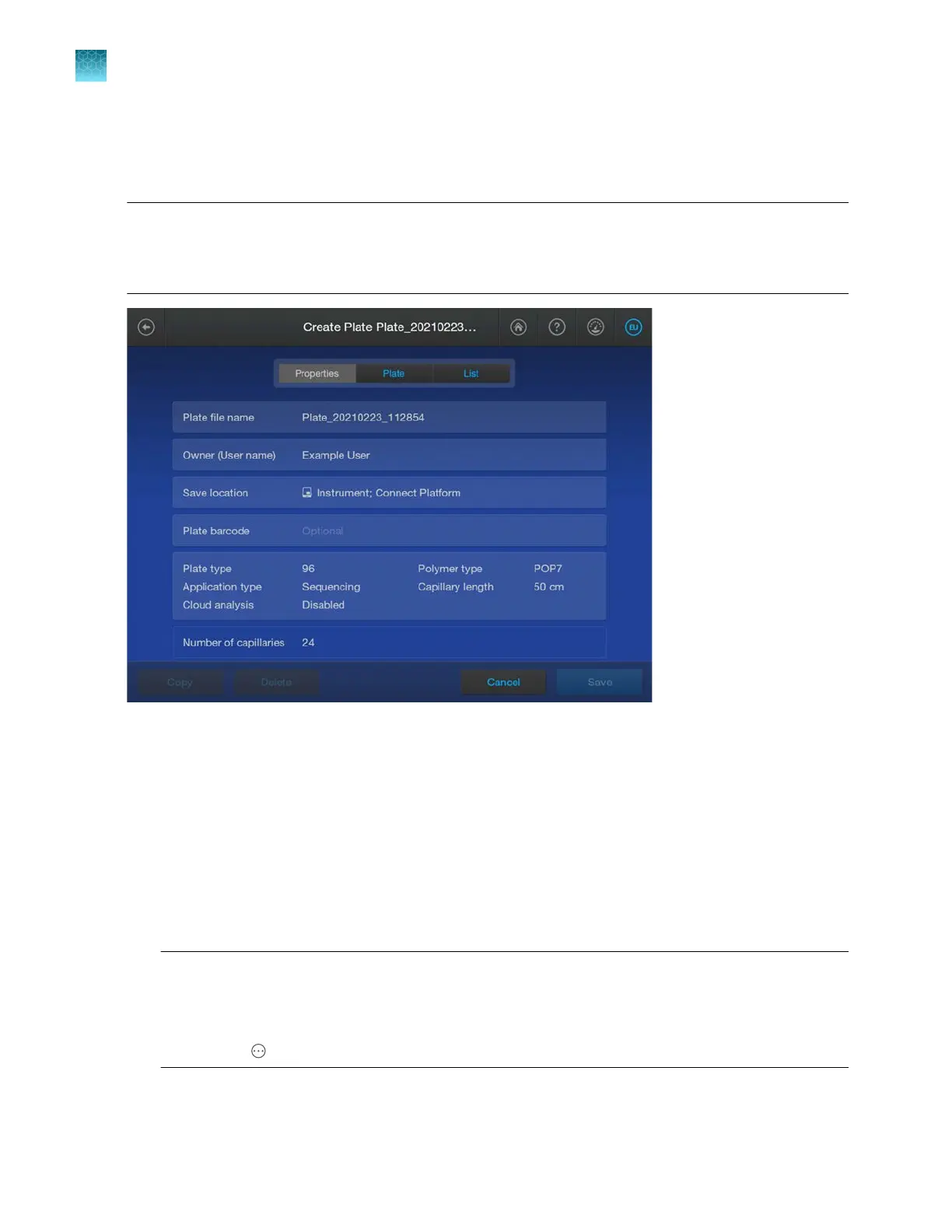
Enter plate properties
After you create, copy, or import a plate file, the Create Plate or View Plate screen is displayed.
Note: The figure shown below is for creating a plate file. The fields and information are the same if you
copy or import a plate file. However, you cannot change the plate file name for an imported plate file.
To change the name of an imported plate file, make a copy of the plate file. See “Copy a plate file” on
page 85.
1.
(Optional) T
ap a section of the screen, then change the default setting for Plate file name, Owner,
Save location (for results), Plate barcode, Plate type, or Application type.
For information on the settings, see “Plate files library” on page 258.
2.
(Optional) Select additional locations for the results in the Save location field.
The plate file and the results are always saved to the instrument.
In addition, you can save the results to a network drive, a USB drive, or the Connect platform. The
save location for results can be changed when the plate file is linked before a run.
To set a default save location for results, see “Set the default save location for results” on
page 468.
Note: If you open a previously saved plate file and the Save location field displays strikethrough
text, it means that the instrument is no longer connected to the originally specified save location.
You cannot run the plate file until the instrument is connected to the save location again.
Alternatively, make a copy of the plate file without the disconnected save location. To make a
copy, select
Actions4Libr
ary4Plate files, select the plate file, then tap Open4Copy.
Chapter 4 Create a plate file on the instrument
Enter plate properties
4
88
SeqStudio
™
Flex Series Genetic Analyzer with Instrument Software v1.0 User Guide













 To Next Page