•
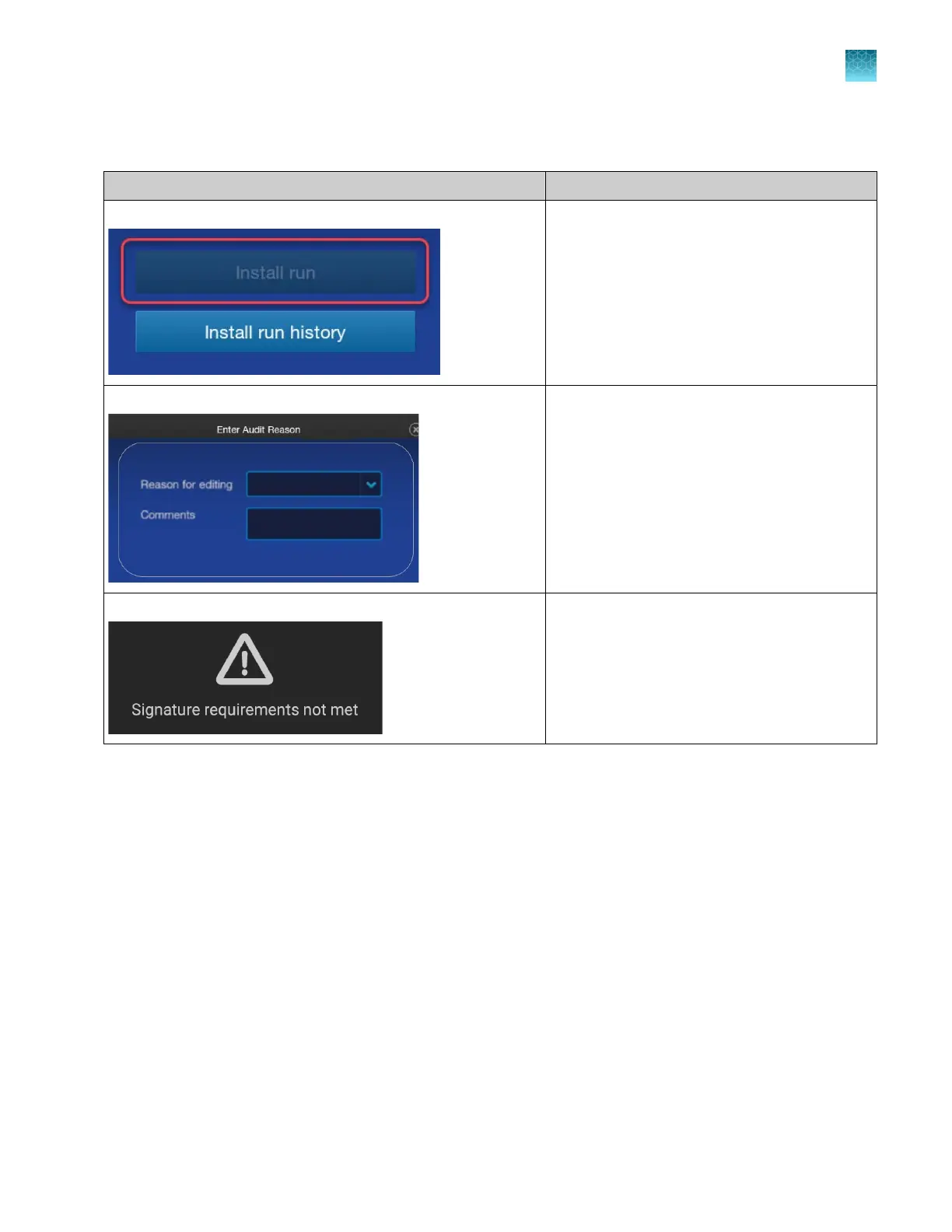
You may see audit and e-signature screens when you use the software (examples are shown
below).
Screen examples Description
Buttons are inactive. You do not have permission to perform a
function.
Note: Buttons can also be inactive for other
reasons. See “Buttons are inactive on the
touchscreen” on page 496.
The Enter Audit Reason screen is displayed. An action is set up for auditing. If the item is
configured as optional for auditing, you do not
have to enter a reason.
A Signature requirements not met message is displayed. An action is set up for electronic signature. You
must enter your user name and password to
allow the action.
Configuring the SAE module and setting permissions
For information on configuration and permissions, see SAE Administrator Console v2.1 User Guide for
Capillary Electrophoresis Products (Pub. No. MAN0025849).
Chapter 10 Use the instrument with the Security, Auditing, and E‑signature (SAE) v2.1 module
Configuring the SAE module and setting permissions
10
SeqStudio
™
Flex Series Genetic Analyzer with Instrument Software v1.0 User Guide
239













 To Next Page