(continued)
Screen element Description
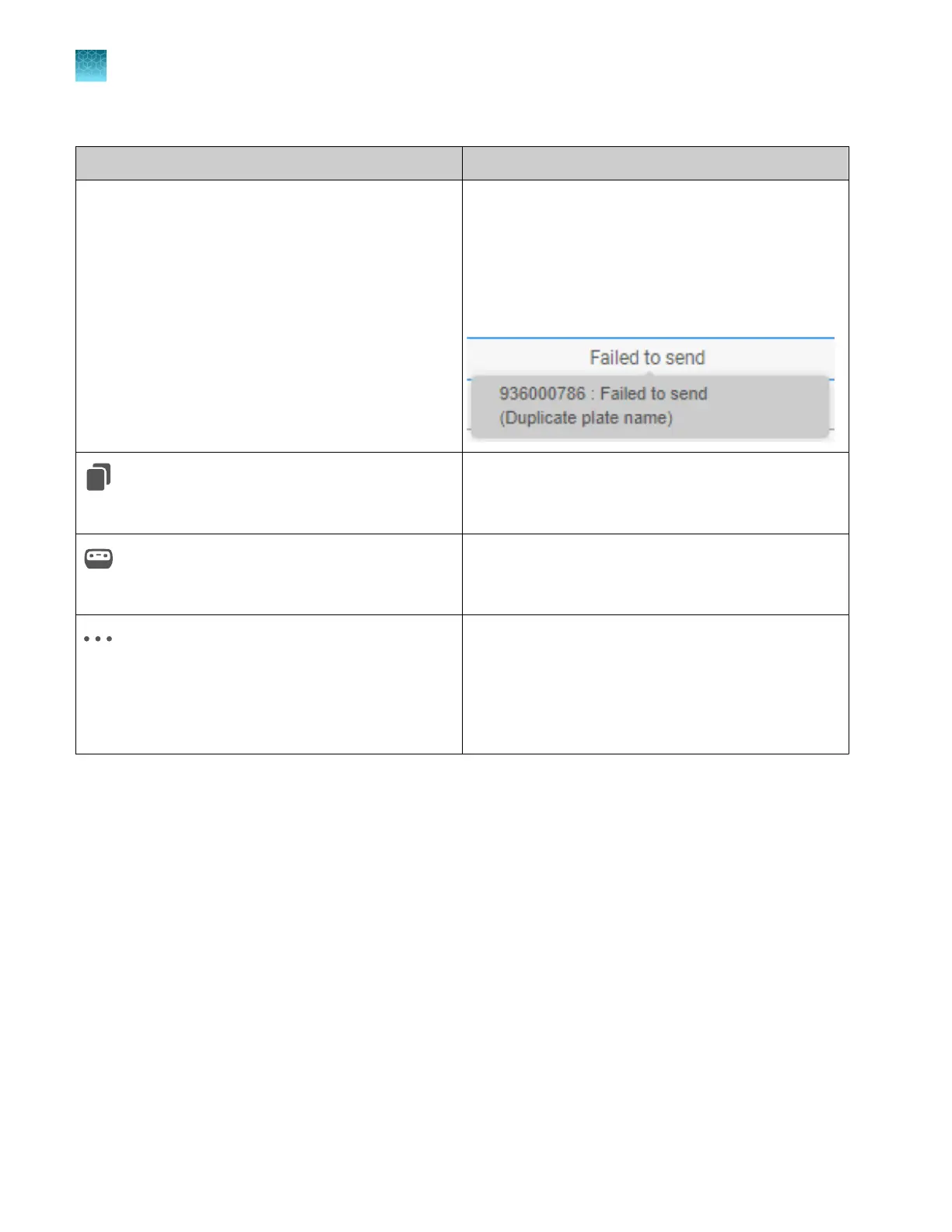
Recent plate files list Lists the 10 most recently created or edited plate files
and their status. The status indicates if a plate file was
sent to an instrument. New plate files are added to
the top of the list. The oldest plate file is automatically
removed when a new plate file is added.
If a Failed to send status is shown, place the cursor over
the status to display the reason for the failure.
(Copy & edit, in Recent plate files list)
Makes a copy of the selected plate file with _Copy
appended to the plate name.
(Send to instrument, in Recent plate files list)
Allows you to select one or more instruments, then
sends the selected plate file to the Inbox on the
instrument(s).
(Actions, in Recent plate files list)
Includes the following commands:
•
Export (plate file)
•
Remove from Recent Files
•
Delete Permanently
•
Cancel Send to Instrument
Connect Plate Manager software (cloud) to an instrument
When the Plat
e Manager software (cloud) is connected to an instrument, you can perform the following
tasks.
•
Create plate files on the cloud
•
Monitor instrument runs remotely from a computer or a smart device
The Plate Manager software (cloud) lists the instruments that are linked to your Thermofisher.com
account. If no instruments are listed, perform the following steps.
1.
Ensure that Thermo Fisher
™
Connect is enabled on the instrument. See “Enable or disable Thermo
Fisher
™
Connect access on the instrument (administrator only)” on page 228.
2.
Link the instrument to your Thermofisher.com account. For information, see:
•
“(Recommended) Link directly to your Thermofisher.com account” on page 217
•
“Link a local profile to your Thermofisher.com account (one time)” on page 220
Chapter 5 Cr
eate a plate file in the Plate Manager software
Get started with the Plate Manager software (cloud)
5
114
SeqStudio
™
Flex Series Genetic Analyzer with Instrument Software v1.0 User Guide













 To Next Page