•
To specify re-injections—Select an injection, then tap Edit & Re-inject. Change the settings
if needed, then tap Done.
IMPORTANT! The Edit & Re-inject button is inactive if you select more than one injection, a
spectral calibration, or an install run injection.
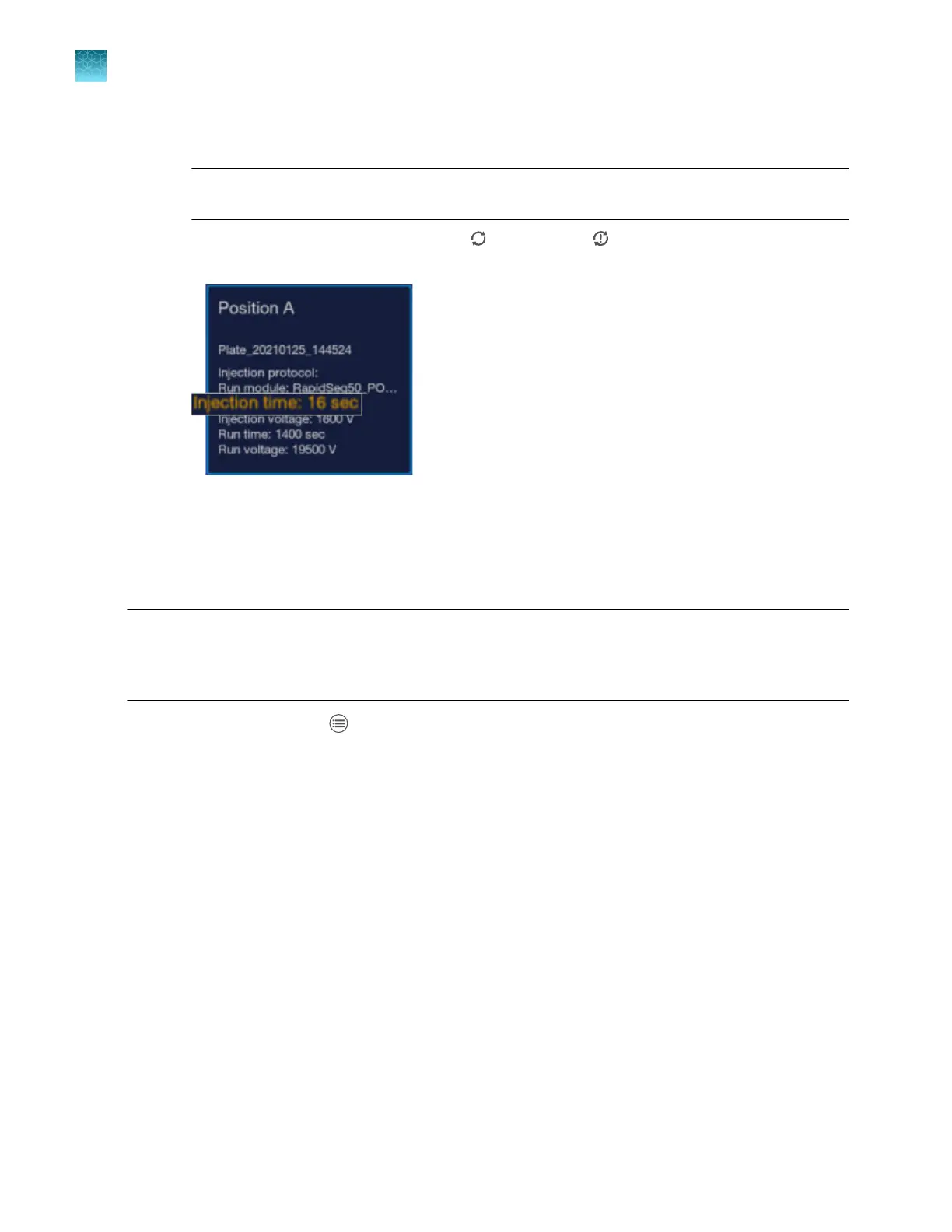
The re-injection is added to the list with (Re-inject) or (Re-inject with changes) icon.
Updated run settings for the re-injection are displayed in orange.
•
T
o add a cancelled injection back into the queue—Select a plate or one or more injections,
then tap Add to queue. This button is displayed only if one or more injections have been
cancelled, and is active only when a cancelled injection is selected.
Pause the instrument in the Run Queue screen
Note: You can also pause the run from the home screen (see “Pause the instrument in the home
screen” on page 157), in instrument status (see “Check instrument status” on page 67), and in the
Remote Monitoring software (see “Pause the instrument from the Remote Monitoring screen, resume
from the instrument home screen” on page 193).
1.
In the home scr
een, tap
Run queue.
2.
In the Run Queue scr
een, select a plate or an injection, then tap Actions4Pause instrument.
Chapter 6 S
tart and monitor a run
Use the Run queue to monitor a run on the instrument
6
166
SeqStudio
™
Flex Series Genetic Analyzer with Instrument Software v1.0 User Guide













 To Next Page