Perform an install run
IMPORTANT! Ensure that polymer has been installed for <3 days before you run a fragment install
check. If you use older polymer, the install run may fail because allele peaks may not align with the
expected system-specified bins.
1.
L
oad the install run plate in the instrument. See “Load a plate into the instrument” on page 136.
2.
In the home screen, tap
Actions4Maint
enance4Install run4Install run.
3.
Tap the screen to select the plate type you are using for the install run.
4.
Tap the injection group for the install standard in the plate, then tap Chemistry type.
5.
Tap the Chemistry Type for install run.
Note: If you use the BigDye
™
Direct Cycle Sequencing Kit, select BDTv3.1. For more information,
see “Using BigDye
™
Direct Cycle Sequencing Kit chemistry” on page 312.
6.
T
ap Next.
The home screen is displayed with capillary information sharing settings.
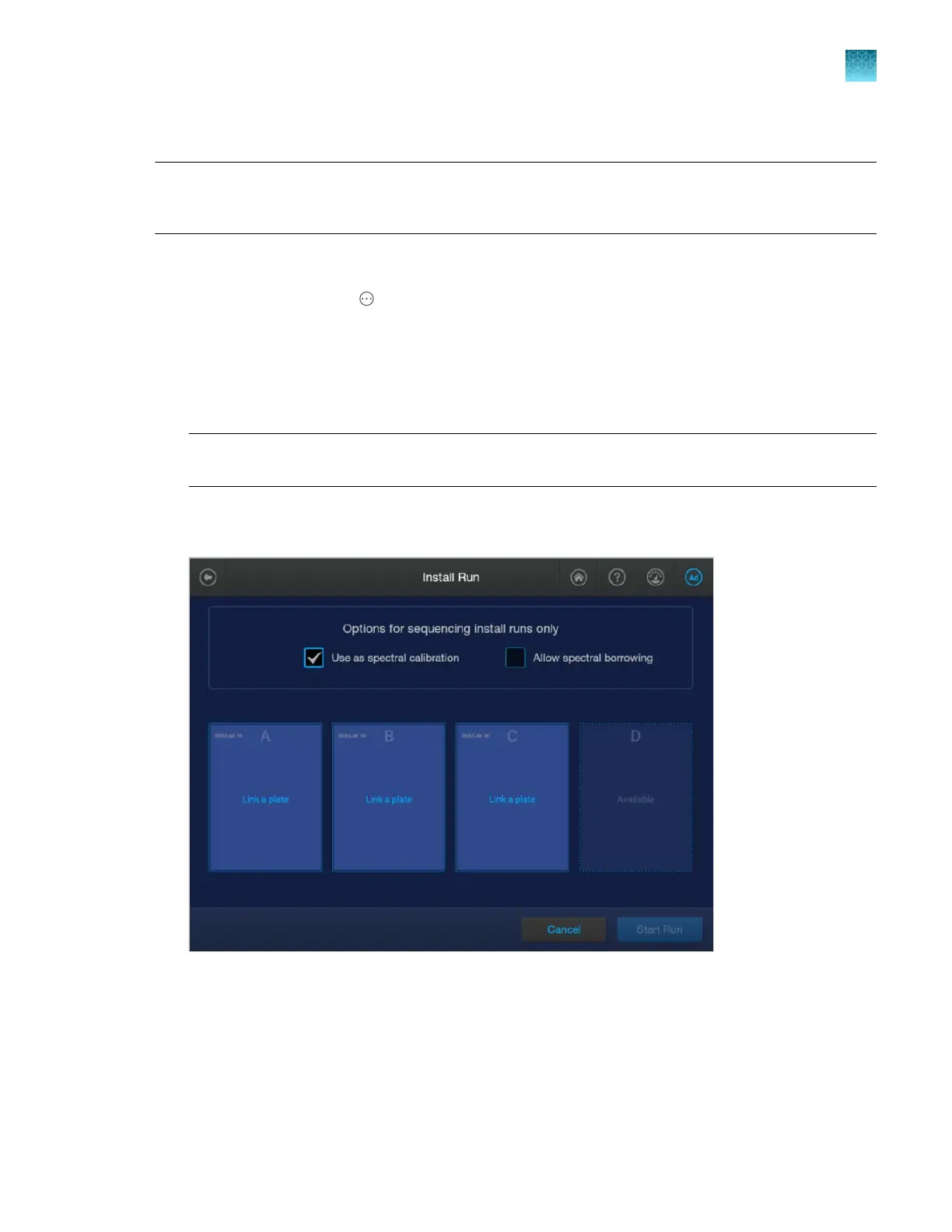
7.
(Sequencing install runs only) Select capillar
y information sharing settings:
• Use as spectral calibration—Uses the sequencing data for spectral calibration.
• Allow borrowing—Determines whether the software can use spectral calibration data from
an adjacent capillary if the data from a capillary does not meet the quality thresholds. For
information, see “Spectral calibration sharing between capillaries” on page 321. (The Auto
Retry function from spectral calibration is not performed if you allow borrowing for the install
run.)
Chapter 12 Run calibr
ations and install checks
Perform an install run
12
SeqStudio
™
Flex Series Genetic Analyzer with Instrument Software v1.0 User Guide
333













 To Next Page