Signing during an automated barcode run
If your system is configured to require a signatures when you start a run and required objects are not
signed, a
Signatures required alert is displayed. Tap the
icon to display the objects that require
signing.
Note: Alternatively, you can manually link the plates. If signatures are required, a pre-run check
message displays the objects that require signature.
Signatures can be required for the objects listed below.
To sign an object, tap Sign, then enter your user name and password (or have a user with the required
role enter their user name and password) to sign the object. When signature requirements are met, the
plate file is linked.
Note: The Display signatures and Sign buttons are displayed only if your SAE account role has
permission to sign objects.
After the objects are signed, open, then close the drawer to trigger plate barcode scanning.
Alternatively, you can tap a plate position, then navigate to and select a plate file for the position.
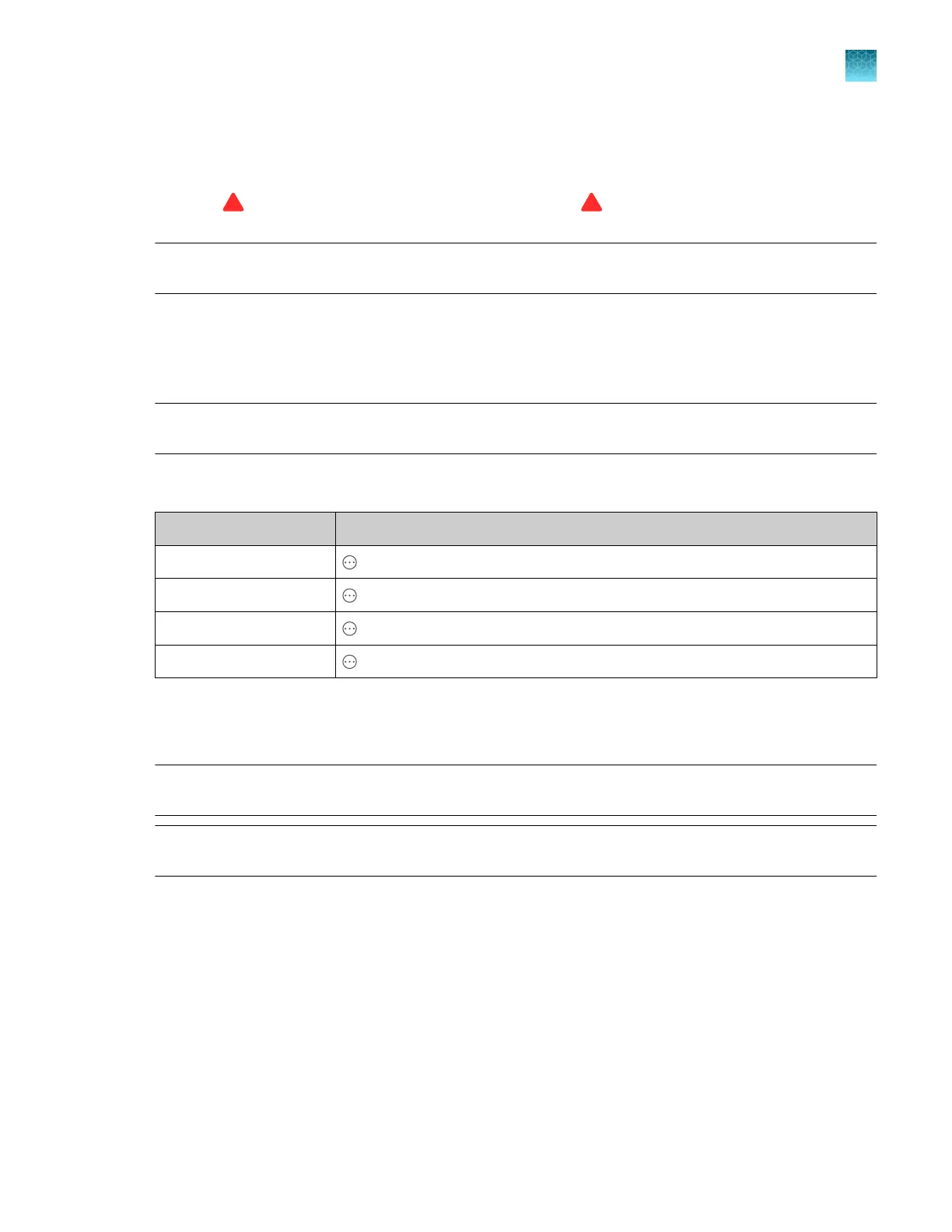
Object How to access from the home screen
Spatial calibration Actions4Maintenance4Calibration4Spatial calibration
Spectral calibration Actions4Maintenance4Calibration4Spectral calibration history
Install run Actions4Maintenance4Install run4Install run history
Plate file Actions4Library4Plate files
Displaying signatures
Note: The Display signatures button is displayed only if your SAE account role has permission to sign
objects.
Note: An administrator can also view e-signature histories in the SAE module. For information, see SAE
Administrator Console v2.1 User Guide.
You can display the signatures for any of the objects listed below when the object is created. For
example, at the end of a spectral calibration, you can tap Actions4Display signatures. Tap a row to
display details.
•
Spatial calibration
•
Spectral calibration
•
Sequencing install run
•
Fragment install run
•
Plate file
To display signatures after an object is created, access the object, tap Actions4Display signatures
Chapter 10 Use the instrument with the Security, Auditing, and E‑signature (SAE) v2.1 module
Signing during an automated barcode run
10
SeqStudio
™
Flex Series Genetic Analyzer with Instrument Software v1.0 User Guide
249













 To Next Page