Note: You can also use the Plate Manager software with a SeqStudio
™
instrument. To change the
default instrument type, click (Switch instrument) at the top right of the screen, then select
SeqStudio.
For information, see SeqS
tudio
™
Genetic Analyzer Instrument and Software User Guide (Pub. No.
MAN0018646 for v1.2 software or MAN0016138 for v1.1 software).
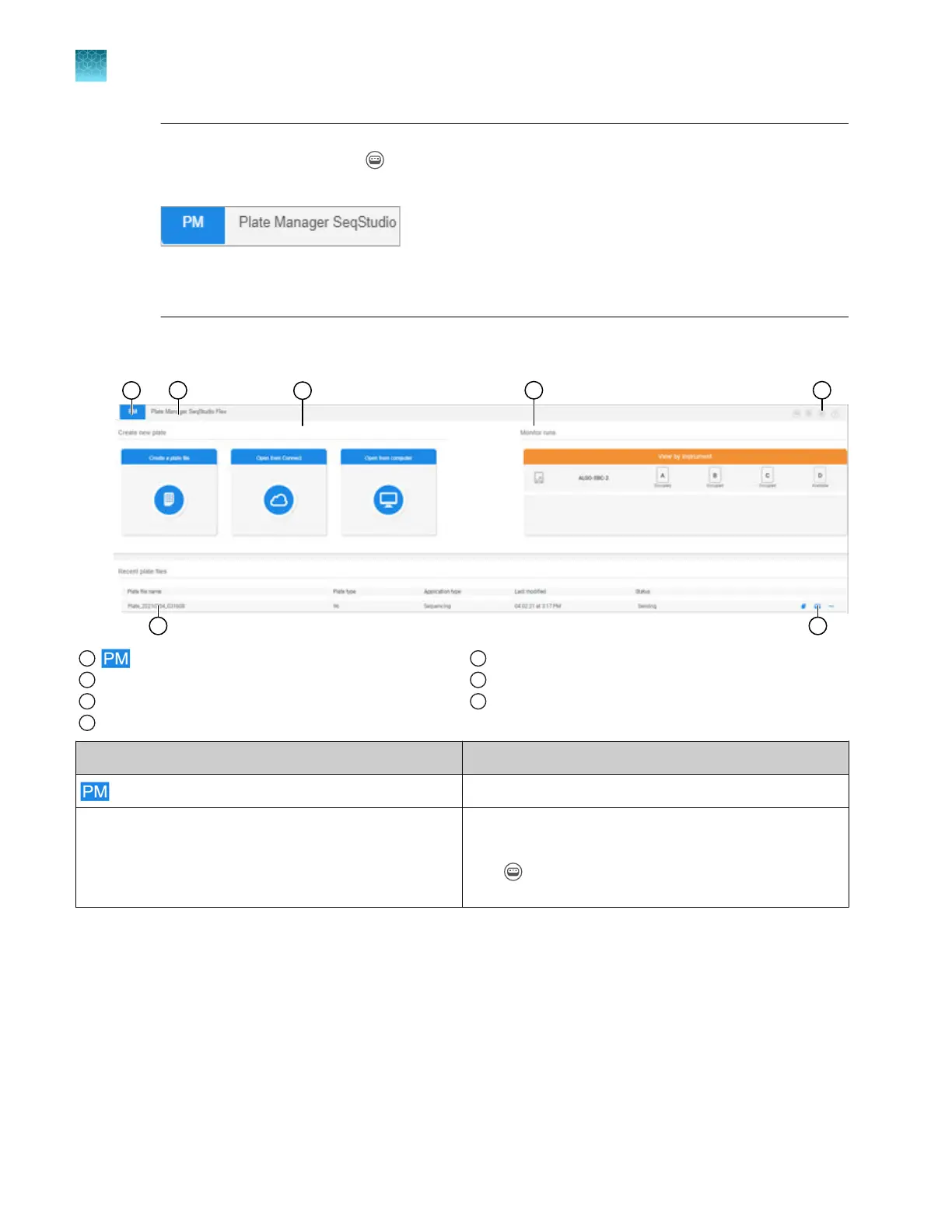
Parts of Plate Manager software (cloud) home screen
1
icon
2
Instrument type
3
Create or open a plate file
4
Monitor runs
5
Switch instrument, release notes, settings, and help
6
Recent plate files list
7
Copy, send to instrument, and actions
Screen element Description
icon Click in any screen to display the home screen.
Instrument type The instrument type determines the type of plate file you
set up (SeqS
tudio Flex or SeqStudio).
Click
(Switch instrument) t
o switch between
SeqStudio Flex and SeqStudio.
Chapter 5 Create a plate file in the Plate Manager software
Get started with the Plate Manager software (cloud)
5
112
SeqStudio
™
Flex Series Genetic Analyzer with Instrument Software v1.0 User Guide













 To Next Page