Signing an object when a regular run is started
Note: The Sign button is displayed only if your SAE account role has permission to sign objects.
If your system is configured to require a signature when you start a regular run (that is, not a calibration
or an install run), a message is displayed if any required objects have not been signed.
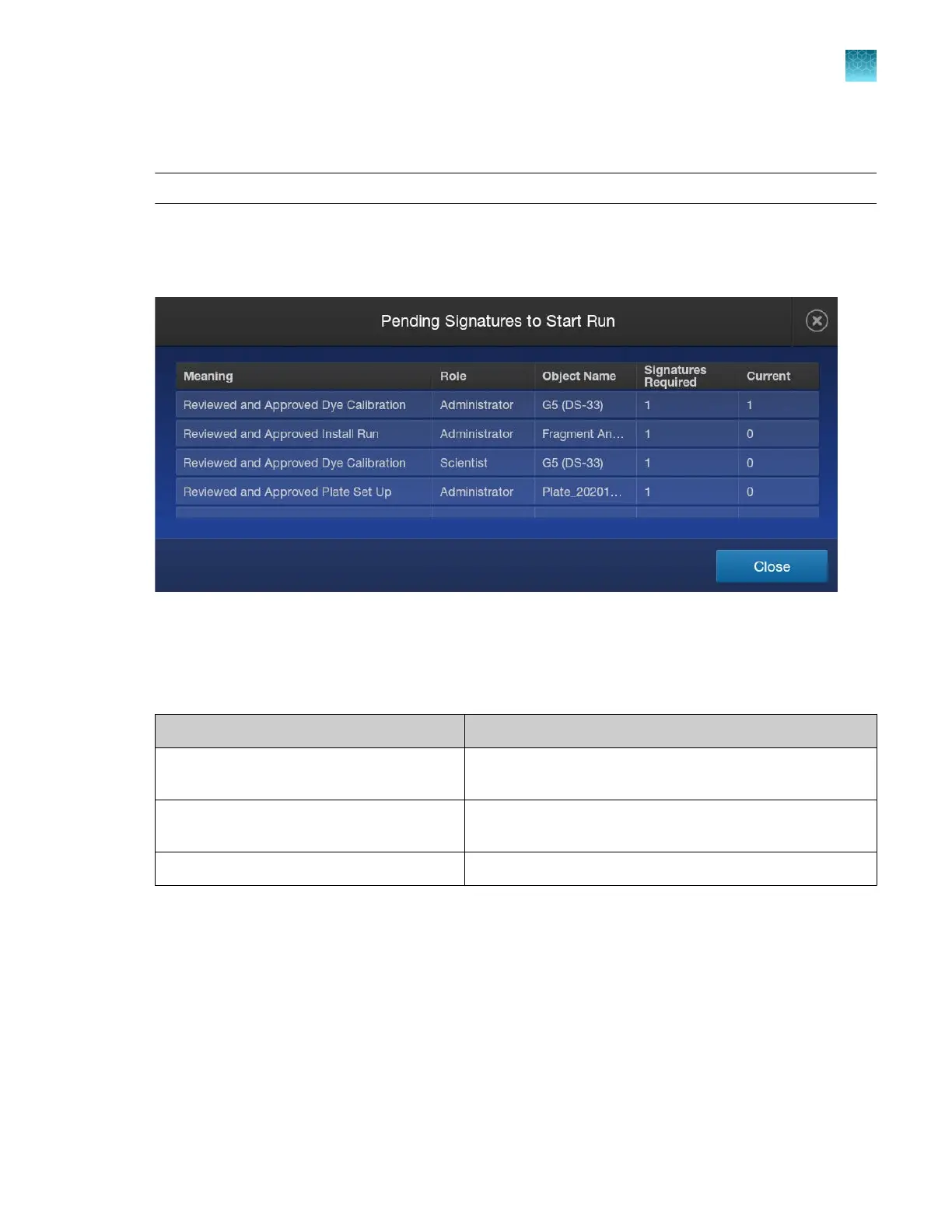
Tap View Details to show the pending signatures.
Each row corresponds to a required signature. If an item is listed two or more times, it indicates that
two or mor
e signatures are required for the item. See the example at the end of this section for an
explanation of this screen.
The Object Name column lists the items that require signatures.
Object Name Description of the object
A dye set name The most recent spectral calibration for the dye set specified
in the plat
e file.
An install run name The most recent install run for the application specified in
the plate file.
A plate name The plate file used for the run.
Tap a row in the pending signatures screen to display the Signatur
e Requirement screen.
Chapter 10 Use the instrument with the Security, Auditing, and E‑signatur
e (SAE) v2.1 module
Signing an object when a regular run is started
10
SeqStudio
™
Flex Series Genetic Analyzer with Instrument Software v1.0 User Guide
247













 To Next Page