General library procedures
IMPORTANT! Enter only alpha-numeric characters in the software. Special characters may not be
correctly displayed in some software screens, may cause problems with plate, file, folder, user account,
and/or library item names, and may interfere with starting a run and/or importing and exporting library
items.
Create a new entry from a factory-provided or locked entry
1.
In the home screen, tap Actions4Library, then tap the library of interest.
2.
Select the (Factory-provided) entr
y or
(Locked) entr
y in the library.
3.
Tap Open.
4.
Tap Copy.
Note: Dye set library only: Copy is inactive if a user-created dye set is selected. Only
factory‑provided dye sets can be copied.
5.
Ent
er a name for the item, then tap Enter.
6.
Modify parameters as needed (see the following topics in this section for information).
7.
Tap Save.
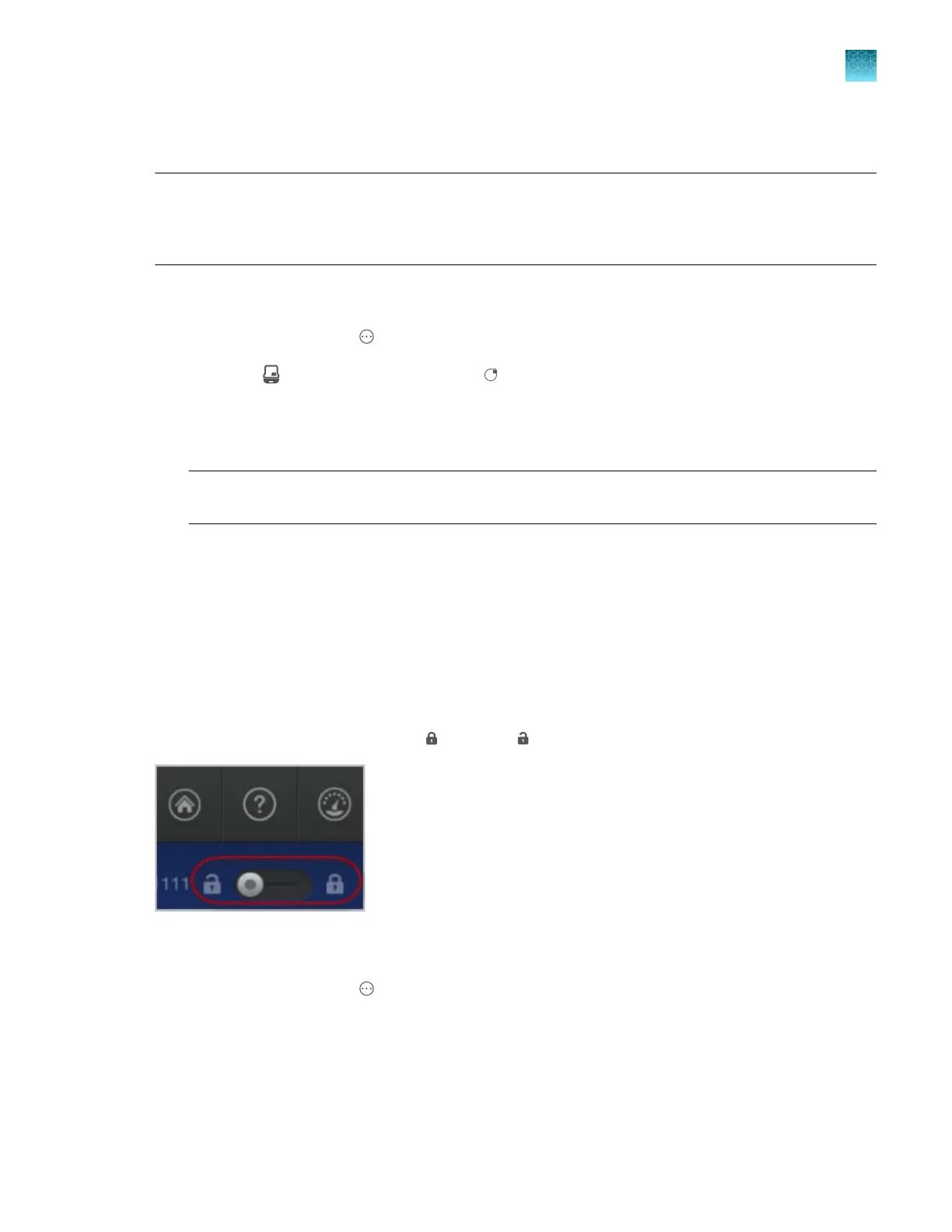
Lock or unlock a library entry
A locked item can be modified or delet
ed only by the user who created the item.
At the top right of a library screen, tap
(Lock) or (Unlock).
Copy a library entry
1.
In the home screen, tap Actions4Library, then tap the library of interest.
2.
Tap the item to edit, then tap Open.
If the Copy button is inactive, you can edit this entry directly. See “Edit a library entry” on
page 256.
Chapter 11 Manage library resources on the instrument
General library procedures
11
SeqStudio
™
Flex Series Genetic Analyzer with Instrument Software v1.0 User Guide
255













 To Next Page