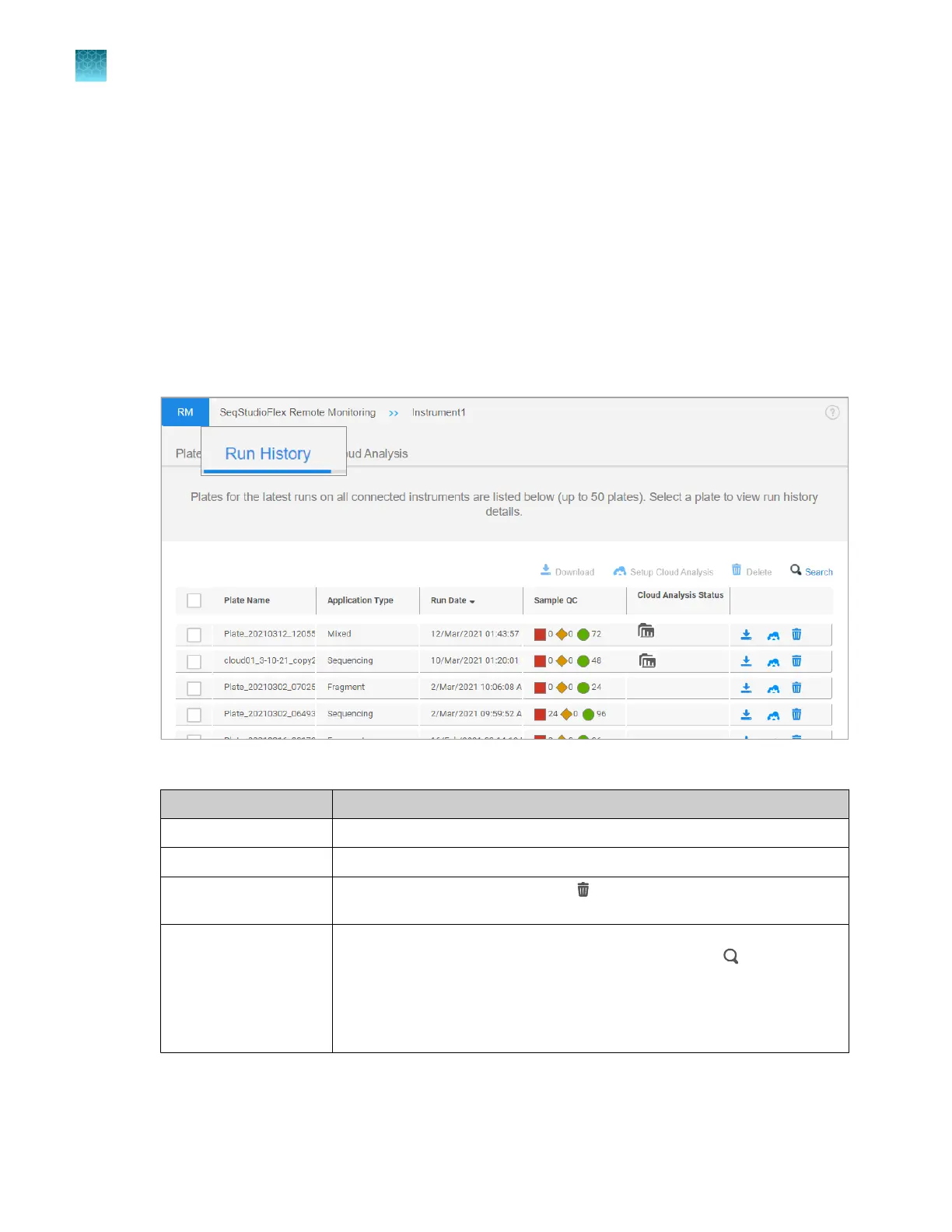
View results in the Remote Monitoring software
View results for a completed run in the Remote Monitoring software (Run
History tab)
Plates are listed in the Run history tab only if the Save location in the plate file specifies Connect
Platform.
The list contains up to 50 of the most recently completed plate runs across all connected instruments.
New plate runs are added to the top of the list. If the list contains 50 plates and a new plate is added,
the oldest plate is automatically removed.
1.
In the Remote Monitoring software home screen, click the Run History tab.
2.
Do any of the following as needed.
Task Action
Download results See “Download results from the Remote Monitoring software” on page 201.
Set up cloud analysis See “Use cloud analysis in the Remote Monitoring software” on page 202.
Delete projects from the
list
Select one or more rows, then click (Delete). The plat
es are no longer
listed in the Run History tab, but are accessible on the instrument.
Search for a plate The plate list displays up to 50 plates. If a plate is not displayed in the list
and has not been deleted from the plate list, you can click
(Search) then
ent
er text from any field to filter the list. For example, if you type Fragment,
only plates with an Application Type of Fragment are listed. You can also
enter a date or text that is within a plate file name.
To unfilter the list, delete the text in the search field.
3.
Click a plat
e to display the electropherogram view.
The raw data is displayed by default.
Chapter 8 Use the Remot
e Monitoring software to monitor runs, view results, and use cloud analysis
View results in the Remote Monitoring software
8
198
SeqStudio
™
Flex Series Genetic Analyzer with Instrument Software v1.0 User Guide













 To Next Page