4.
Tap your initials, tap Edit, then enter your PIN.
5.
Tap Connect profile.
6.
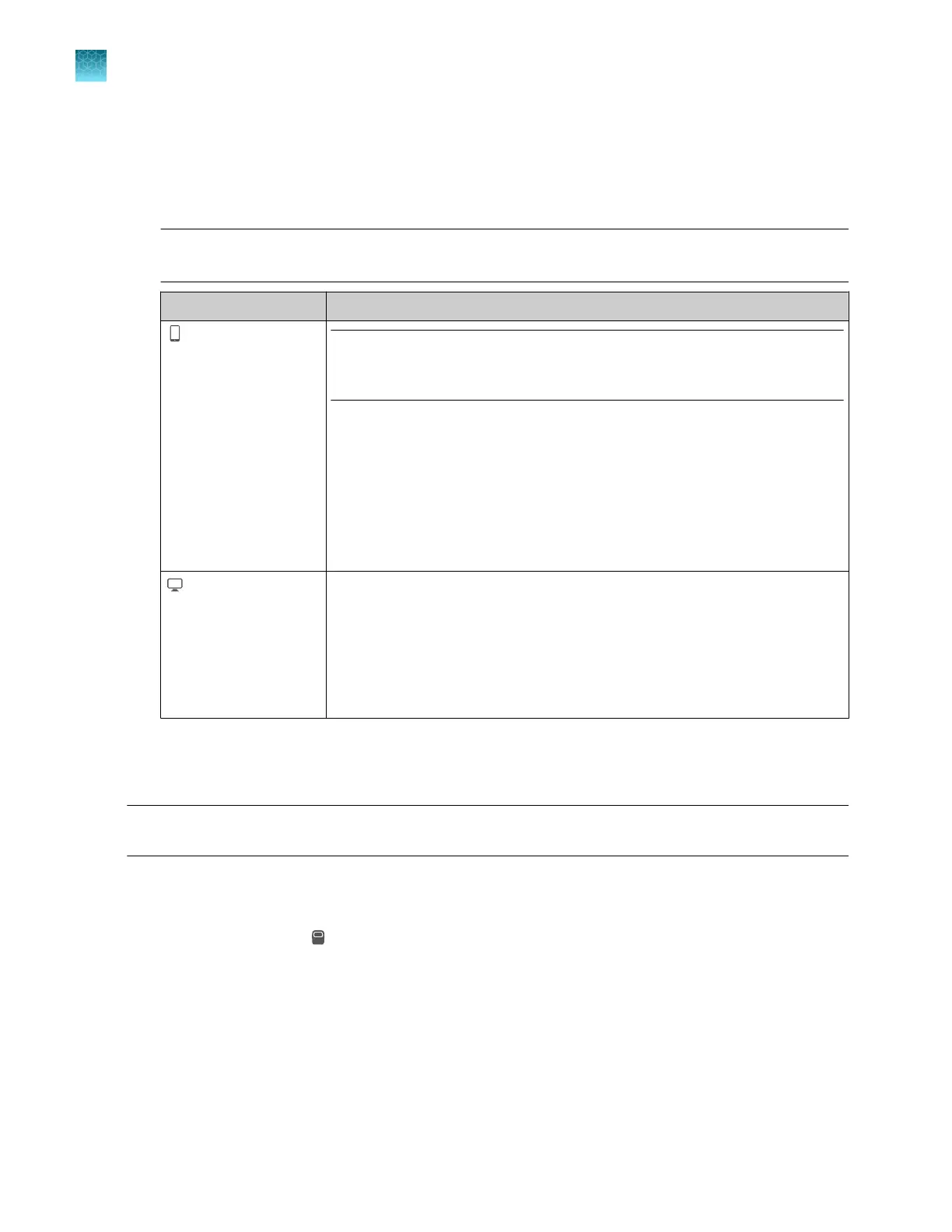
In the Connect to the Connect Platform screen, tap a connection option.
Note: This function links the instrument to your Thermofisher.com account, not to a specific
mobile device or PC.
Option Action
Mobile devices
W
ith this option, the
instrument generates a
QR (Quick Response)
code, and you use your
smart device to read
the QR code.
Note: Before selecting this option, install and sign in to the
InstrumentConnect software on your mobile device. See “Monitor a run from
a mobile device” on page 193.
1.
T
ap Mobile devices to display a QR code.
2.
Hold the camera on your mobile device over the QR code that is
displayed on the touchscreen.
3.
If this is the first time you are linking, you are prompted to create a PIN.
You can use this PIN with your cloud profile to access any instrument
that is listed in the InstrumentConnect software.
You can alternatively enter a link code in InstrumentConnect.
PC
W
ith this option, the
instrument generates
a link code, and you
enter the link code into
the InstrumentConnect
screen.
1.
Tap PC to display a link code.
2.
On a computer, access Thermo Fisher
™
Connect.
3.
Access the InstrumentConnect software.
4.
Click Link instrument.
5.
Enter the link code.
Disconnect the instrument from your cloud pr
ofile
Note: If your cloud profile is disconnected from the instrument, voice command functions are disabled.
For more information, see “Use voice commands” on page 231.
1.
Access the InstrumentConnect softwar
e (see “Sign in to apps.thermofisher.com and access the
InstrumentConnect software” on page 215).
2.
In the left pane, click
(InstrumentConnect).
Chapter 9 Use the instrument with Thermo Fisher
™
Connect
Disconnect the instrument from your cloud profile
9
224
SeqStudio
™
Flex Series Genetic Analyzer with Instrument Software v1.0 User Guide













 To Next Page