•
If a message is displayed indicating that results will be permanently deleted and may not
have been exported, it indicates that the results were saved to the instrument only (instead of
additionally saving to Thermo Fisher
™
Connect, a network drive, or a USB drive).
To check if results have been also saved in another location:
a.
Tap No in the message box.
b.
Select the plate in the Run History screen, then tap View.
c.
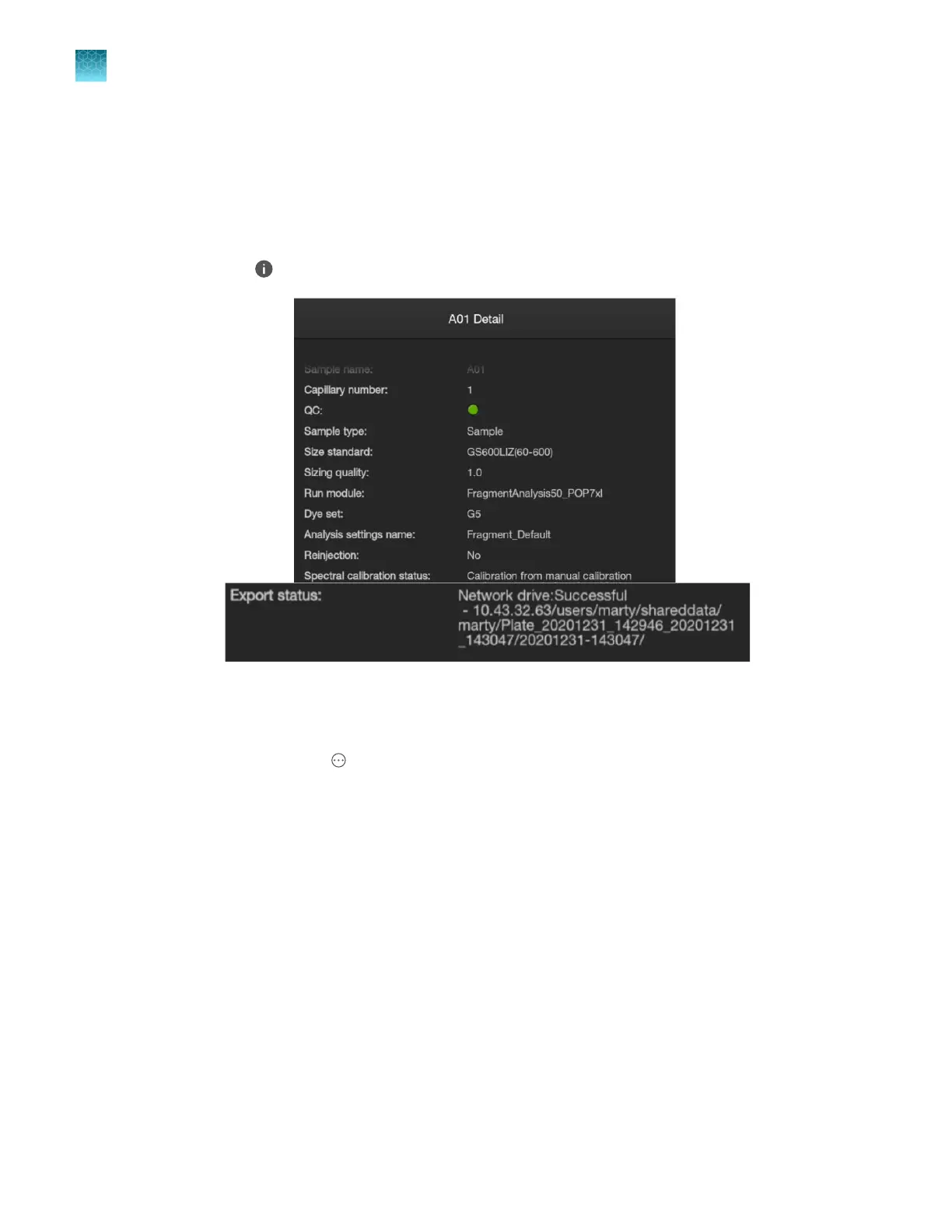
Tap (Information) for any sample, then swipe up to display the Export status result.
Back up user data (instrument settings, library items, and results)
(administr
ator only)
1.
In the home screen, tap
Actions4Maint
enance4Back up user data.
2.
Tap the profiles that you want to back up.
3.
Tap Backup.
4.
Specify a storage location, then tap Export.
A folder containing the plate file and the sample data files is backed up to the specified location.
(Optional) After backing up, you can do any of the following:
•
Delete the run histories that you backed up from the instrument (see “Delete a run history” on
page 469).
•
Delete library items from the instrument (see “Delete a library entry” on page 258).
•
Open the backed-up CSV files in the folder on another instrument or in the Plate Manager software.
Chapter 14 Manage the softwar
e (instrument)
Manage storage space
14
470
SeqStudio
™
Flex Series Genetic Analyzer with Instrument Software v1.0 User Guide













 To Next Page