•
Optional use with the Security, Audit, and E-Signature (SAE) module for controlled user access
•
Application programming interface (API) to allow automation of instrument and software functions
Profile and sign in options
The profile you use to sign in depends on your instrument configuration.
•
Use a local profile for a standalone instrument. Most procedures in this user guide describe using
the instrument when you are signed in with a local profile.
•
Use a Thermo Fisher
™
Connect account (cloud profile) for an instrument that is connected to
Thermo Fisher
™
Connect. For procedures that describe using the instrument when you are signed
in with a cloud profile, see Chapter 9, “Use the instrument with Thermo Fisher
™
Connect”.
•
Use an SAE account for an instrument that is configured for security, audit, and e-signature
functions. For procedures that describe using the instrument when you are signed in with an SAE
account, see Chapter 10, “Use the instrument with the Security, Auditing, and E‑signature (SAE)
v2.1 module”.
Create a local profile (one time only)
A profile that you create on the instrument is referred to as a local profile.
Note: If you will use the instrument with Thermo Fisher
™
Connect, skip this step and connect the
instrument to your Thermo Fisher
™
Connect account. See Chapter 9, “Use the instrument with Thermo
Fisher
™
Connect”.
1.
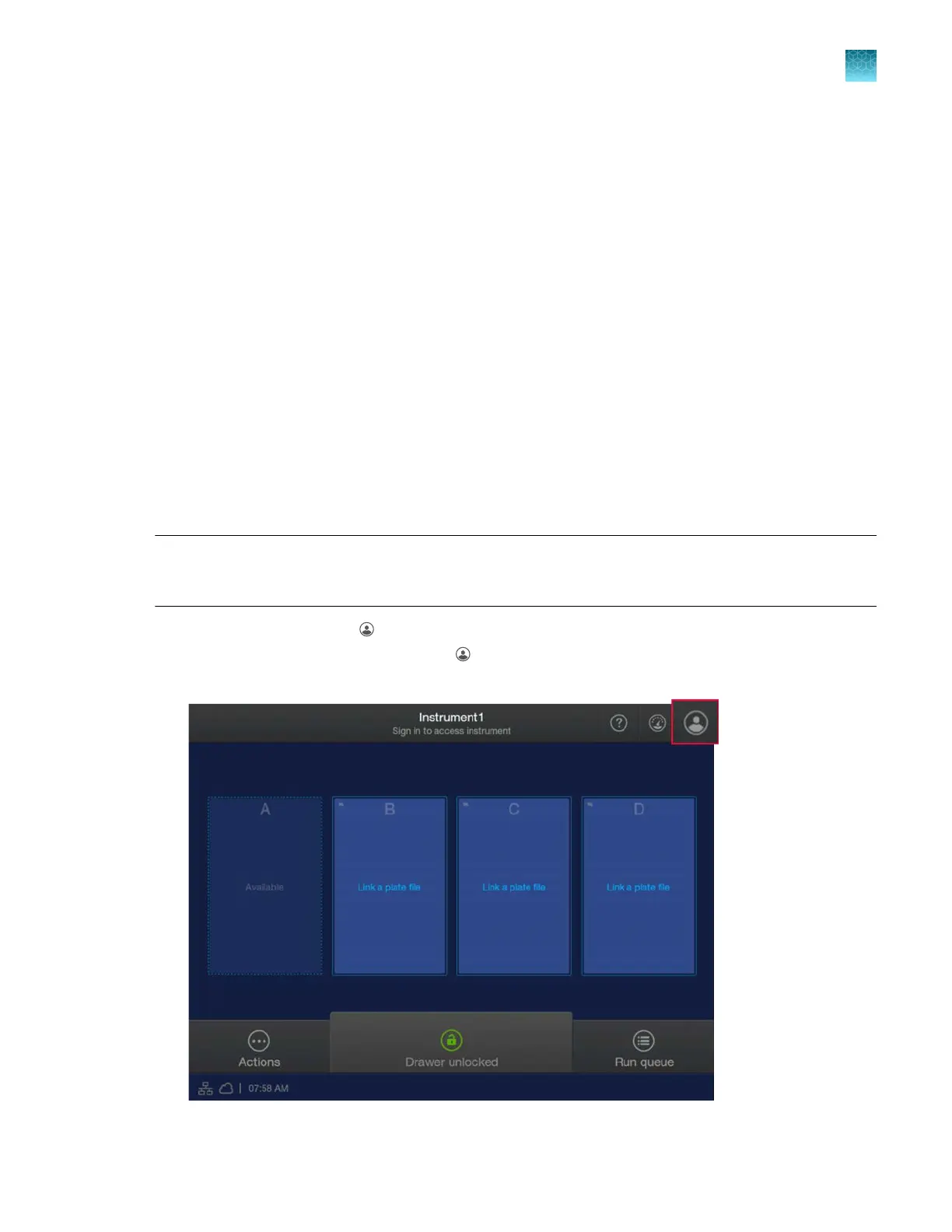
In the home screen, tap (Profile).
If user initials are displayed instead of (Profile), see “Sign in (if another user is signed in)” on
page 34.
Chapter 1 Product information
About the SeqStudio
™
Flex Series Instrument Software v1.0
1
SeqStudio
™
Flex Series Genetic Analyzer with Instrument Software v1.0 User Guide
29













 To Next Page