The changes that you make in the Remote Monitoring software are shown in the Run Queue screen
on the instrument.
Pause the instrument from the Remote Monitoring screen, resume from the
instrument home screen
Note: You can also pause the run in the run queue (see “Pause the instrument in the Run Queue
screen” on page 166), in instrument status (see “Check instrument status” on page 67), and the home
screen (see “Pause the instrument in the home screen” on page 157).
1.
Select Actions4Pause instrument.
2.
In the Pause Instrument screen, tap an option to pause after the run is complete or to pause
immediately.
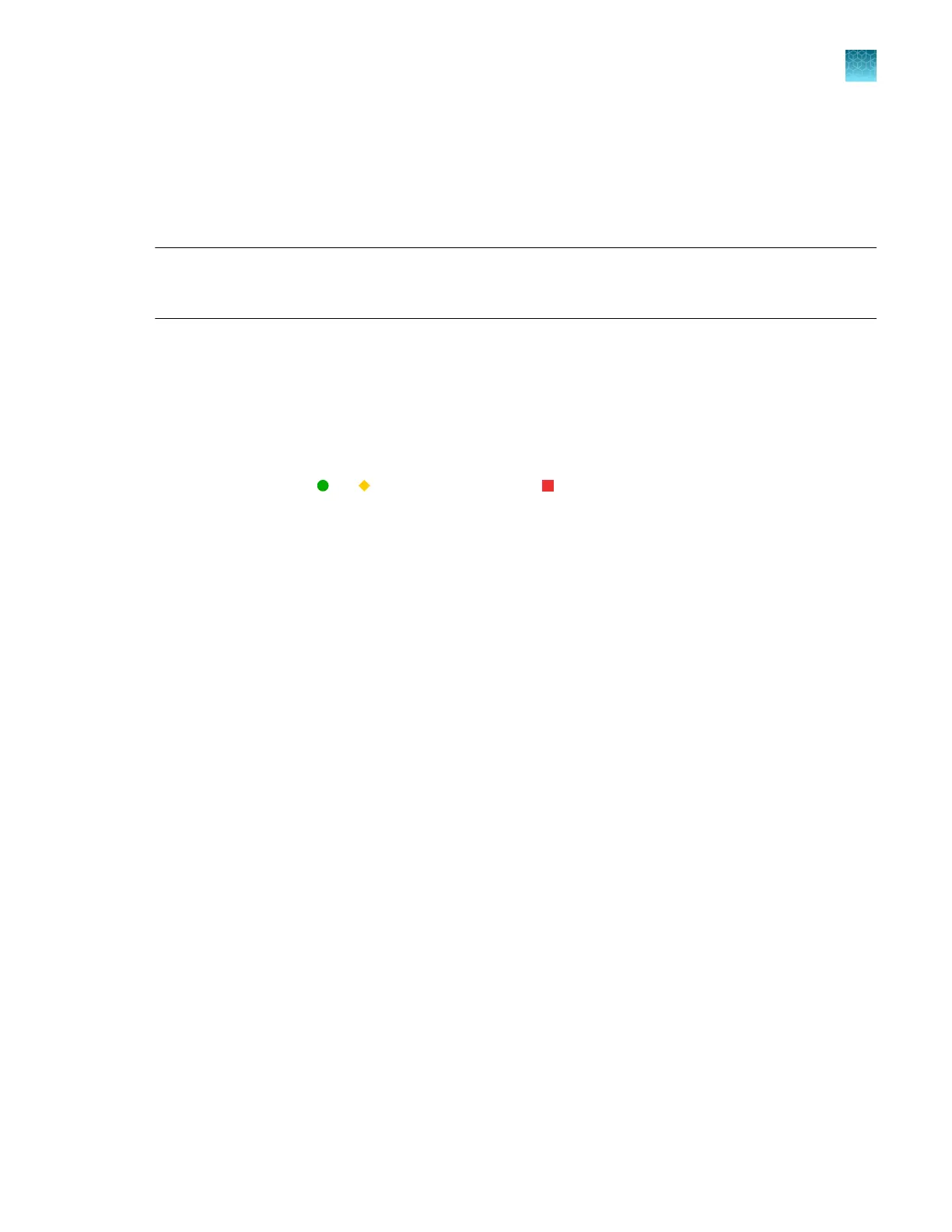
If you select the pause immediately option, the status of the injection changes to Aborted and the
wells for the injection are marked X (canceled/aborted) in the plate view. If the pause occurs late in
the injection cycle, sucient data may have been collected for analysis. If sample quality is high, it
is possible to see
or Sample QC inst
ead of
for an aborted injection.
T
o resume the instrument run, tap Resume on the instrument home screen. The next injection in the
Run queue is started.
Monitor a run from a mobile device
Register the instrument with the InstrumentConnect app
1.
On your mobile device, download the InstrumentConnect app fr
om the Apple Store or from
Google
™
Play.
2.
On your mobile device, launch the InstrumentConnect app, then sign in with your
Thermofisher.com user name and password.
Chapter 8 Use the Remot
e Monitoring software to monitor runs, view results, and use cloud analysis
Monitor a run from a mobile device
8
SeqStudio
™
Flex Series Genetic Analyzer with Instrument Software v1.0 User Guide
193













 To Next Page