Start a remote support session
The Remote support feature allows a support representative to access the instrument remotely. During
a remote support session, a Technical Support representative can control the touchscreen and perform
other functions.
You can use this function when you are signed in with a local profile or a cloud profile. The instrument
must be connected to the internet to use remote support. Thermo Fisher
™
Connect access is not
required.
1.
Contact Technical Support to obtain a PIN that you will need to start the session. See “Use Smart
Help to request assistance from Technical Support or Instrument Service” on page 473.
2.
In the home screen, tap Actions4Suppor
t4Remote support.
3.
In the Remote Support screen, tap Start remote session, then enter the PIN provided by
Support.
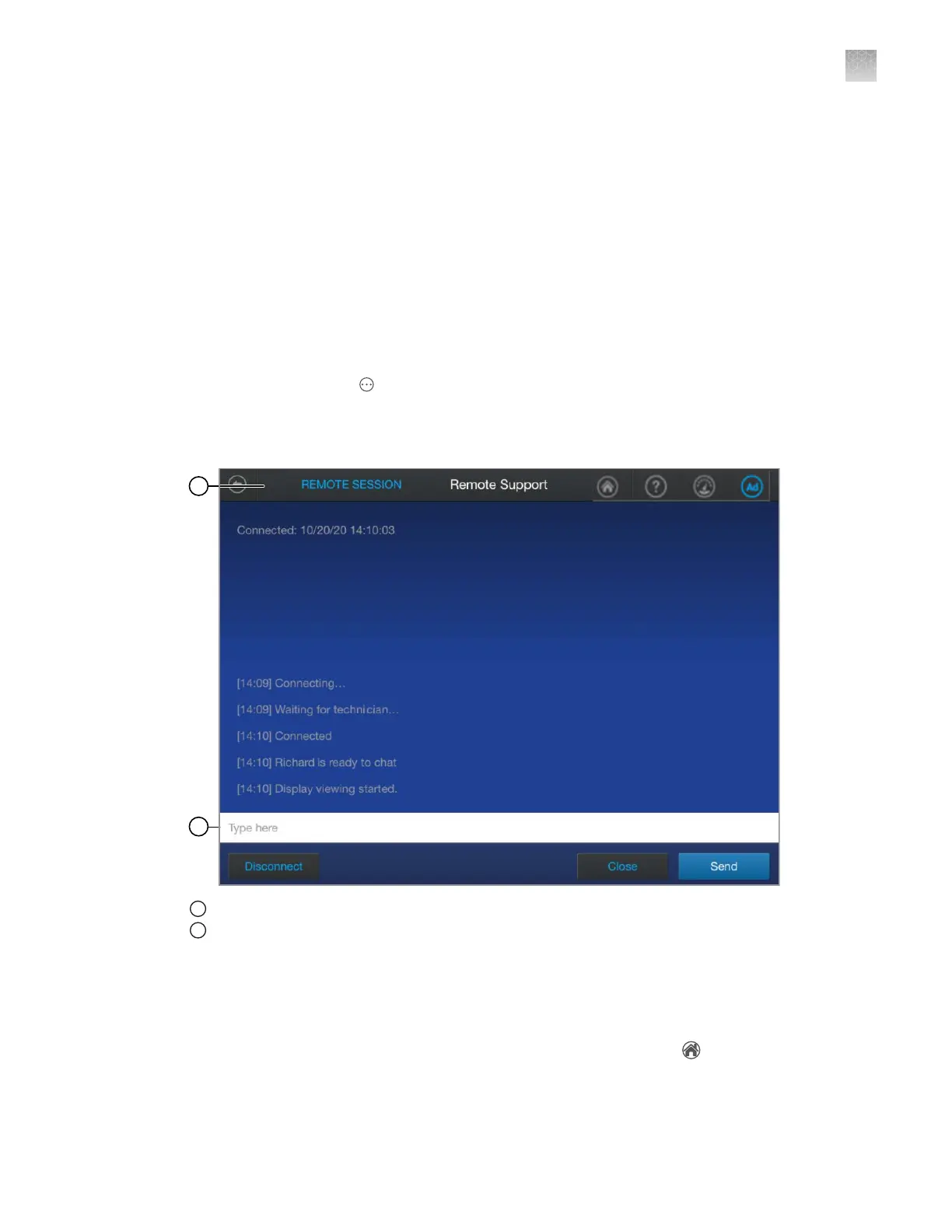
1
Remote Session indicat
es that a remote session is in progress
2
Text field
REMOTE SESSION is displayed at the t
op of the touchscreen when a successful connection is
established. A chat is displayed on the touchscreen.
4.
Tap the text field to type a message, then tap Send.
5.
(Optional) Navigate to another screen on the instrument by tapping the
(home) icon at the t
op
right of the screen.
REMOTE SESSION is displayed at the top of the touchscreen to indicate that the session is
active.
Appendix A T
roubleshooting
Start a remote support session
A
SeqStudio
™
Flex Series Genetic Analyzer with Instrument Software v1.0 User Guide
475













 To Next Page