You are prompted to accept the End User License Agreement (EULA). After you accept, the
software update begins.
4.
Power o, then power on the instrument. See “Power o or power on the instrument” on page 485.
Manage the network configur
ation (administrator only)
For information on connections, see “Connect the instrument to a computer or network (hardware
connections)” on page 439.
1.
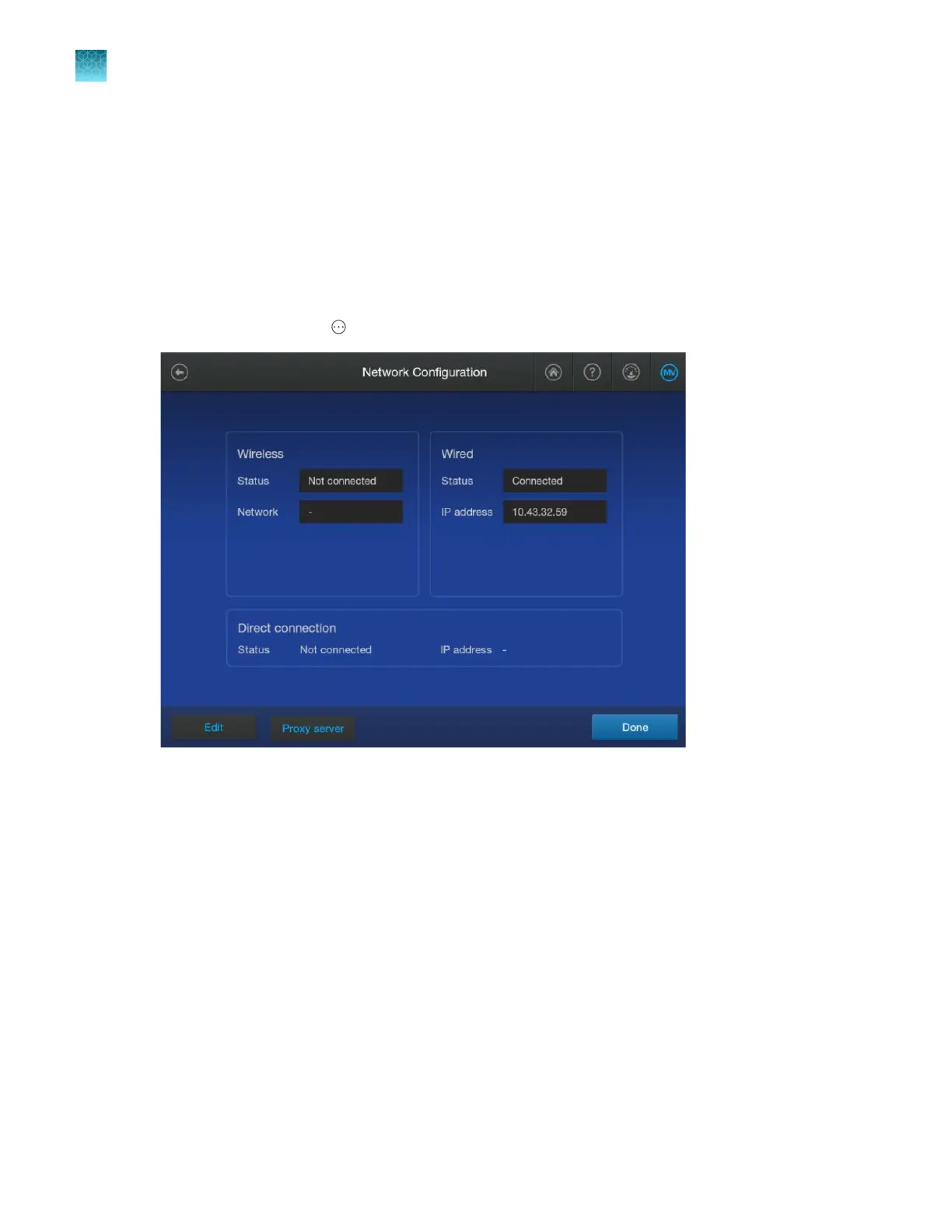
In the home screen, tap
Actions4 Settings4Instrument4Network configur
ation.
The IP address for the instrument is automatically displayed for all current connections.
2.
(W
ireless or Wired connections only) To edit default network settings, tap Edit, or tap one of the
network settings fields.
3.
(Wireless connections only) Edit the Wireless network settings.
a.
Select a network that was automatically detected by the instrument.
b.
Enter a password, if prompted.
c.
Click Join.
d.
Click OK when the authentication is completed.
4.
(Wired connections only) Edit the Wired network settings.
a.
Select DHCP or Static IP.
An IP address is automatically assigned if DHCP is selected.
Chapter 14 Manage the softwar
e (instrument)
Manage instrument settings
14
464
SeqStudio
™
Flex Series Genetic Analyzer with Instrument Software v1.0 User Guide













 To Next Page