7.
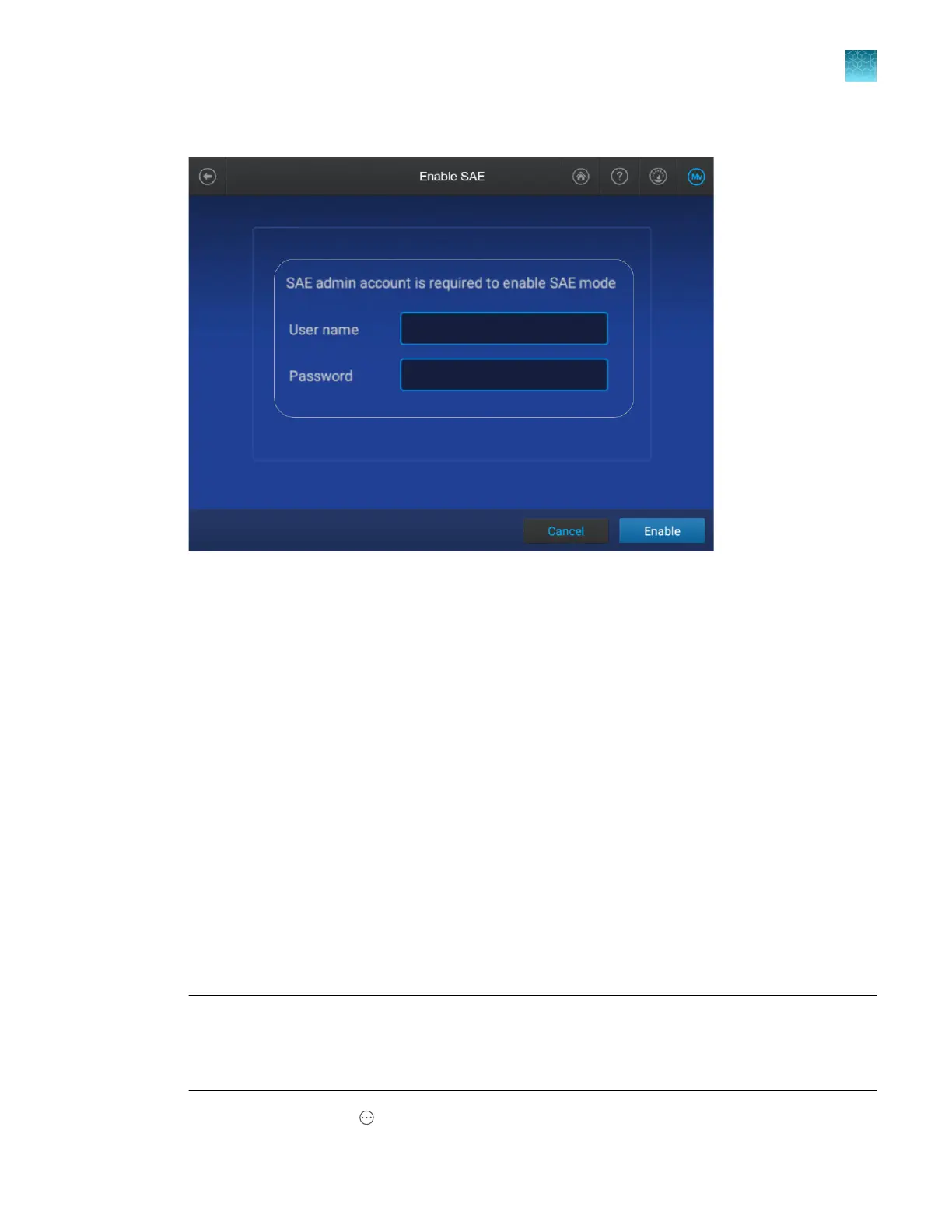
Enter your SAE administrator account user name and password, then tap Enable.
The instrument automatically restarts.
Enable and set up Demo mode
Demo mode allows you to use many features of the system and provides simulated real‑time data and
r
esults.
Changing the mode automatically restarts the instrument.
The following features are not available in Demo mode:
•
The following options in the Settings screen: Instrument, Consumable warnings, Barcode
reader, Power save, Connect platform
•
The following options in the Support screen: Smart Help, Remote support
•
Maintenance wizards
•
Link the instrument to Thermo Fisher
™
Connect
In addition, plate files, user profiles, and settings that you save in Demo mode are not retained.
1.
If you want to activate Thermo Fisher
™
Connect features in Demo mode, sign in to the instrument
with a cloud profile before you enable Demo mode. See “Sign in to the instrument with a cloud
profile” on page 222.
Note: Some Thermo Fisher
™
Connect functions may generate alerts. However, these functions are
executed correctly.
Examples: In the home screen, notification that the result was not saved to the Connect Platform.
In Remote Monitoring, notification that a re-inject command was not sent to the instrument.
2.
In the home scr
een, tap
Actions4 Settings4Demo mode.
Chapter 14 Manage the software (instrument)
Manage settings
14
SeqStudio
™
Flex Series Genetic Analyzer with Instrument Software v1.0 User Guide
457













 To Next Page