(continued)
Status icons
Description
Consumables
(or individual
consumable
name)
•
The flags are displayed only if consumables expired/exceeded limits and/or pre-expiry
warnings are enabled. For more information, see “Configure consumables usage and
warnings (administrator only)” on page 453.
•
If more than one consumable has an issue, Consumables is displayed.
•
If one consumable is aected, the consumable name is displayed in the alert, for example,
Polymer.
•
Tap the icon to display the Consumables Status screen. For more information, see “Check
consumables status” on page 66.
Maintenance The maintenance flag is displayed if any maintenance tasks are past due. Tap the icon to
display the Upcoming Maintenance screen. For more information, see “Review upcoming
maintenance” on page 64.
Exporting The exporting flag is displayed when results files are being sent to the save locations that are
specified in the plate file for a completed plate. Tap the icon to display the Background Export
Status screen. For more information, see “Configure, check status, and cancel background
exports and backups” on page 465.
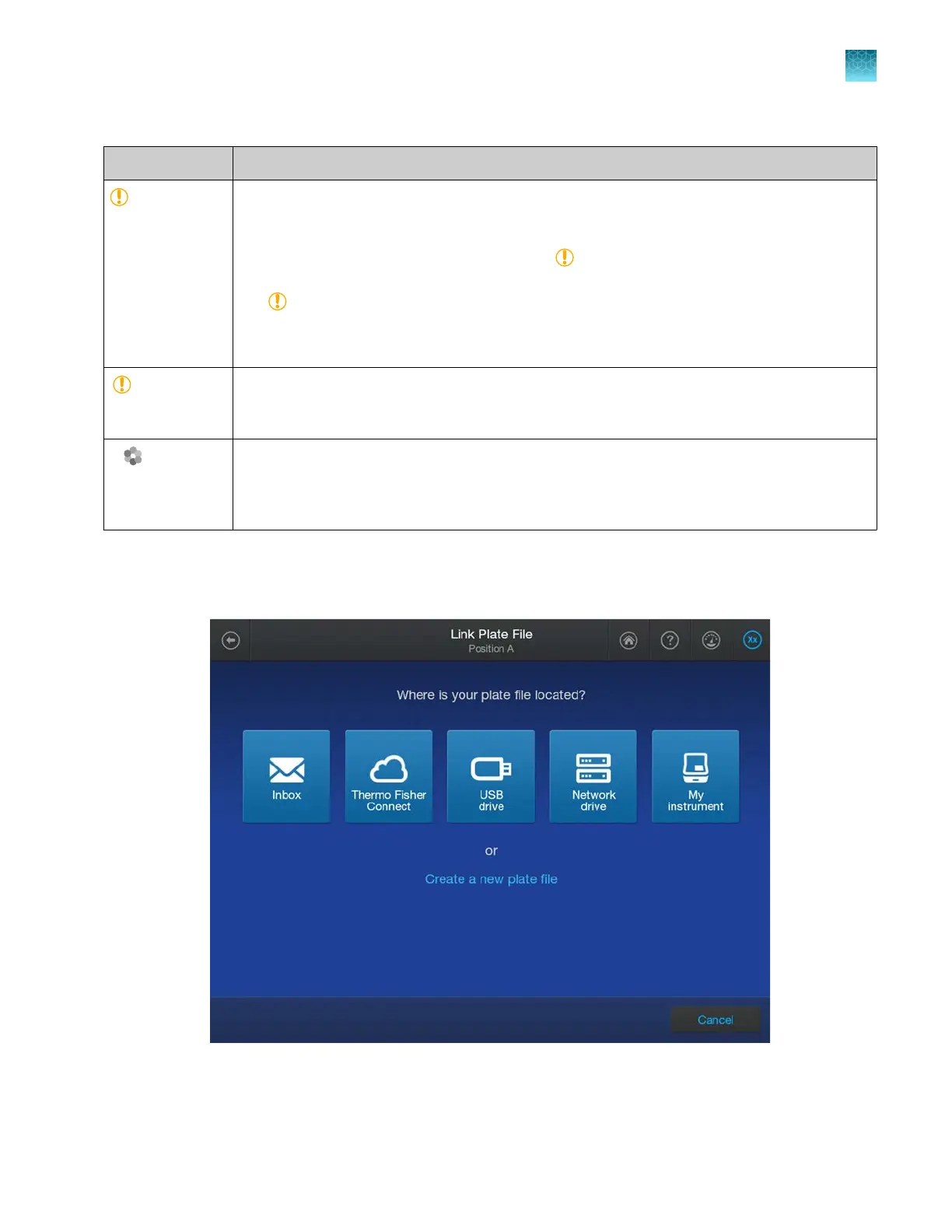
Parts of the Link Plate File screen
The Link Plate File screen allows you to select a plate file to associate with a physical plate.
Chapter 1 Product information
About the SeqStudio
™
Flex Series Instrument Software v1.0
1
SeqStudio
™
Flex Series Genetic Analyzer with Instrument Software v1.0 User Guide
41













 To Next Page