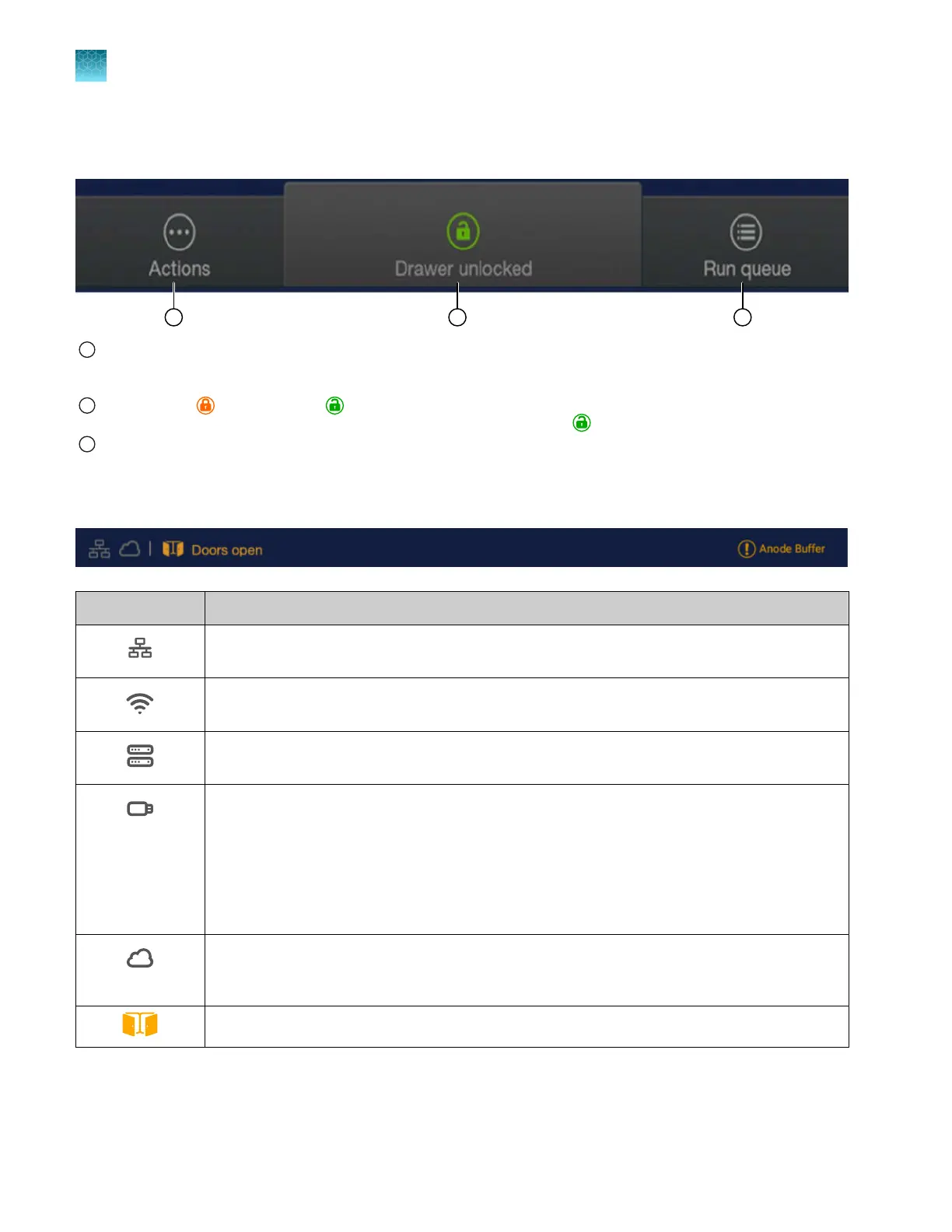
Actions, drawer status, and Run queue in the home screen
1
Actions—Displays a scr
een that allows access to most functions of the instrument: Creating plate files, libraries, maintenance
functions, run history, system and instrument settings, and other functions. All options on the Actions screen are described in
the following sections of this guide.
2
Drawer status— (Drawer locked), (Drawer unlocked), Dr
awer open. The drawer is locked when the instrument is
injecting samples from a plate. You can open the drawer whenever the status is
(Drawer unlocked).
3
Run queue—Displays the injection list wher
e you can view or change the injection order, add re-injections, cancel injections,
and access results for completed injections. See “Use the Run queue to monitor a run on the instrument” on page 160.
Instrument conditions in the home screen
Status icons
Description
The instrument is connected to a wired network.
The instrument is connected to a wireless network.
The instrument is connected to a network drive.
A USB drive is present in a USB port on the instrument.
IMPORTANT! Perform a virus scan on a USB drive before inserting it into a port on the
instrument.
Note: It can tak
e up to 15 seconds for the instrument to recognize a USB drive after the drive is
inserted in a USB port. exFAT-formatted USB drives are recommended.
The Thermo Fisher
™
Connect option is enabled in the softwar
e. This icon is displayed even if
the current user is not signed in with a cloud profile. For more information, see Chapter 9, “Use
the instrument with Thermo Fisher
™
Connect”.
The instrument doors are open.
Chapter 1 Product information
About the SeqStudio
™
Flex Series Instrument Software v1.0
1
40
SeqStudio
™
Flex Series Genetic Analyzer with Instrument Software v1.0 User Guide













 To Next Page