4.
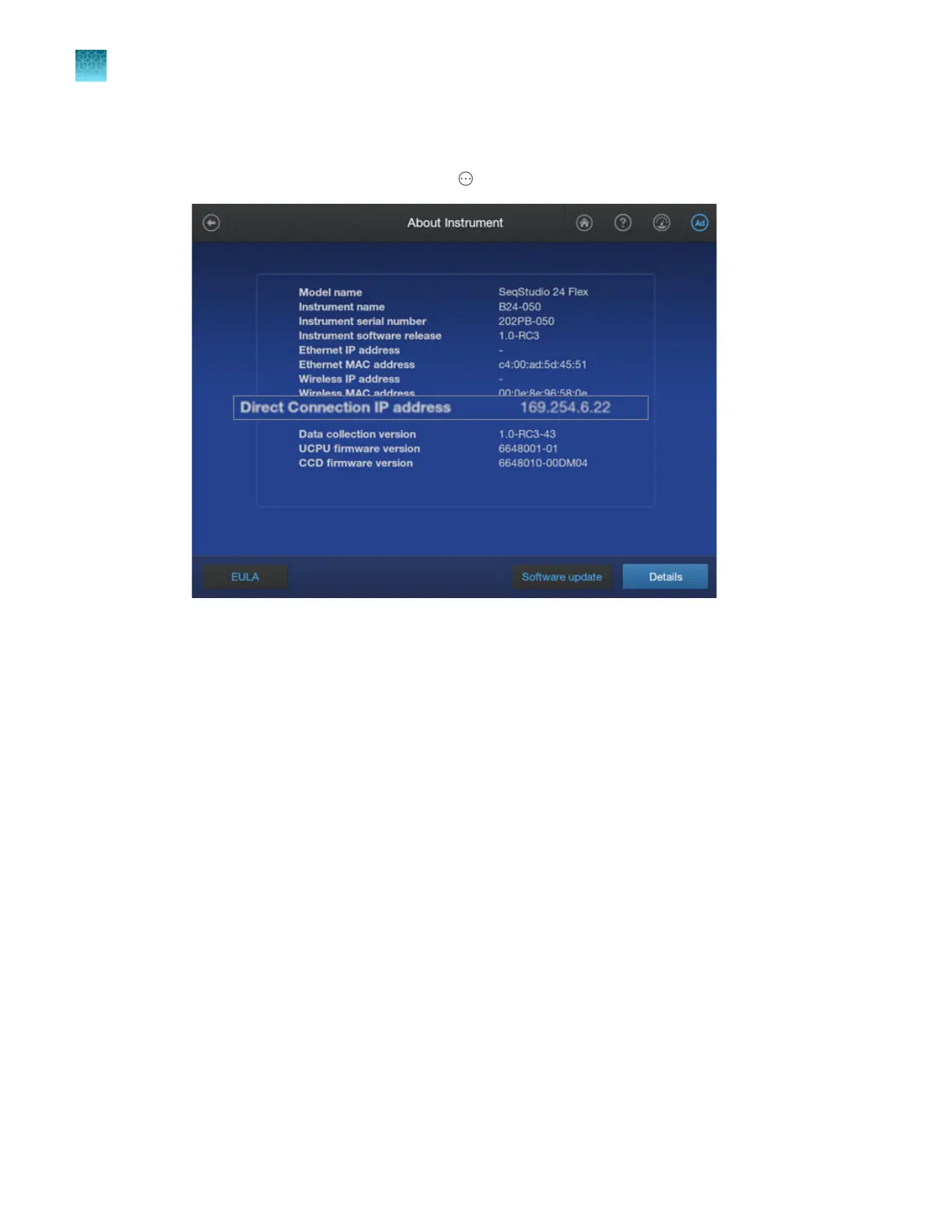
Wait a few minutes, then check the IP addresses on the instrument and the computer. Both the IP
addresses must start with '169'.
•
Instrument—In the home screen, tap 4Actions4Settings4About.
If the Direct Connection IP address field is blank or the IP address does not start with 169,
ensure that the cable is connected to the correct ports on the instrument and the computer.
If the cable is correctly connected and the IP addresses do not match, contact Technical
Support.
•
Computer—See “Determine the IP address for a computer on a network” on page 443.
5.
Verify the connection by doing any of the following:
•
Connect the instrument to a network drive (see “Connect the software to a network drive
(software settings)” on page 443).
•
If the Plate Manager software is installed on the computer, send a plate from Plate Manager to
the instrument (see “Send a plate file to the Inbox on the instrument” on page 126).
•
If the SAE Administrator Console is installed on the computer, enable SAE mode on
the instrument (see “Enable SAE mode on the instrument and specify the SAE server
(administrator only)” on page 240).
6.
If necessary, adjust the default network settings. See “Manage the network configuration
(administrator only)” on page 464.
Chapter 14 Manage the softwar
e (instrument)
Connect the instrument to a computer or network (hardware connections)
14
442
SeqStudio
™
Flex Series Genetic Analyzer with Instrument Software v1.0 User Guide













 To Next Page