1.
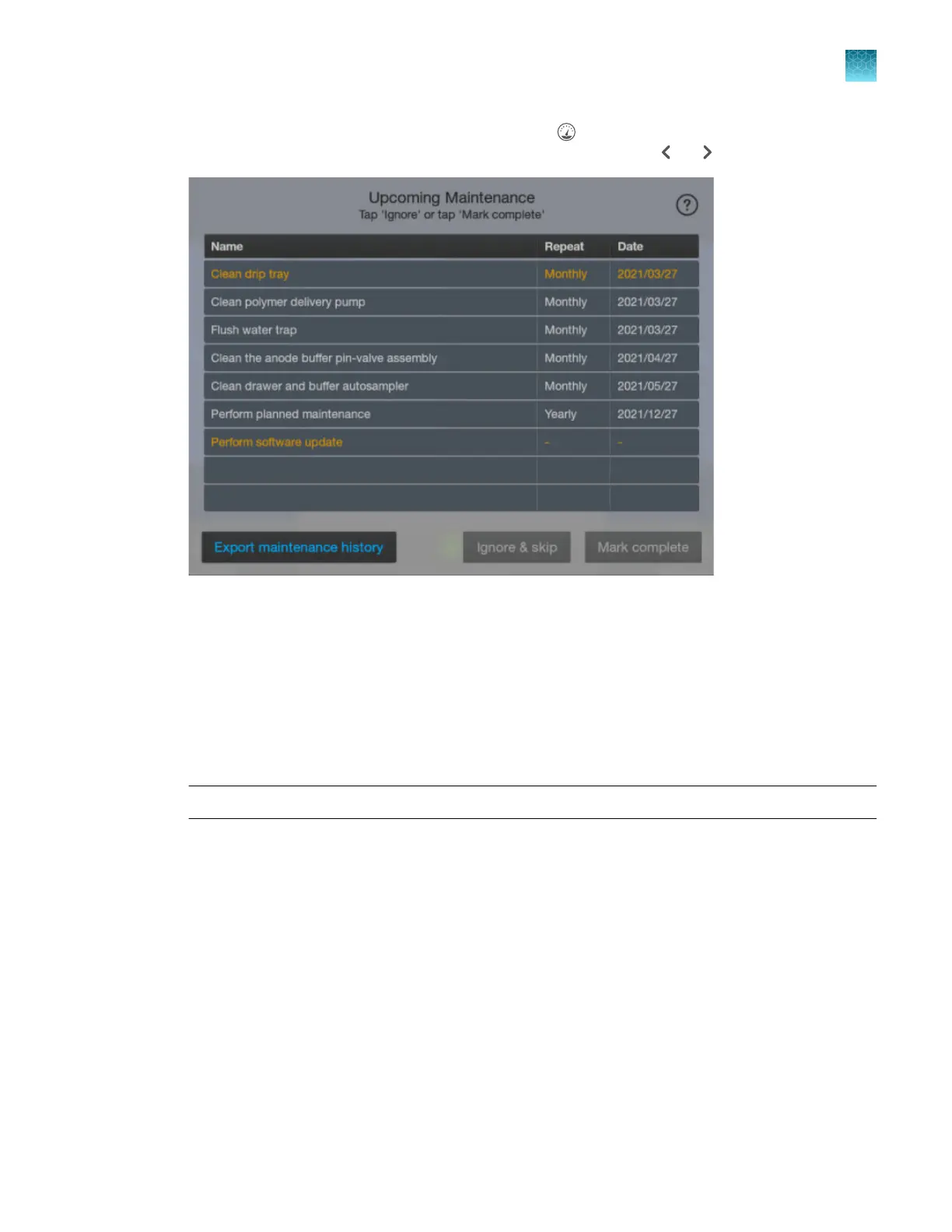
Display the upcoming maintenance tasks by tapping (Dashboard) at the top right of the home
screen. If the Upcoming Maintenance screen is not displayed, tap or .
Tasks are displayed. Note the following:
•
Overdue tasks are displayed in orange.
• The software update reminder is displayed only if a software update is available on Thermo
Fisher
™
Connect or on a USB drive. For more information, see “Update the software
(administrator only)” on page 462.
• The yearly planned maintenance task can be updated by a service representative only.
2.
Tap any of the following buttons as needed.
Note: Buttons are active only if you sign in to the software.
•
Ignor
e & skip—To acknowledge a task without marking it as complete.
•
Mark complete—To mark a task as complete. Marking as complete updates the due date
listed on the screen.
•
Export maintenance history—To generate a CSV file
(InstrumentName_Maintenance_History_Log_Date_Timestamp.csv) that lists all
skipped and completed events.
Chapter 2 Get star
ted
Prepare the instrument
2
SeqStudio
™
Flex Series Genetic Analyzer with Instrument Software v1.0 User Guide
65













 To Next Page