Screen element Description
icon Click in any screen to display the home screen.
Instrument type The instrument type determines the type of plate file you set up (SeqStudio Flex or
SeqStudio).
Click (Switch instrument) to switch between SeqStudio Flex and SeqStudio.
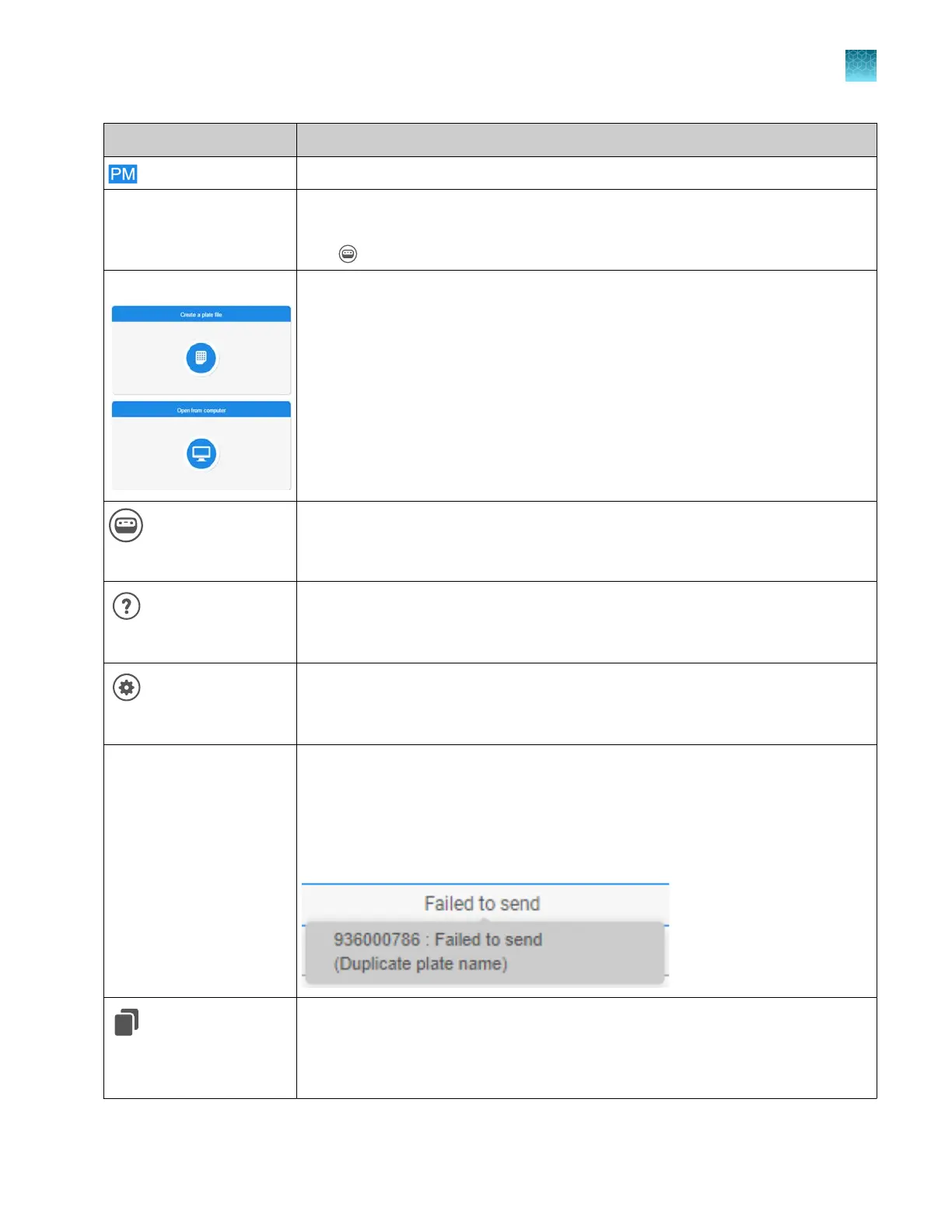
Create or open a plate file Allows you to do the following:
•
Create a new plate file.
•
Open a plate file (PSM file) that you created in the Plate Manager software or on
the instrument.
•
Open a plate file (CSV file) that you downloaded from the Plate Manager software
or created in a spreadsheet or text editor application.
(Switch instrument)
Switches the instrument type between SeqS
tudio
™
Flex and SeqStudio
™
.
The type of plate file you set up is determined by the instrument type that is selected.
Help
Opens the software help system.
(Settings)
Displays the selections for the default Save location for plat
e files, connecting the
Plate Manager software to an instrument, and accessing libraries.
Recent plate files list Lists the 10 most recently created or edited plate files and their status. The status
indicates if a plate file was sent to an instrument. New plate files are added to the
top of the list. The oldest plate file is automatically removed when a new plate file is
added.
If a Failed to send status is shown, place the cursor over the status to display the
reason for the failure.
(Copy & edit, in Recent
plat
e files list)
Makes a copy of the selected plate file with _Copy appended to the plate name.
Chapter 5 Create a plate file in the Plate Manager software
Get started with the Plate Manager software (desktop)
5
SeqStudio
™
Flex Series Genetic Analyzer with Instrument Software v1.0 User Guide
97













 To Next Page