Switch user or sign out
1.
Tap the profile icon for the signed-in user (for example,
). ( indicates no user is signed in.)
2.
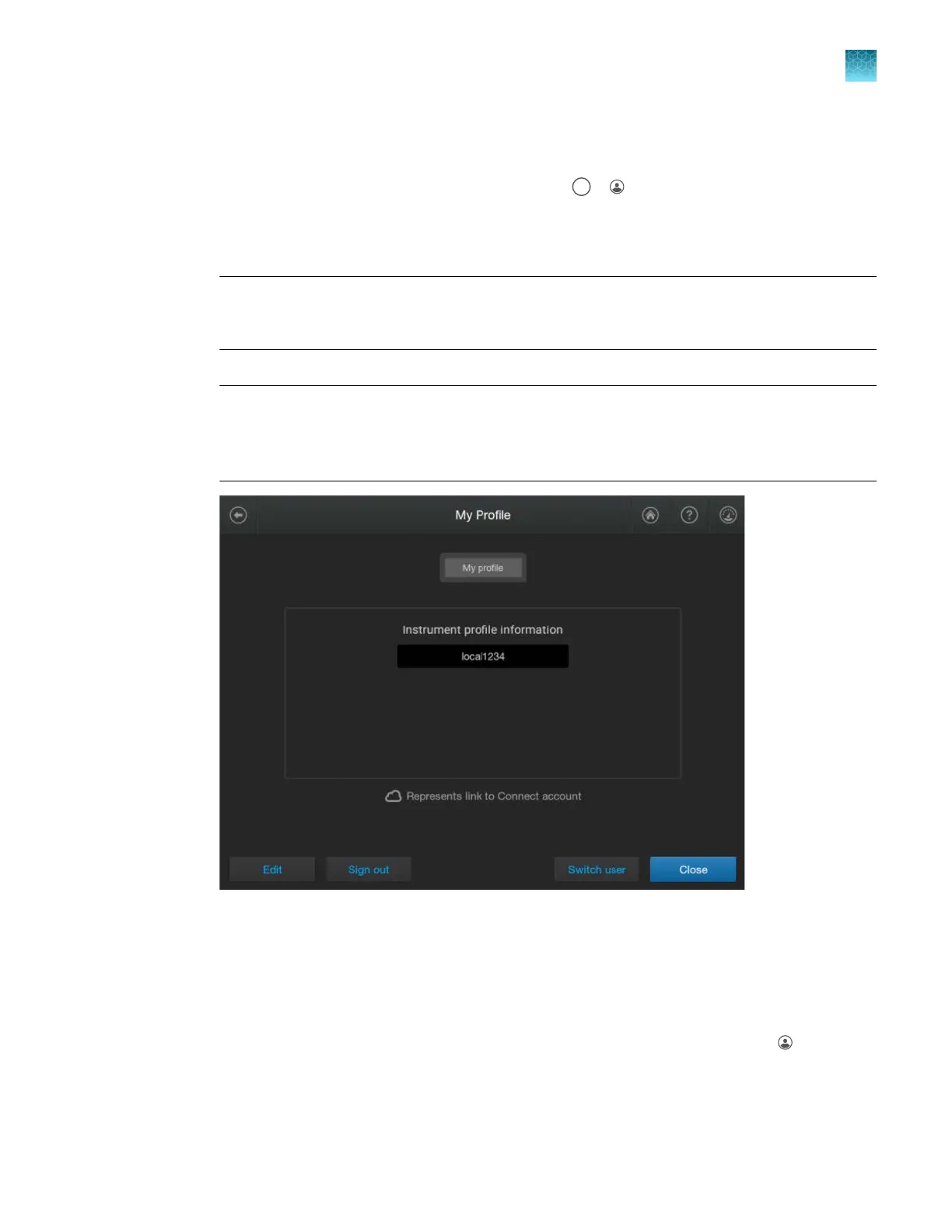
In the My Profile screen, tap either of the following buttons:
•
Switch user—Tap to sign in without signing the current user out.
Note: This option is not available if SAE mode is enabled. For more information, see
Chapter 10, “Use the instrument with the Security, Auditing, and E‑signature (SAE) v2.1
module”.
•
Sign out—T
ap to sign out.
Note: If SAE mode is enabled on the instrument, your system administrator may have set
the Automatic screen locking feature to automatically sign out after a specified time. For
information on the screen locking function, see SAE Administrator Console v2.1 User Guide
(Pub. No. MAN0017468).
3.
F
ollow the appropriate steps:
•
If you selected Switch user, select the profile to sign in with, then enter your PIN. The home
screen is displayed with your user initials.
For more information, see “Local profile and cloud profile: when to use, user name, and user
initials” on page 213.
•
If you selected Sign out, tap Yes to confirm. The home screen is displayed with
(P
rofile)
and no user is signed in.
Chapter 1 P
roduct information
About the SeqStudio
™
Flex Series Instrument Software v1.0
1
SeqStudio
™
Flex Series Genetic Analyzer with Instrument Software v1.0 User Guide
33













 To Next Page