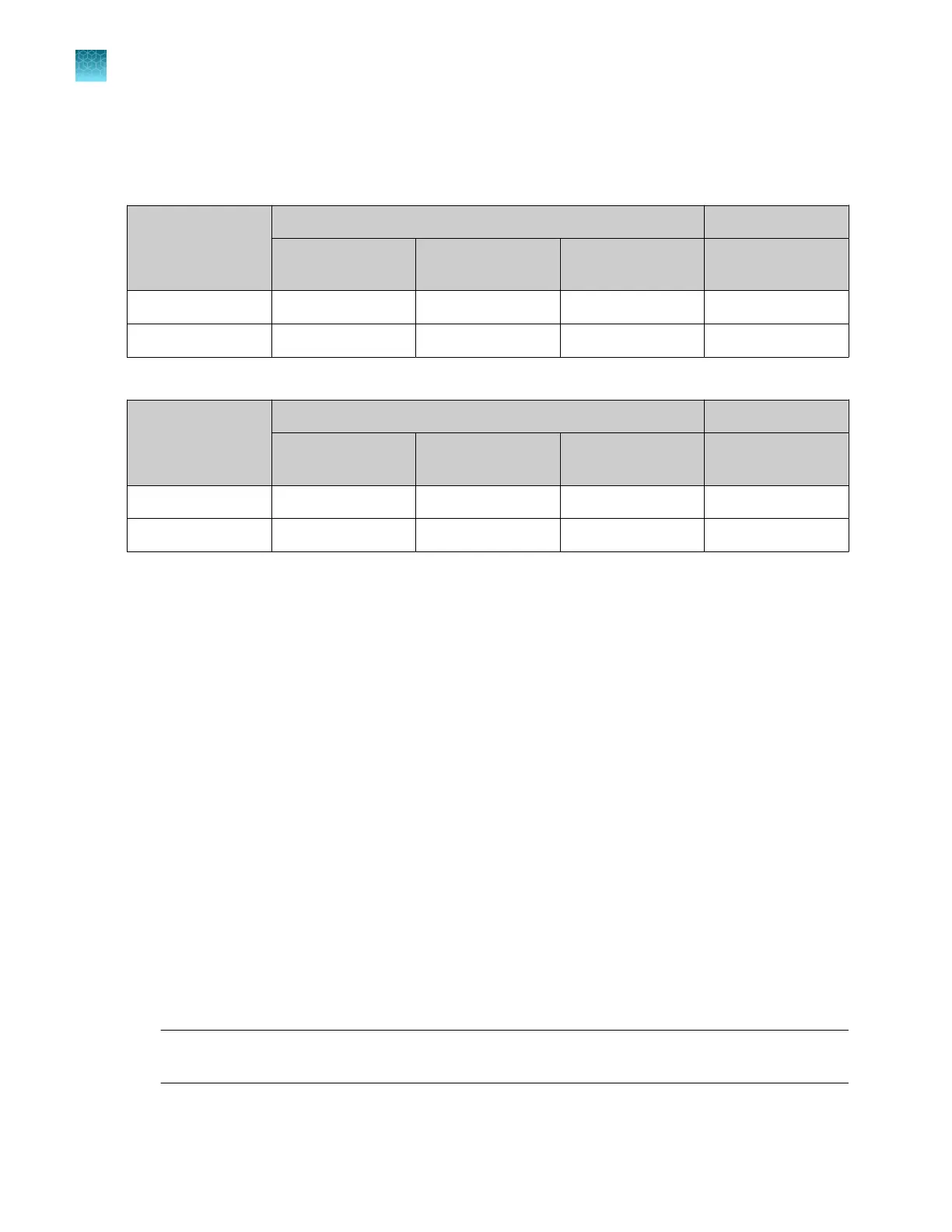
QV20 CRL limits—sequencing install run
Table 15 Sequencing Standards, BigDye
™
Terminator v1.1
Passing criteria
Instrument configuration
36-cm capillary
array POP-6
™
36-cm capillary
array POP-7
™
50-cm capillary
array POP-6
™
50-cm capillary
array POP-7
™
QV20 CRL 600 600 600 850
QV20 CRL (range) 20–619 20–619 20–619 20–869
Table 16 Sequencing Standards, BigDye
™
Terminator v3.1
Passing criteria
Instrument configuration
36-cm capillary
array POP-6
™
36-cm capillary
array POP-7
™
50-cm capillary
array POP-6
™
50-cm capillary
array POP-7
™
QV20 CRL 600 500 600 500
QV20 CRL (range) 40–639 40–539 40–639 40–539
View the spectral calibration generated by an install run
1.
In any install run screen, tap Actions.
2.
Tap View spectral calibration.
The spectral calibration plot is displayed.
For more information, see “View spectral calibration results” on page 317.
Export sequencing install run logs or report
1.
In the plot screen or the results per capillary screen, tap Actions.
2.
Tap the item to export:
•
Logs (ZIP)—Contains the install run report (PDF), data files (AB1), install run file (CID), and log
files.
Log file name format: InstrumentName_ChemistryType_RunDate_Timestamp.zip, for
example: Instrument1_BDTv3.1_20201021_121952.zip
•
Report (PDF)—Contains the results of the install run.
Report file name format: InstrumentName_ChemistryType_RunDate_Timestamp.pdf, for
example: Instrument1_BDTv3.1_20201021_121952.pdf
3.
Select the export location, then tap Next.
Note: It can take up to 15 seconds for the instrument to recognize a USB drive after the drive is
inserted in a USB port. exFAT-formatted USB drives are recommended.
Chapter 12 Run calibrations and install checks
Perform an install run
12
346
SeqStudio
™
Flex Series Genetic Analyzer with Instrument Software v1.0 User Guide













 To Next Page